

Table of Contents
By Nick Schäferhoff - Last update on
In this post, you’ll learn how to improve Largest Contentful Paint (LCP) on your WordPress site. LCP is one of the most important Core Web Vitals and crucial for your site’s user experience and SEO.
We’ll cover how to identify the LCP element on your web pages, understand the individual phases of the performance metric, and provide step-by-step LCP fixes for different page elements. We’ll also discuss common pitfalls and give you a before-and-after checklist for optimizing Largest Contentful Paint.
TL;DR
✅ Largest Contentful Paint (LCP) measures how long it takes for the largest image, text block, or video on a page to become visible. It’s one of Google’s Core Web Vitals. A good score is 2.5 seconds or less.
✅ To improve it, first identify your LCP element with PageSpeed Insights, GTmetrix, or Chrome Developer Tools. After that, check which of its four loading phases is slowing LCP down: Time to First Byte, Resource Load Delay, Resource Load Duration, or Element Render Delay.
✅ Beyond baseline improvements like quality hosting, caching, and a CDN, the specific fixes depend on the nature of your LCP element. Common improvements include reducing the size of LCP images and font files and prioritizing key resources in the loading process. Avoid mistakes like lazy loading the main image, using preload incorrectly, and leaving render-blocking CSS and JavaScript in place.
✅ Performance plugins can make improving LCP easier. For example, WP Rocket automatically optimizes critical images above the fold and helps with problematic CSS and JavaScript. The plugin also adds caching to your website and lets you connect it to a CDN like RocketCDN.
In a Nutshell: What is LCP and Why Does the LCP Element Matter?
Largest Contentful Paint (LCP) measures how long it takes for the largest image, text block, or video on a web page to become visible in visitor browsers.
This matters because the LCP element usually represents the most important content at the top of a page. Before it loads, there isn’t much to see. As a consequence, LCP greatly affects the perceived loading speed of a website.
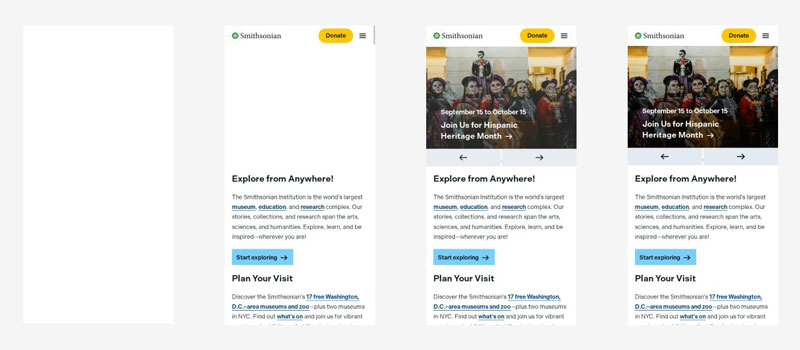
Along with the Cumulative Layout Shift (CLS) and Interaction to Next Paint (INP), Google uses LCP to judge the user experience on your website and rank your web pages. It makes up a full 25% of the PageSpeed Insights speed score. Consequently, when you improve it, your PSI score usually gets better overall. More importantly, improving LCP for real users helps your Core Web Vitals assessment, and with it your SEO.
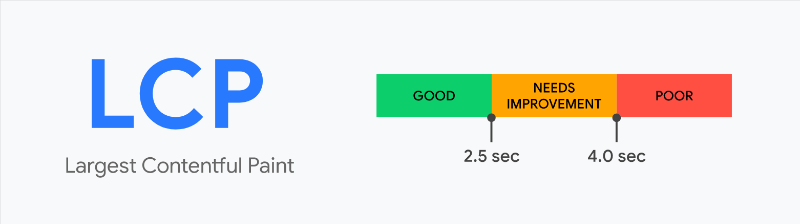
Google considers an LCP score of 2.5 seconds or less to be good. If LCP is between 2.5 and 4.0 seconds, the score “needs improvement.” Anything above 4.0 seconds is considered poor and may negatively impact your search rankings and user experience.
| ⚠️ Do not use lazy loading for the main image. Lazy loading can hurt LCP when applied to your page’s main element. |
How to Find the LCP Element (3 Ways)
The first step to improve Largest Contentful Paint is to identify the LCP element. All optimization efforts focus on making it load as quickly as possible and there are several tools you can use to find the element.
An important distinction here is the difference between lab and field data. Some performance testing tools measure website speed in controlled environments (lab data), while others track the performance experienced by real website visitors (field data). Some do both.
What’s important to know is that the results of lab and field data can differ. When you have a choice, always focus on improving field data. Lab data is great to give you information about potential improvements, but the goal is to improve the experience for actual users.
1. PageSpeed Insights (PSI)
PSI is Google’s performance testing tool. It’s based on Lighthouse and provides both lab and field data. The latter comes from the Chrome User Experience Report (CrUX) and is only available if you have enough traffic from people using the Chrome browser.
Identifying the LCP element in PageSpeed Insights is easy. After running your URL through it, you’ll find your LCP field and lab measurements under Core Web Vitals Assessment at the top (if available) and in the Performance section further below.
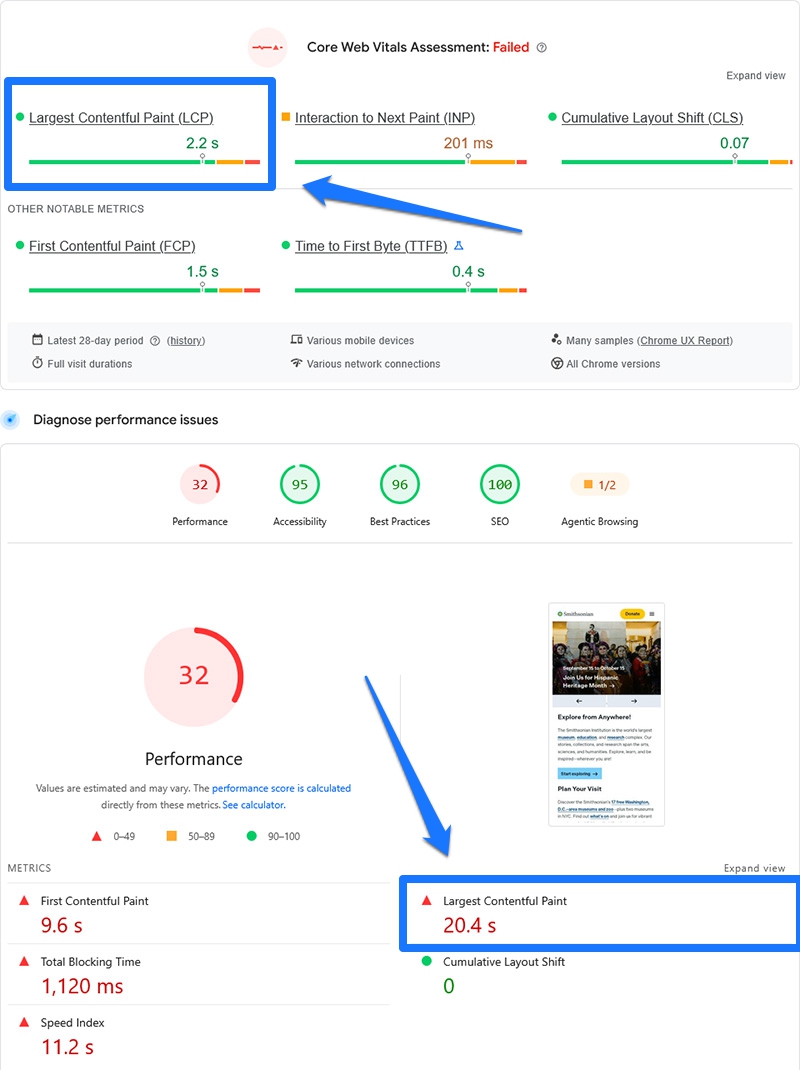
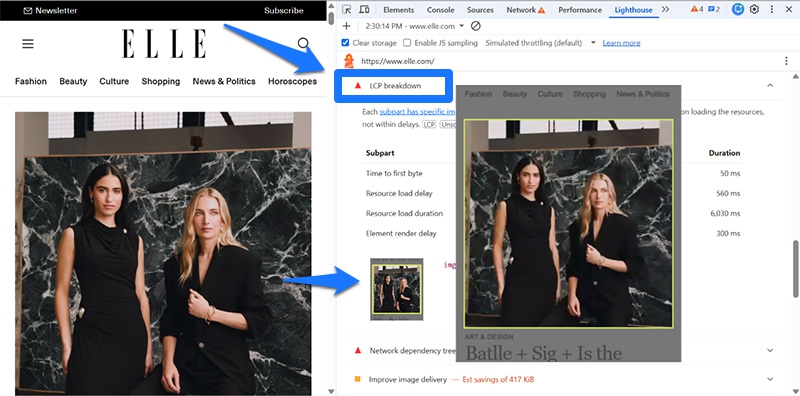
To find the page’s LCP element, scroll down to Insights and find LCP breakdown. When you open it, besides a breakdown of the LCP loading phases (more on that soon), you also find an image of the LCP element.
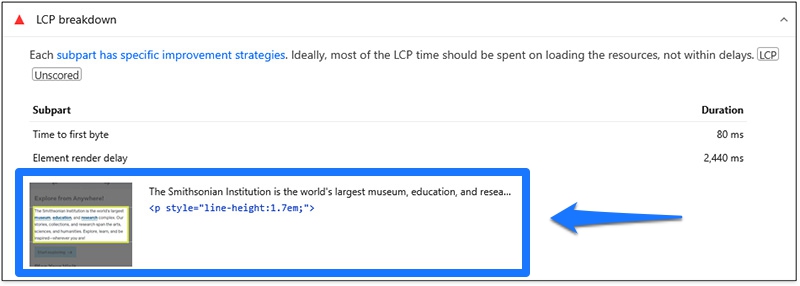
Click on it to see the element in the context of your page.
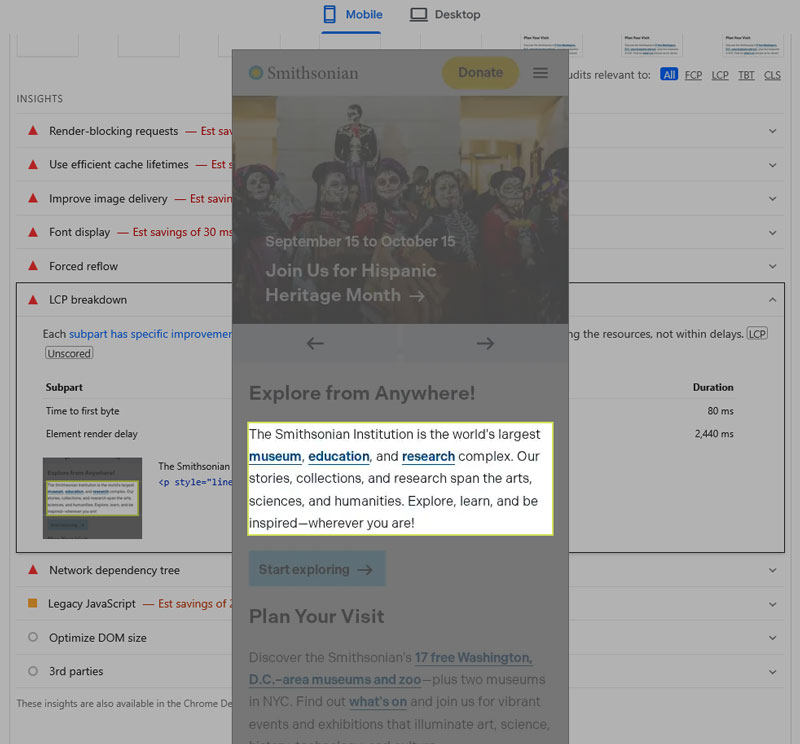
Be aware that the LCP element can be different for the mobile and desktop version of your site, so check the desktop analysis as well.

2. GTmetrix
GTmetrix gives you a lot of the same data as PSI, such as your LCP timing.
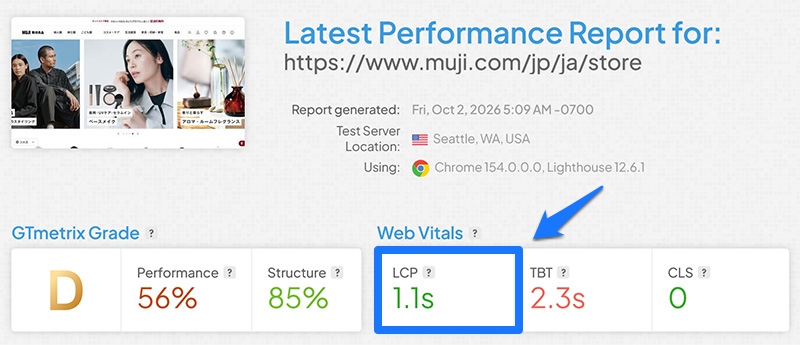
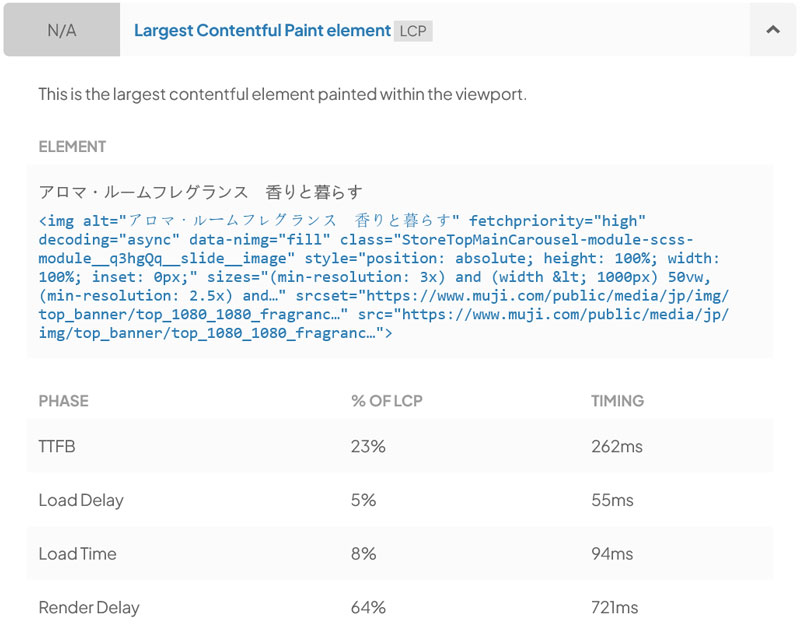
To find the LCP element, go to Structure, look for Largest Contentful Paint element, and click it. You’ll find the exact HTML element that’s the source of your LCP timing and its content.
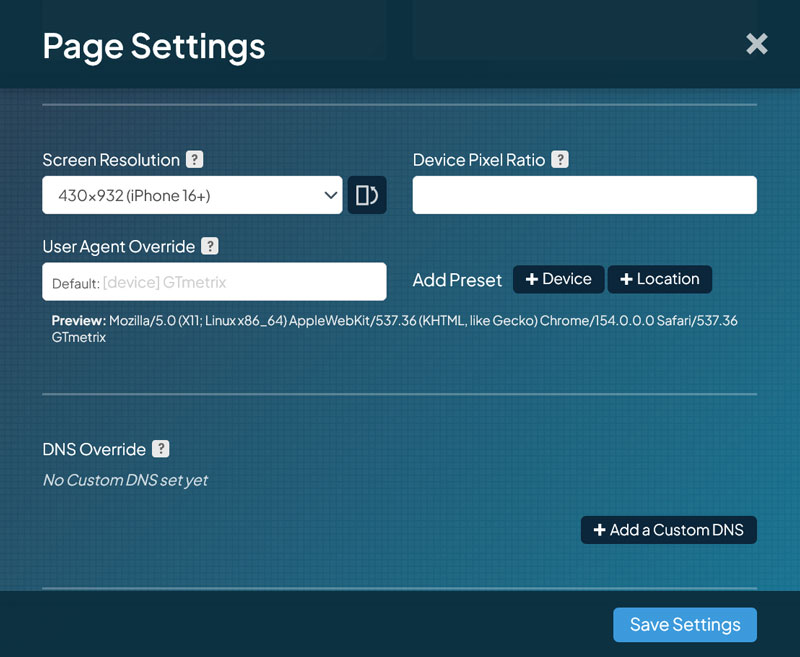
By default, GTmetrix runs its test at desktop resolution and with an unthrottled connection. To get data for mobile users, you need to change these parameters under Page Settings.
3. Chrome Browser Developer Tools
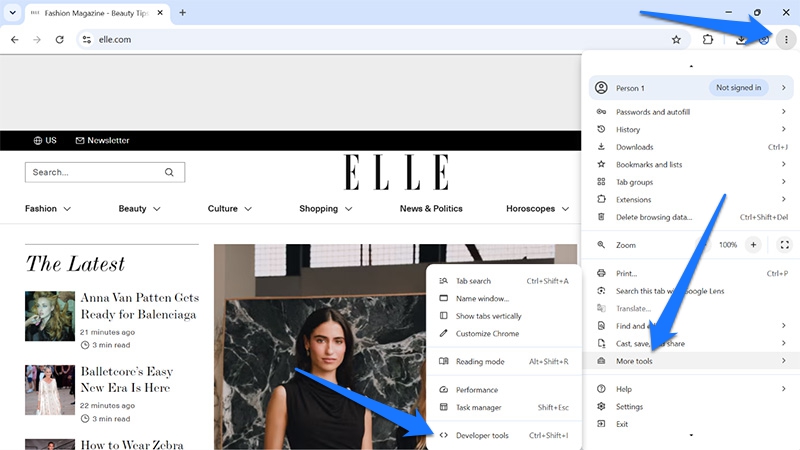
The Chrome browser gives you two ways to find the LCP element on a web page. Both start in the browser developer tools. While on the page you want to analyze, access them via the main menu, then More tools → Developer tools (or press Ctrl/Cmd+Shift+I).
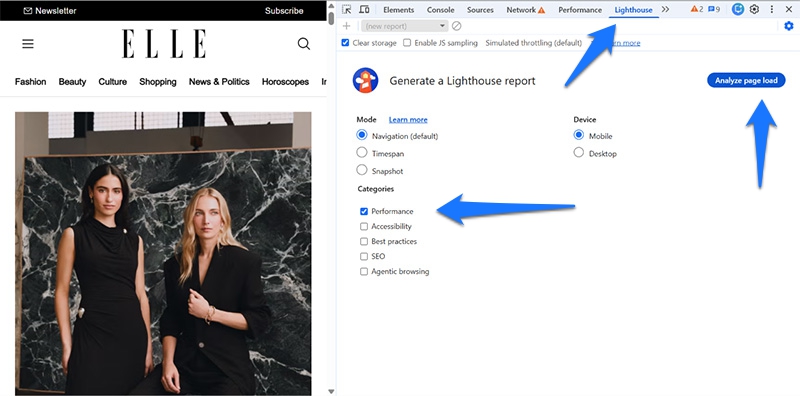
The easier way to find the LCP element is via the Lighthouse tab. Here, you can run the same report that PageSpeed Insights generates. Leave Mode as is, pick whether you want to create a desktop or mobile report, and make sure Performance is checked under Categories, then click Analyze page load.
Once finished, you’ll find the information under LCP breakdown as before.
Alternatively, switch over to the Performance tab and choose one of the Record and reload options to run a trace.
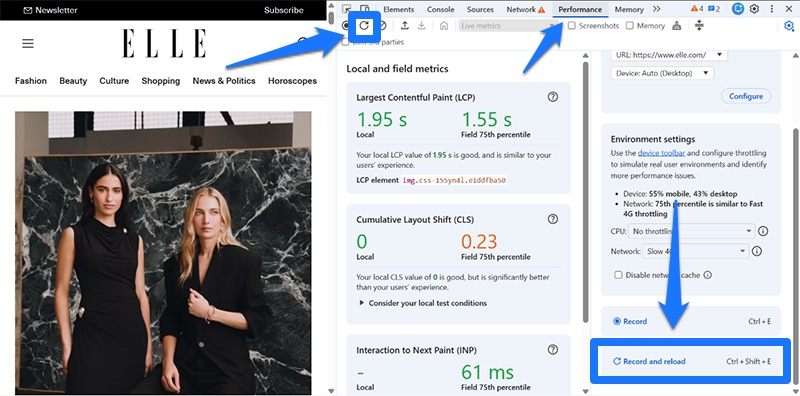
Once it’s done, find the LCP marker inside the timeline and click it. Summary at the bottom will give you additional information about your LCP element, such as its type, size, and the time it starts loading. Most importantly, it tells you what it is under Related node and highlights the element on the page when you hover over it.
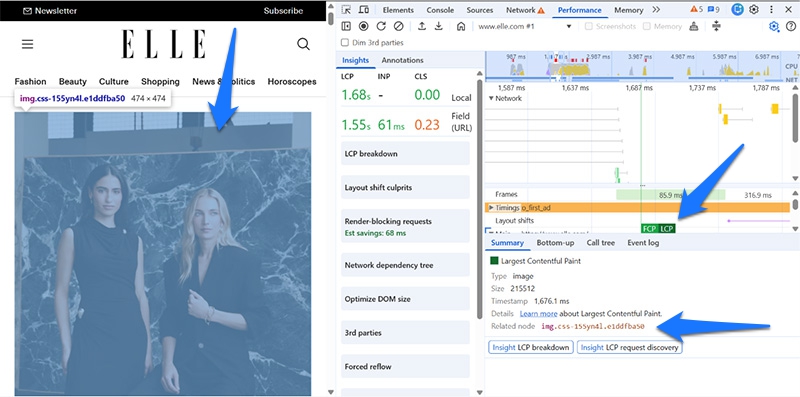
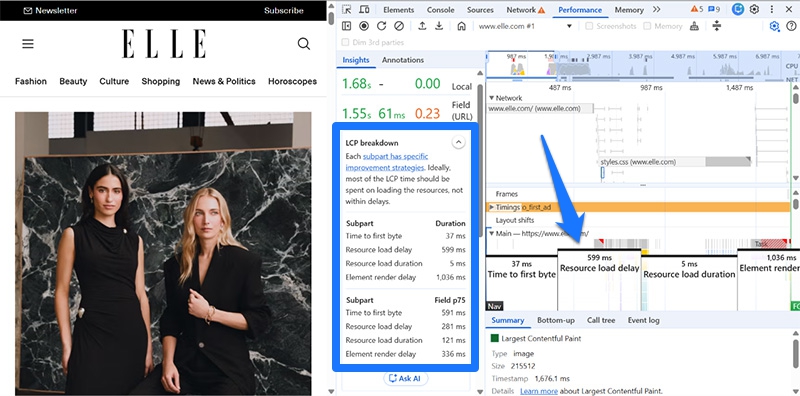
On the left, you’ll also find the LCP breakdown and LCP request discovery insights, which additionally show up in the timeline when you open them.
| 💡 You can track the performance of your most important pages, including LCP, from inside WordPress using Rocket Insights. |
The 4 Loading Phases of Largest Contentful Paint
LCP isn’t one monolithic metric but can be broken down into four subparts. You may have already seen them displayed in the aforementioned speed testing tools. Dividing LCP into loading phases allows you to take more targeted action in rendering the LCP element.
Note: We are providing target lengths for each phase below, but don’t get hung up on them. What matters most is that your overall LCP stays below 2.5s.
1. Time to First Byte (TTFB)
Time to First Byte measures how fast the server begins delivering the page’s HTML document after the browser requests it. Factors that affect TTFB include:
- Hosting quality and caching
- Server-side processing
- Redirects
- Whether your site uses a CDN
Ideally, this phase should make up about 40% of the entire LCP timing, so no more than one second (or 1,000 milliseconds).
2. Resource Load Delay
This subpart describes the waiting time before the browser discovers and starts loading the LCP element. This phase is mostly affected by:
- The element’s discoverability
- Its priority in the loading process
Google says you should shoot for a share of less than 10% (250ms) for this LCP subpart — as close to zero as possible. Ideally, your LCP element should start loading along with the first byte of the page.
3. Resource Load Duration
This LCP phase describes how long it takes to download the LCP resource. The main factors here are:
- The size of the LCP element file
- Browser caching (for repeat visits)
The browser should spend about 40% of its time on this phase.
4. Element Render Delay
The last subpart represents the time it takes for the browser to render the element on screen after downloading it. The primary reasons the LCP element wouldn’t be able to render immediately after it finishes loading:
- Other files keep the browser busy
- The element is hidden by some other code, such as an A/B testing library
Element Render Delay should be 250ms or less (or ≤10%) of the LCP timing.
LCP Fixes by Element Type
In the following, we’ll discuss how to fix issues for individual types of LCP elements.
General Performance Improvements
While some elements need specific optimization, there are a number of general performance improvements that benefit your site in general, LCP included. Consider these the baseline for a well-running website:
- Use quality hosting: Hosting directly impacts Time to First Byte (TTFB) and LCP. Avoid shared hosting, pick a server close to your audience, and keep PHP and other server software updated. If necessary, upgrade to better hardware or switch providers.
- Eliminate redirects: Redirects add extra steps to the loading process. You can find them using a redirect checker or a crawler like Sitebulb. Eliminate unnecessary redirects and reduce necessary ones to just one hop (e.g., avoid http → https → www).
- Make pages as lean as possible: Remove any page elements, plugins, and third-party code you don’t need, or look for lightweight alternatives. Additionally, implement compression and minification to reduce file size.
- Implement caching: Caching stores frequently needed data separately for quick access. Several types of caching exist. Implement page caching to reduce server work and browser caching for repeat visits.
- Use a CDN: A CDN stores copies of your website files on a network of servers around the globe. It allows visitors to receive data from the closest source, reducing latency. CDNs also often provide caching, text compression, and automatic image optimization.
| 💡 WP Rocket automatically implements caching (including a separate mobile cache), compression, and minification. It also helps you remove unused code from your pages and makes it easy to connect your site to a CDN, such as RocketCDN. |
Hero Images
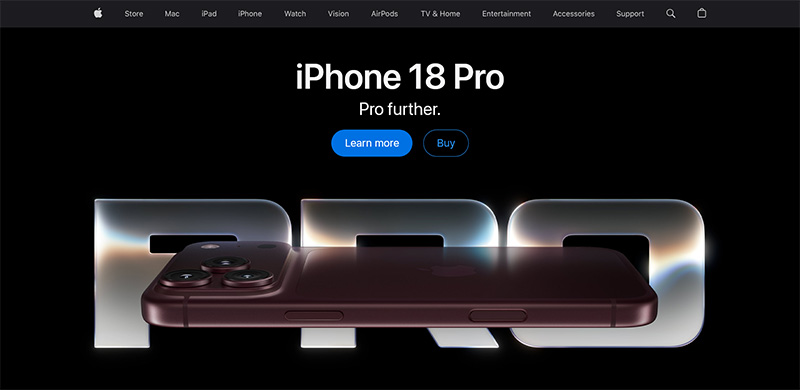
A large image appearing at the top of the page is a common web design element and frequently becomes the LCP element when present. If it’s flagged on your site, these are practical steps to keep it from delaying your LCP timing:
- Load the image in the HTML document: The HTML document is the first thing the browser receives. Loading your LCP image as an
<img>directly inside it prevents the browser from first having to download a JavaScript or CSS file to discover it. - Preload the image: If you can’t load it in the HTML document, link the image with
rel="preload"in the<head>section. This tells the browser to load it as early as possible, even before discovering it organically. Additionally, host the image on the same domain as your site to avoid the delay from opening a new connection. - Use
fetchpriority="high": Browsers consider images low priority by default, even if you preload them. Adding high fetchpriority tells them to favor the LCP image above other elements. WordPress Core now automatically usesfetchpriority="high"for the visual most likely to be the LCP element. You can also combine it withrel="preload". If that’s too technical for you, a performance plugin like WP Rocket does critical image optimization by default. - Optimize image: To reduce Resource Load Duration, make the image as small as possible. Use modern image formats (WebP, AVIF), size the image to the space it appears in, compress it, and provide different sizes for different screens (WordPress does this automatically).
PageSpeed Insights has a dedicated performance audit for images called improve image delivery.
| 💡 If you’re looking for a solution to optimize images and convert them to modern formats automatically or in bulk, check out Imagify. |
CSS Backgrounds

Background images inserted via CSS can also serve as the LCP element. Their biggest issue is discovery. By default, these images don’t appear in the HTML and only start loading after the browser discovers them in the stylesheet.
Therefore, the main priority is to alert the browser to its existence as quickly as possible:
- Preload the image in the
<head>section with high fetchpriority - Inline the CSS call for the image (e.g.
<div class="hero" style="background-image: url('/images/hero.avif');"></div>)
If the background image is loaded from another origin (e.g., a CDN), make sure to preconnect to it via rel="preconnect".
<link rel=”preconnect” href=”https://cdn.example.com” />
Aside from that, the same optimization techniques apply as for hero images to keep the file size small.
Text Blocks
While visuals are frequently the LCP element, text can also be the part of the page that keeps it from loading, such as prominent headings.

The most common reason for slow loading LCP text is custom fonts, whose files need to be downloaded and applied. Unoptimized, this can lead to a break in the loading process, a “Flash of Unstyled Text” (FOUT) or “Flash of Invisible Text” (FOIT), and even worsening Cumulative Layout Shift (CLS).
If that’s the case on your site:
- Minimize use of custom fonts: What isn’t there doesn’t have to load. Opt for system fonts or web safe fonts instead.
- Load font files early: Inline
@font-facein the<head>section, preload font files of text that appears above the fold. - Host fonts locally: This reduces HTTP requests and eliminates the need for downloading another file. Alternatively, use a CDN and preload them.
- Reduce file size: Serve modern, compressed font formats (like WOFF2). Limit variants (e.g., only regular and bold) and subsets to reduce the number and size of font files.
- Set font-display to “swap”: This happens in CSS and makes sure that text shows up with a fallback font immediately and switches to the web font when it’s ready.
Also see the section on render-blocking resources below, which are often the biggest factor for text LCP.
| 💡 WP Rocket automatically optimizes the loading process for Google Fonts and adds font-display=swap. It’s also able to self-host Google Fonts with one click. |
Sliders

Sliders combine several problems: Their images are frequently set as CSS backgrounds and the first slide often isn’t visible until JavaScript has run.
To improve that:
- Reduce scripts and custom code: Since sliders need JavaScript, it should have minimal competition. Remove or defer non-critical third-party resources and optimize custom code.
- Treat the first slide image like a regular LCP image: If possible, use an
<img>in the HTML, not a CSS background, and addfetchpriority="high". If a CSS background is inevitable, preload the first slide’s image in the<head>section. Optimize images as usual. - Lazy-load all other slides: The second slide and onward should use
loading="lazy"or the slider’s own lazy-load option. Otherwise, they compete with the first image for bandwidth. You can also set fetchpriority to low for those images.
For the best results, consider replacing the slideshow with a static image. It’s usually the more performant solution.
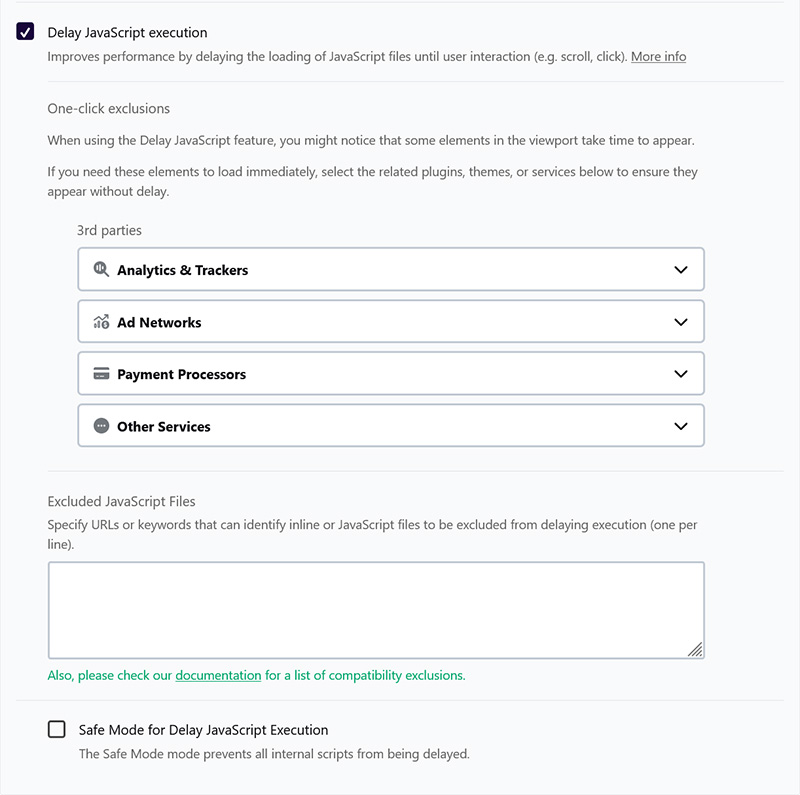
If you’re using WP Rocket, make sure to exclude your slider script from being delayed.
Video Posters

The poster is the image that’s displayed for a video before it starts playing. You can set it in the HTML:
<video poster="/images/hero-poster.webp" autoplay muted loop playsinline>
  <source src="/videos/hero.mp4" type="video/mp4">
</video>
Posters usually render before the video, shortening LCP in comparison to waiting for the first frame. But only if you optimize the poster, which works similarly to an LCP image:
- Always set a poster: Without one, LCP depends on video delivery. A lightweight still image is almost always faster than waiting for a video to start playing.
- Optimize the image and its delivery: Shrink the image as described and preload it along with
fetchpriority="high".
| 💡 WP Rocket allows you to automatically replace embedded YouTube videos with a preview image when lazy loaded. |
Common LCP Optimization Mistakes in WordPress
Let’s go over three errors people often commit when trying to optimize LCP.
Lazy Loading the Main Image
Lazy loading is generally an effective way to speed up web pages with images. However, in the case of the LCP image, it has the opposite effect: it delays the most important visual on the page. Therefore, it’s imperative that you exclude your LCP image.
This matters especially with JavaScript-based lazy loading, because the image can’t start downloading until the script has run.
WordPress Core adds loading="lazy" to images by default, skipping the first three and adding fetchpriority="high" to the most likely LCP image on the page. Yet, the approach isn’t foolproof, so verify it works as intended.
PageSpeed Insights has a specific audit that flags a lazy-loaded LCP image. It’s part of the LCP request discovery insight.
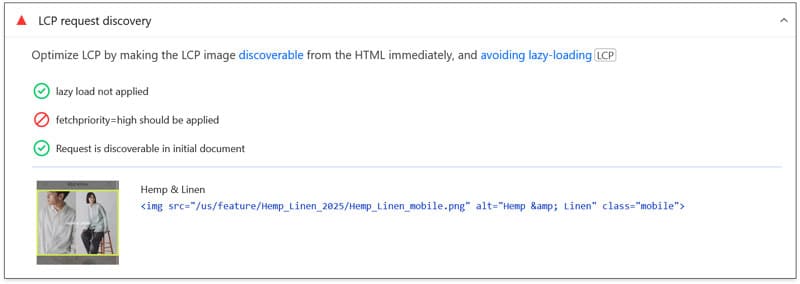
Additionally, the LCP element often differs for mobile and desktop visitors, so an image that’s excluded on desktop can still be lazy-loaded as the mobile LCP. You can verify whether that’s the case by checking both PSI reports.
| 💡 Besides automatically preloading the LCP image with high fetchpriority, WP Rocket excludes it along with all other above-the-fold visuals from lazy loading. |
Incorrect Use of rel=”preload”
Preloading is a powerful feature to alert the browser to important files. However, don’t make the mistake of using it indiscriminately or you’ll dilute its effect. Preloaded files compete for bandwidth with each other and with render-blocking resources, so too many of them can slow the LCP down.
Reserve preload for the actual main LCP element and only if the browser can’t discover it quickly on its own. It makes sense for font calls hidden in CSS files, but not image files directly in the HTML document. Place the call with the attribute in the <head> section of your website and use the correct as= value (as="image" for images, as="font" for fonts, etc.).
When preloading images, include variants in the call so the browser can pick the appropriate size for the device:
<link rel="preload" as="image"
      imagesrcset="hero-800.avif 800w, hero-1600.avif 1600w"
      imagesizes="100vw">
For CSS background images that change at breakpoints, use one preload per variant, with a media attribute matching your CSS media queries:
<link rel=”preload” as=”image” href=”hero-mobile.avif” media=”(max-width: 767px)”>
<link rel=”preload” as=”image” href=”hero-desktop.avif” media=”(min-width: 768px)”>
Web.dev has a detailed article on this topic.
When you preload fonts, always include crossorigin to avoid downloading them twice:
<link rel=”preload” href=”/fonts/brand.woff2″ as=”font” type=”font/woff2″ crossorigin>
Finally, check for preloads left over from your theme, other plugins, or page builders by auditing the <head> for all rel="preload" tags.
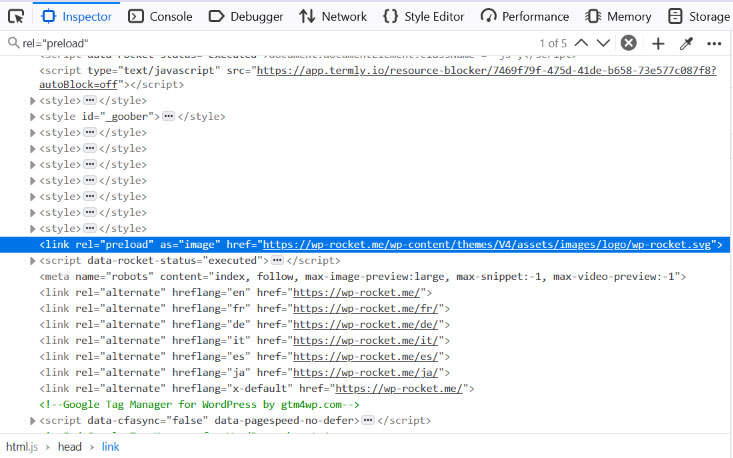
| 💡 WP Rocket automatically preloads images and you can enable it for fonts above the fold in the Media menu as well. The plugin handles both separately for the mobile and desktop versions of your site. |
Render-Blocking CSS and JavaScript
Resources that block the page from rendering are among the most common and impactful factors that cause a slow LCP. It’s the reason PageSpeed Insights has a specific performance audit for them.
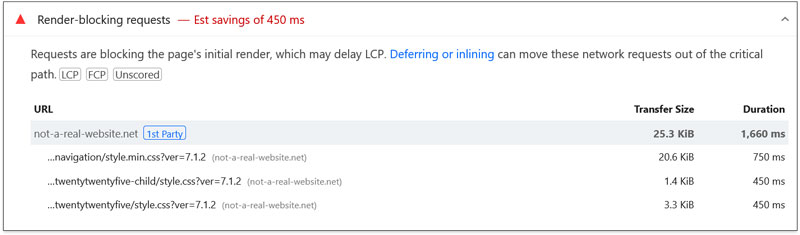
The render-blocking requests insight flags files and markup that prevent more important content from being displayed. Typical culprits are theme, plugin, and page builder CSS loaded on every page, scripts loading early, or CSS @import chains.
Solutions:
- Remove unused CSS and JavaScript files entirely
- Split CSS files into critical CSS (for above-the-fold) and the rest (loaded later).
- Inline critical CSS and small, vital JavaScript functions
- Move non-essential JavaScript to the bottom of the page or load it asynchronously
- Improve JavaScript performance and delay its execution to when users interact with the page
- Break up long JavaScript tasks (longer than 50ms) that block the main thread
- Preconnect/dns-prefetch third-party resources
Caveat: Avoid delaying JavaScript that the LCP element depends on (such as slider scripts) or scripts that other code needs to run (like jQuery).
| 💡 WP Rocket allows you to remove unused CSS, defer and delay JavaScript, and preload external files and fonts by checking a few boxes. |
LCP Optimization in WordPress: Before-and-After Checklist
Finally, here is a quick checklist for how to approach optimizing LCP on your WordPress site systematically.
Before: Establish Your Benchmarks
- Record field data from the Core Web Vitals report in Google Search Console and PageSpeed Insights.
- Run lab tests on your key page types, such as homepage, blog posts, product or landing pages.
- For each page, note the LCP element and the four subparts (TTFB, load delay, load duration, render delay).
- Test mobile and desktop separately, since the LCP element and scores often differ.
- Back up the site, or set up a staging copy, before making changes.
After: Verify the Results
- Clear all caches (plugin, server, CDN) before testing, so you’re measuring the new site version.
- Rerun the exact same tests as before, under the same conditions. Check whether the subpart you targeted actually shrank, not just the overall score.
- Confirm the LCP element hasn’t changed, since optimizations can shift it.
- Check that other metrics didn’t get worse, especially CLS (from font swaps or asynchronous loading) and INP (from delayed JavaScript).
- Re-test field data after several weeks.
Cleanup
- Revert changes that produced no measurable improvement. They add complexity without benefit.
- Remove preloads that didn’t help or no longer match the LCP resource.
- Document what you changed and why, so future you (or a developer) knows what’s intentional.
- Set up ongoing monitoring, for example regular checks in Search Console or a monitoring tool, so regressions get caught early.
FAQ
What is Largest Contentful Paint?
Largest Contentful Paint (LCP) is one of Google’s three Core Web Vitals. It measures how long it takes for the largest visible element in the viewport, usually a hero image, heading, or video poster, to render. This element is typically the page’s main content and reflects how fast visitors perceive your page to load.
What is a good LCP score?
A good LCP is 2.5 seconds or less. Between 2.5 and 4 seconds needs improvement, and anything above 4 seconds is poor. If you have both lab and field data available, focus on the field data LCP score.
How do I find the LCP element in WordPress?
Run your page through PageSpeed Insights and open the LCP breakdown insight. It shows the element and its subparts. GTmetrix and Chrome Developer Tools’ Performance panel work too. Test mobile and desktop separately, and check each important page, since the LCP element often differs between devices and pages.
Should I preload my LCP image?
Only if the browser can’t discover it early. A regular <img> in your HTML is found immediately, so fetchpriority="high" is usually the better choice. Preload helps when the image is hidden in CSS, set as a video poster, or inserted by JavaScript.
Can lazy loading hurt Largest Contentful Paint?
Yes. Lazy loading tells the browser to postpone loading an image, which is the opposite of what your LCP visual needs. It increases Resource Load Delay and can add seconds to your LCP. Keep lazy loading for images further down the page, but exclude above-the-fold content.
Start Improving LCP on Your WordPress Site Now
Optimizing Largest Contentful Paint can seem technical at first, but it becomes much more manageable once you break it down. In the end, every LCP problem relates to one element and four subparts, so you’ll know exactly where to focus.
If you want to take much of this work off your plate, WP Rocket implements most LCP optimization techniques either by default or with a few clicks. It also offers many other features to speed up your WordPress site. Try WP Rocket free for 14 days or buy it now backed by our 14-day money back guarantee!