

Table of Contents
The Document Object Model (DOM) is a programmatic map of a web page’s structure. When it gets very large and complex, the DOM can negatively impact website performance. That’s why Google introduced the Optimize DOM Size insight in its speed testing tools.
To help you use it to improve your website, this tutorial explains what the DOM is, how it affects website loading speed, what Google’s DOM size insight measures, and how to check your site for DOM-related issues. In the second half, we’ll explain what you can do to optimize your site’s DOM size, manually and viaa WordPress plugin.
| TL;DR In a hurry? Here are the essentials you should know: ✅ Google’s Optimize DOM Size Insight warns you when your page’s DOM is large or complex enough to risk performance problems. You can measure it using PageSpeed Insights or the Performance tools in Chrome Developer Tools. ✅ The only way to truly fix the warning is to shrink and flatten your DOM. You do that by removing unnecessary elements and simplifying nested structures. You can also mitigate the effect of a large DOM by avoiding overly complex CSS selectors, reducing scripts that bloat the DOM, and using infinite scroll or lazy loading. ✅ WordPress users can ease DOM-related performance issues with WP Rocket. It offers lazy rendering, lazy loading for images and embedded media, unused CSS removal, JavaScript optimization, font self-hosting, caching, and built-in performance monitoring. |
What is the Optimize DOM Size Google Insight?
As a first step, let’s settle on some important definitions.
What is the DOM?
As mentioned in the introduction, DOM stands for “Document Object Model”. It’s a way to map the structure of a web page. It contains all HTML elements, such as headings, paragraphs, or the <body> tag, as well as their properties and ways to manipulate them.
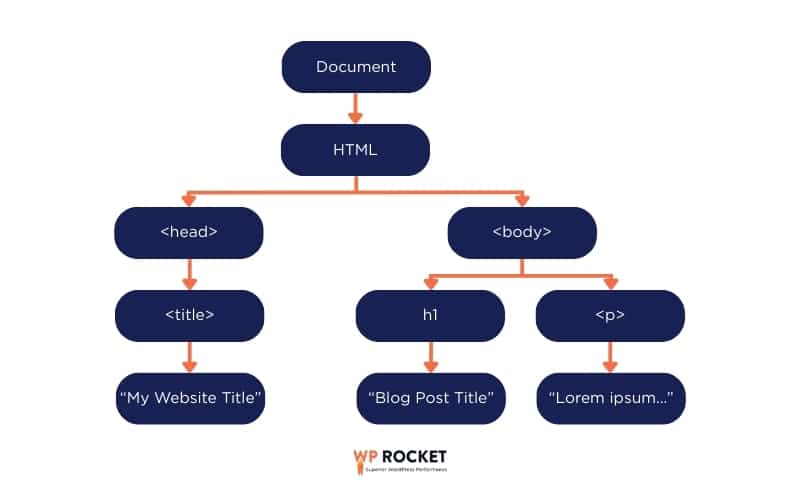
As you can see in the image above, the DOM looks like an inverted tree. The ends of the branches are called “nodes.” Different kinds of nodes exist, such as element nodes (HTML tags), text nodes (including whitespace and line breaks), or comment nodes.
<!-- comment node -->

<h2>This is a text node</h2>
Why does this matter?
Because Google’s tools that deal with DOM size count page nodes, not just HTML elements, so knowing the difference helps you understand the results better.
How Does DOM Size Affect Page Speed?
JavaScript and CSS use the DOM to apply styling to and manipulate page content and layout. Consequently, the bigger and more complex the DOM, the more work browsers need to do to render and update a web page:
- At initial page load, they need to download, parse, and render all HTML elements, including those not initially visible.
- When modified by a user interaction, browsers have to process the entire DOM structure to apply changes to the right elements.
- More DOM content uses up more memory, especially for JavaScript work. This can affect mobile devices in particular, since they usually have less memory.
As a consequence, DOM size also impacts Core Web Vitals metrics, especially Largest Contentful Paint (LCP) and Interaction to Next Paint (INP). It can also increase Time to First Byte (TTFB) since a large DOM often means a large HTML document, which can take longer to transmit.
In short, to help your web pages load fast, your DOM should only be as large as necessary.
What Does the Optimize DOM Size Insight Measure?
Because of this effect on web page performance, Google introduced its Optimize DOM size insight audit. It warns users when their web page has a DOM large enough that it may impede loading speed.
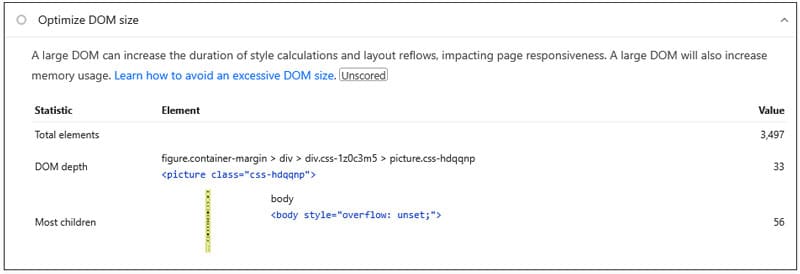
The insight triggers if there is a large layout or style recalculation (involving over 100 layout objects or more than 300 elements respectively) exceeding a duration of 40ms.
For diagnostic purposes, it also provides additional details:
- Total elements: The number of all HTML elements on the page.
- DOM depth: How deeply nested the DOM is at maximum depth, starting from the <body> element.
- Most children: Points out the element with the largest number of descendants and how many it contains. Helpful to potentially find the costliest part of the page.
Note that this audit insight is less about passing or failing and mostly a warning about the risk of having a large DOM, which can be a performance problem, but it doesn’t have to be.
A sizable DOM may slow the page down if it requires a lot of manipulation and recalculation. At the same time, without any costly recalculation and/or with features like lazy rendering, it’s possible not to feel the DOM size at all.
So, take this insight more as a hint of where your performance problems might lie rather than a problem that definitely needs to be corrected.
How to Check Your Website for DOM Size Problems
So, how do you find out if DOM size may be playing a role in your website’s loading speed?
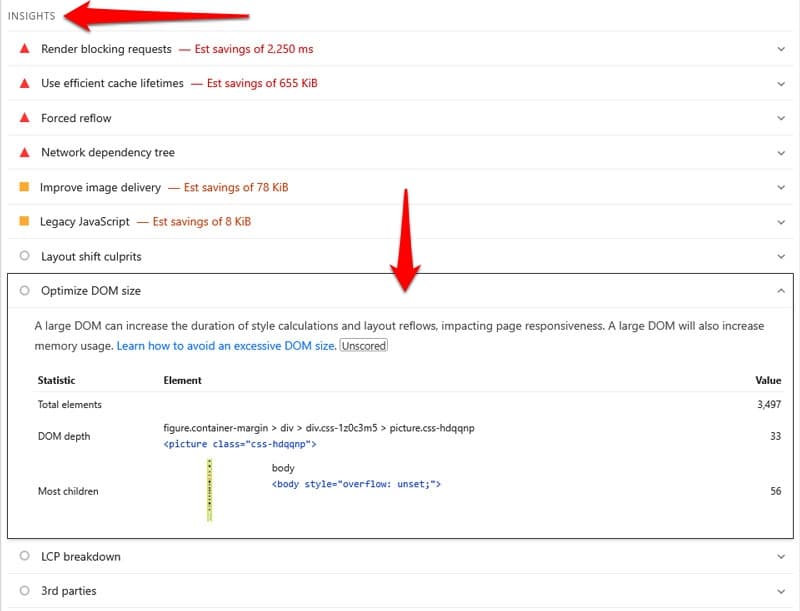
One of the easiest ways is to run your pages through PageSpeed Insights. If you have a DOM size problem, Google’s audit will show up under Insights.
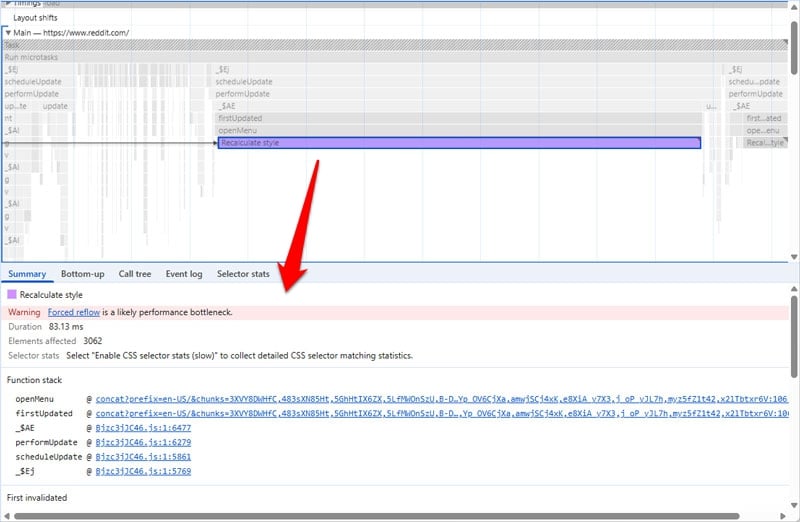
Another option is to run a trace in the Performance tab of the Chrome Developer Tools. Here, too, the insight will show up in the left sidebar along with additional details in the timeline on the right.
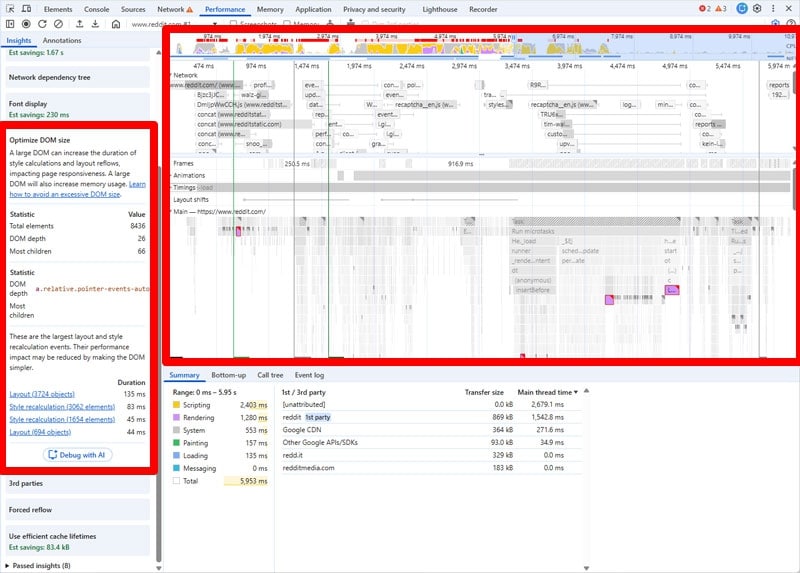
This method is also suitable to trace DOM problems during page interactions. Look for activities called “Recalculate Style” in the timeline. A click shows you the affected page elements and other information, including what initiated the recalculation.
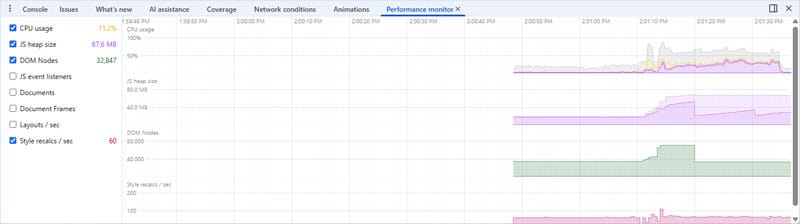
There is also the Performance Monitor (open it via the Command menu) that provides additional information like CPU usage, number of DOM nodes, layouts and style recalculations per second.
How to Optimize DOM Size Manually (7 Steps)
In the following, we are discussing ways to address problems with DOM size and respond to the Google audit, ordered by their potential impact.
Spoiler: the only true way to make a difference is to reduce the DOM. However, because that may not always be possible, we’ll also mention methods that reduce the impact of a large DOM.
1. Use Pagination and Limit Search Results
There are two main ways to simplify your DOM. The first is to completely remove elements from your web pages. This especially makes sense if they contain a lot of content. Dividing it across more than one page can help reduce DOM complexity overall.
For example, consider turning a very long one-page website into several pages connected through a navigation menu. For blog or search pages, pagination is a great option. Limiting the number of results on each and instead providing a way to click through additional results limitsthe DOM size, avoiding warnings from Google.
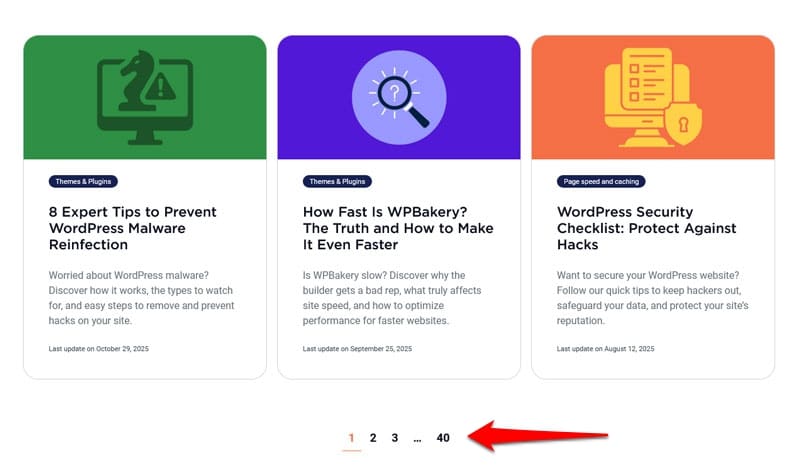
You can do the same with page elements like grids and table rows.
2. Flatten the HTML Structure of Your Content
The other principal method to reduce DOM size is to flatten its HTML structure. This means reducing the number of nested elements.
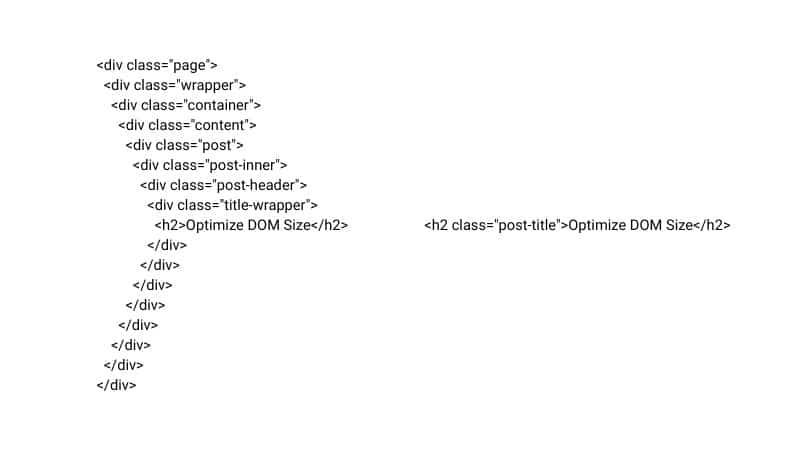
You can check whether this is an issue using browser developer tools.
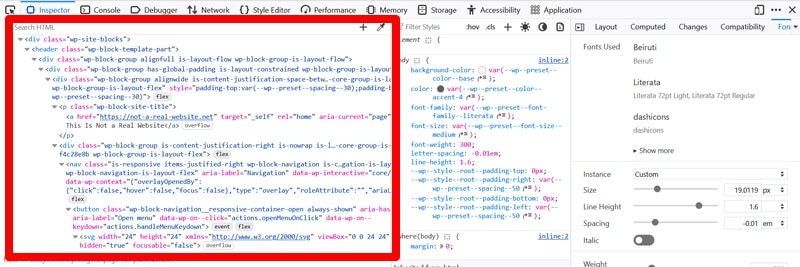
Besides your theme and plugins (see below), one factor here can be the way you create content. For example, the WordPress block editor allows you to place blocks within each other and some blocks naturally come with a nested structure.

It’s important to be aware of that and examine your page content for nested elements that may be simplified.
Another option is to use modern CSS layout solutions like Flexbox and Grid. They can often replace complex nested structures.
3. Pick the Right Site Components
Your choice of site components has a big impact on the DOM size of your web pages. Unfortunately, not all WordPress plugins and themes are fully optimized for performance.
For example, in the past, WordPress page builder plugins were infamous for using many nested elements, thereby increasing DOM size.
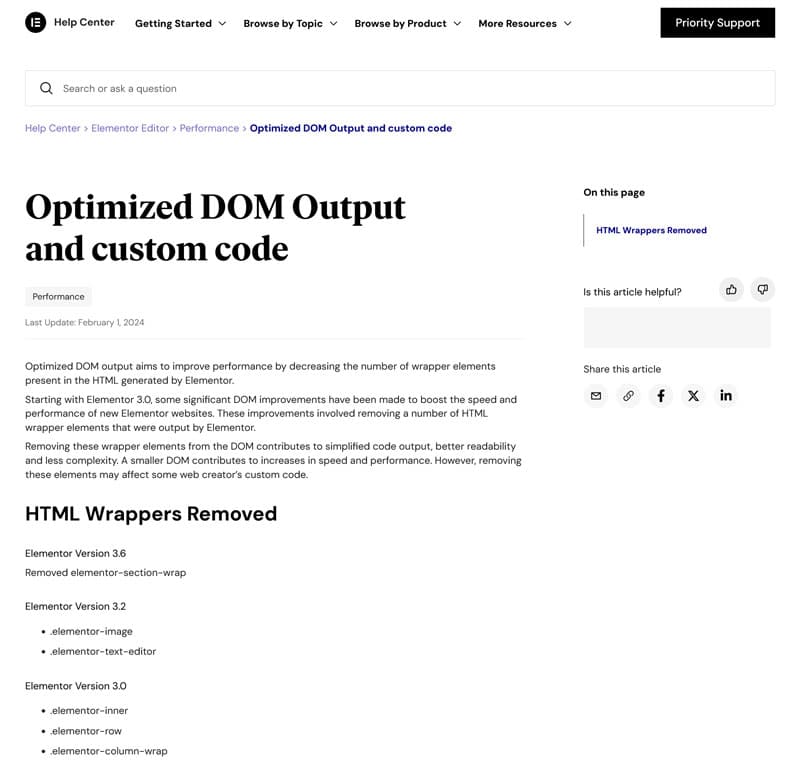
While many of them have addressed this shortcoming by now, it’s still an example of how site components can impact DOM size.
Therefore, be sure to audit what you use on your site and choose themes, plugins, and other site components that come with a low DOM footprint. Read reviews, check when they were last updated, and test them on a development or staging website first.
4. Use Infinite Scroll (Correctly)
Another option to reduce DOM size is to use an additive approach for page content. That means limiting the number of elements that load initially and adding more only as visitors request it.
Infinite scroll is one such approach. As users scroll down the page or click a button to see more, it dynamically loads additional content at the bottom of the page using AJAX.

This improves initial page performance and keeps your DOM small at first, helping you pass the Optimize DOM Size audit on first load.
Just keep in mind that with this method your DOM will grow over time, which can still add performance problems throughout the page lifetime. To avoid that, the correct implementation is “windowed” infinite scroll, where only a fixed number of items exist in the DOM at any time. As the user scrolls, older elements are removed and replaced with new ones.
In WordPress, you can add infinite scroll through plugins like Ajax Load More, Catch Infinite Scroll, and YITH Infinite Scrolling.
5. Simplify and Optimize Your CSS
As mentioned, a large DOM can also increase the performance cost of CSS operations. Using complex CSS selectors adds to this, both at initial load and later layout changes.
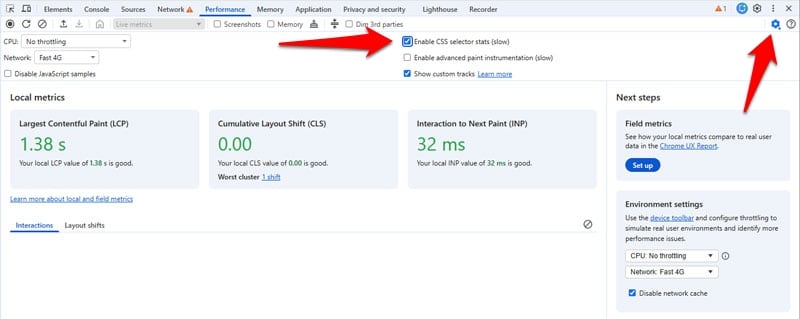
To understand if this is an issue, tick the Selector Stats checkbox in Chrome Developer Tools when recording a performance trace.
It allows you to learn about the performance cost of each CSS selector.
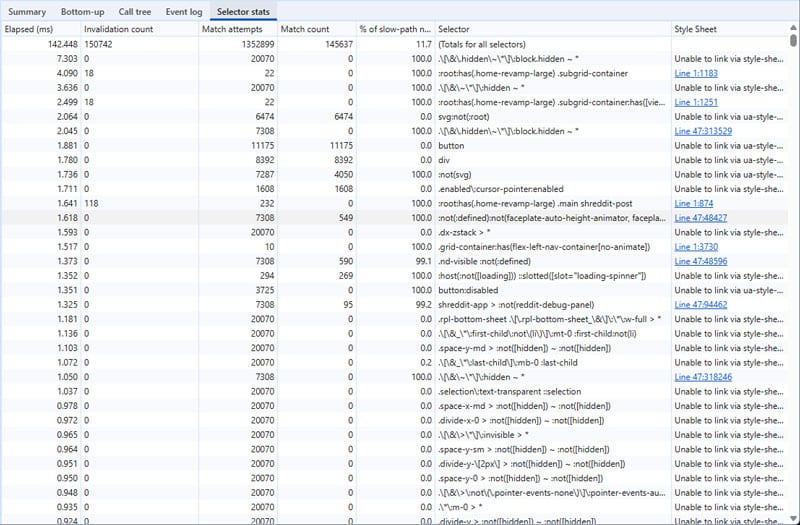
If they are a contributing factor, it helps to simplify your selectors. For example, instead of using a calculation like .page-content > div > ul > li:last-child span, you can target elements through distinct classes like .final-list-item.
It’s also important to understand how different CSS properties affect the DOM. For example, when you use display:none to hide page elements, they still count as part of the DOM and will continue to trigger the insight. Lazy loading (see below), on the other hand, allows you to exclude elements from the loading process until they are needed.
6. Review Scripts on You Website
External widgets, tracking scripts, ads, and other elements can also increase DOM size. More importantly, JavaScript is most often the tool used to manipulate the DOM after the page has been loaded, by updating existing nodes or adding content. That makes site scripts an important factor in DOM-related performance issues.
Therefore, step one is to regularly review and remove unnecessary third-party scripts or replace them with better optimized alternatives. Step two is to follow the other advice in this tutorial to keep your DOM as lean as possible so manipulations using JavaScript aren’t impeded.
7. Lazy Load Your Web Content
Another approach to reduce DOM size at page load is to load only those page elements that are visible at first and the rest as visitors scroll down. This is called lazy loading, which is often done with the content-visibility CSS property.

It doesn’t just reduce the amount of initial rendering work, but also skips it for offscreen elements when the DOM changes as the result of a user interaction. JavaScript APIs like fetch(), XMLHttpRequest, or AJAX are another possibility to load site content after initial page render.
For images, you can set up lazy loading using the “loading” attribute.
<img src="hero-image.jpg" loading="lazy" width="800" height="500" alt="Lazy loaded example image"> While many lazy-loaded elements remain part of the DOM, lazy loading can greatly improve page performance because it cuts down on the rendering work the browser has to do at the start. While the DOM size may still trigger Google’s performance insight, lazy loading helps improve perceived page speed and performance metrics like LCP.
Here’s an overview of everything we discussed above, including each method’s level of impact and effort:
| Action | Goal | Impact | Effort | Notes |
| Use pagination for long pages | Limit page node count | Very high | Low to medium | Directly shrinks the DOM |
| Flatten HTML structure | Lower DOM depth | High | Medium | Often requires editing templates and page content |
| Audit website components | Eliminate unnecessary or costly DOM output | High | Low to medium-high | Quick win for WordPress websites, but may require theme change |
| Use (windowed) infinite scroll | Reduce initial loading time, prevent endless DOM growth | High | High | Requires JavaScript logic to remove old nodes while loading new content |
| Simplify CSS selectors | Minimize expensive style recalculations | Medium | Low to medium | Use classes instead of positional selectors |
| Remove hidden DOM sections | Eliminate large blocks hidden with display:none | Medium | Medium to high | Replace with dynamic content injection |
| Review website scripts | Cut back third-party DOM injections and heavy JS | Medium | Low | Remove scripts that inject unnecessary DOM without clear value |
| Lazy load and render page content | Improve initial rendering despite large DOM | Low (DOM size), High (rendering performance) | Low | Improves speed even if DOM size remains high |
How to Improve DOM Size Issues with a WordPress Plugin
If Google’s speed testing tools tell you that DOM size may be an issue on your site, you can also mitigate its impact using a performance plugin like WP Rocket.
Just to reiterate: the only thing that will meaningfully address the Optimize DOM Size insight is to shrink and simplify the DOM itself. That said, WP Rocket comes with a number of features that can help you reduce performance problems if you can’t reduce your DOM further:
- Automatic lazy rendering prevents loading of content outside the initial viewport.
- Lazy loading for images and embeds does the same for visual media.
- You can remove unused CSS to make styling operations less expensive.
- Combine, defer, and asynchronously load JavaScript to reduce its performance impact. You can also delay non-critical JavaScript until a user interaction occurs.
- Self-host Google Fonts to reduce HTTP requests.
All of this helps streamline your web pages and improve perceived performance. What’s more, it’s super easy to implement. With WP Rocket installed, many features activate automatically, or you can switch them on with a few clicks in the easy-to-use interface.
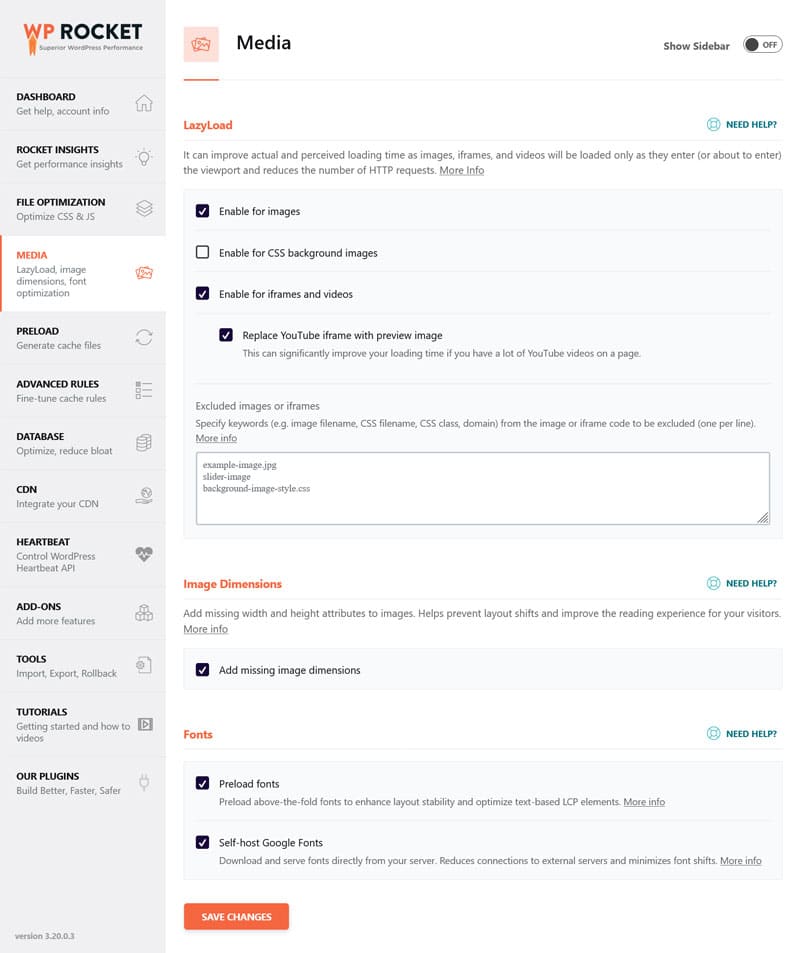
Besides that, WP Rocket offers a host of general performance improvements — both automatic and optional — that help make your site faster across the board, including:
- Caching (with a separate mobile cache)
- GZIP compression
- Optimization for critical images above the fold
- CSS and JavaScript minification
- Database optimization
- Ability to easily connect to a CDN
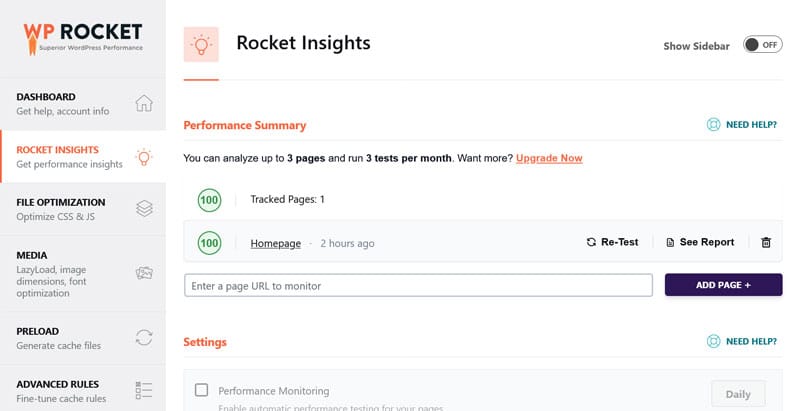
Finally, Rocket Insights helps you automatically monitor your top pages’ performance over time. With the GTmetrix-powered monitoring tool you can understand WP Rocket’s impact and quickly spot and troubleshoot performance issues in a central location.
FAQs on Optimizing DOM Size
What Contributes to DOM Size?
Nested HTML, long pages with many items, hidden sections, third-party widgets, and JavaScript that injects markup dynamically all increase DOM size.
How Does DOM Size Impact Page Performance?
A large DOM makes parsing, style calculation, layout, and JavaScript execution more expensive, which slows down page rendering and user interactions.
What Is a “Large” DOM According to Google?
Google flags pages where layout or style recalculations involve more than 100 layout objects or 300 elements and take longer than 40ms.
Does the Optimize DOM Size Insight Impact Search Rankings?
Not directly, it’s mostly a warning. However, a large DOM can harm Core Web Vitals and user experience, which can have an effect on rankings.
Why Does DOM Size Affect Mobile Users More?
Mobile devices have less memory and less powerful hardware, so large DOM trees increase rendering and interaction delays more noticeably than on desktop.
How Can I Check DOM Size in Chrome?
Use the Performance panel in the Developer Tools, or the Performance Monitor to view DOM node counts and layout or style recalculations.
How Do I Optimize DOM Size in WordPress?
Choose lightweight themes and plugins, simplify page layouts, use pagination, avoid excessively nested blocks, review third-party scripts, and remove unnecessary markup.
Address DOM Size Issues Effectively
An out-of-control DOM can seriously hinder performance through the entire lifetime of a web page. When Google shows a warning to optimize DOM size on your site, the only real way to address it is to remove page elements and flatten the page structure.
If that isn’t possible or only to a certain point, there are still steps you can take to mitigate the effect of a large DOM, as described above. You can either implement these changes by hand or, if you are on WordPress, automate and simplify it using WP Rocket.
Get WP Rocket today and test it risk-free for 15 days!