

Table of Contents
Google’s Modern HTTP insight triggers when your site uses outdated versions of the Hypertext Transport Protocol. That’s because modern versions of HTTP provide much better performance features.
To help you take advantage of them, in this post we are discussing what HTTP, why it matters for site performance, and how to check which version your site is using. After that, we’ll discuss how to update HTTP to a modern version, both manually and through WordPress plugins.
| TL;DR ✅ HTTP is one of the fundamental web technologies, allowing servers and browsers to communicate with each other. Newer versions provide significantly better performance. ✅ The Modern HTTP insight flags resources on your site that still use HTTP/1.1 instead of the faster HTTP/2 or HTTP/3 protocols. You can check if your site is affected by running a performance trace in Chrome Developer Tools. ✅ To upgrade to modern HTTP, you need an SSL certificate and a server that supports HTTP/2 or HTTP/3. Many hosting providers enable this automatically once you move your site to HTTPS. If not, you can manually configure your server or route your traffic through a CDN that uses modern HTTP by default. ✅ WordPress plugins can help automate the HTTPS migration process. WP Rocket makes it easy to connect to a CDN and improve website performance beyond modern HTTP. |
What is the Modern HTTP Insight?
First, let’s discuss the main topic.
Different HTTP Versions Explained
HTTP or the “Hypertext Transfer Protocol” is what enables web servers and browsers to communicate and share data. It’s why we can have websites and also the reason URLs start with http:// or https://.
The HTTP protocol has been around since the beginning of the internet. Just like everything else related to the web, people have improved upon it over time and new versions have come out to account for changes in the web environment.
Let’s examine them quickly.
HTTP/0.9
So far, there have been five major HTTP versions. 0.9 was the prototype and proof of concept. It was very limited in its capabilities, could only transfer plain-text HTML files, and closed the connection between server and client after every request.
HTTP/1.0
HTTP/1.0 built on top of its predecessor. It added the ability to transfer different types of content (HTML, images, etc.), request and response headers, multiple request methods (GET, POST, etc.), and status codes like 200 or 404.
Its main limitation was that each request needed its own connection, which really hampered performance.
HTTP/1.1
HTTP/1.1 is what made the modern web possible and led to its worldwide adoption. This version included the ability to reuse existing connections for multiple requests (keepalive), leading to much faster user experience.
In addition, it could send data in chunks and resume interrupted downloads, added caching and compression to reduce the amount and size of data transfers, and introduced content negotiation (format, language, encoding, etc.).
Finally, HTTP/1 first used host headers, which meant several websites could share the same IP address.
HTTP/2
HTTP/2 been the de-facto standard for the past years. Its development mainly focused on improving speed, with features like:
- Multiplexing (handling several requests over the same connection)
- Header compression
- Request prioritization (download more important data first)
- Server push (send resources before the browsers asks for them)
- Flow control (avoid information overwhelm)
Another interesting development: Because browsers supported HTTP/2 only with TLS, the protocol update significantly accelerated the adoption of encryption on the web.
HTTP/3
Since June 2022, we also have HTTP/3. Its biggest change was the switch from the TCP protocol to QUIC. This reduces data roundtrips, establishes connections more quickly, offers more efficient multiplexing, and allows to migrate connections between networks, which is good for mobile devices.
HTTP/3 also uses encryption by default with a higher level of obfuscation. It’s also easier to update, so we can expect improved versions more quickly. HTTP/3 is already in use by 37% of websites (compared to 34% for HTTP/2) and all major browsers support it.
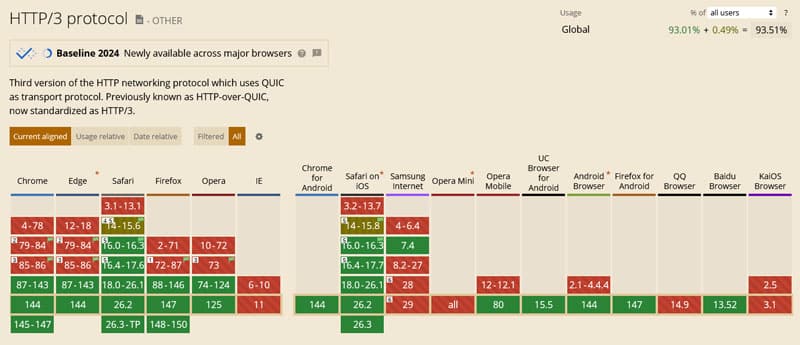
HTTP Versions and Features Overview
Here’s everything we’ve learned so far in one table for quick consumption
| Version | Features/improvements | Main limitations | Status |
| HTTP/0.9 (1991) | – Simple document transfer, plain text only | – Extremely limited | Obsolete |
| HTTP/1.0 (1996) | – Support for additional content types – Request and response headers – Multiple methods (GET, POST, HEAD) – Status codes (200, 404, etc.) | – Only one request per connection | Obsolete |
| HTTP/1.1 (1997) | – Persistent connections (keep-alive by default) – Chunked transfer – Better caching and compression – Content negotiations – Host header | – Head-of-line blocking (one slow or interrupted request blocks others) | Still widely used |
| HTTP/2 (2015) | – Multiplexing – Header compression – Server push – Flow control | – Still runs over TCP, so head-of-line blocking still exists | Widely supported |
| HTTP/3 (2022) | – Runs over QUIC (UDP) instead of TCP – No TCP head-of-line blocking – Faster connection setup – Better performance on poor networks – Built-in encryption – Easier to improve and upgrade | – More complex – Harder to debug | Increasing adoption |
Why Does the HTTP Version Matter for Site Performance?
If you’ve been paying attention, you probably already understand the significance of HTTP for site speed. Improving performance has been the main focus during the development of of HTTP/2 and HTTP/3. Consequently, if your site uses these newer versions, it automatically helps them load faster.
This positively impacts Core Web Vitals like First Contentful Paint (FCP), Largest Contentful Paint (LCP), Interaction to Next Paint (INP), and other performance factors, such as Time to First Byte (TTFB).
That’s why the Modern HTTP insight only checks a single thing: whether your website files are served using HTTP/2 or HTTP/3.
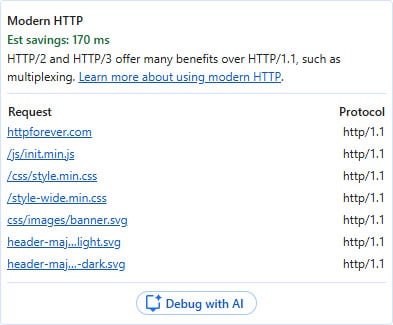
However, it only flags site resources where switching to a newer HTTP version would actually make a difference, such as:
- Files currently served using HTTP/1.x.
- Origins that serve at least six static files (CSS, JS, images, etc.) since that’s when multiplexing kicks in.
- Files that are served from a public server, not localhost. That means, it doesn’t trigger if you are testing in a local development environment.
The only way to see if this insight is relevant for your site is to use Chrome Developer Tools. Unlike other insights, such as Optimize DOM Size, Improve Image Delivery, or Duplicated JavaScript, it does not appear in PageSpeed Insights.
Open the developer tools, go to Performance and record a trace, e.g. via Record and reload.
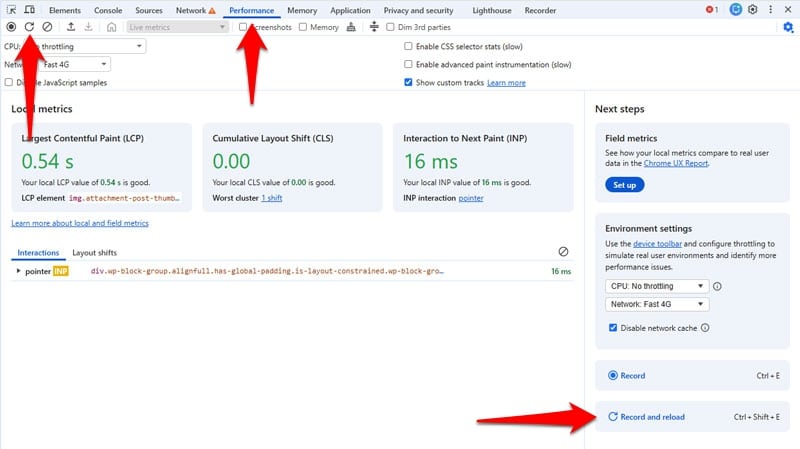
The Modern HTTP insight appears in the left sidebar when triggered.
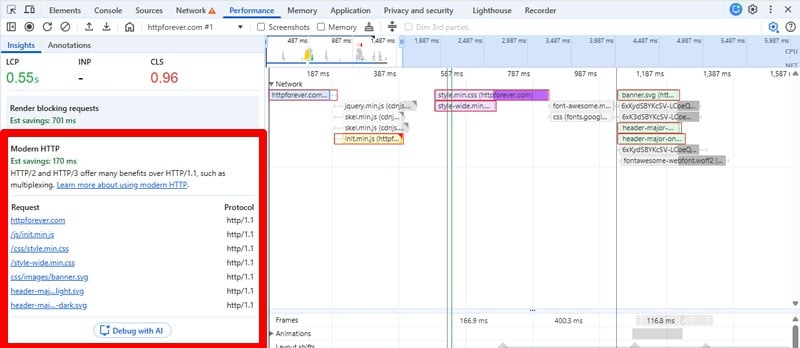
It displays how much loading time you could save by updating your site’s HTTP, the resources on your site that use an outdated protocol, and its version.
If you hover over the flagged resources, Chrome Developer Tools highlights them in the performance timeline on the right. This makes it much easier to correct them.
How to Move Your Site to Modern HTTP
That only leaves the question, what to do about outdated HTTP connections on your site? We’ll deal with that for the rest of the article, first manually and then with the help of WordPress plugins.
The main prerequisite to update your site’s HTTP, is that the server supports it. This is the first thing you should check with your hosting provider. In fact, modern HTTP may already be enabled, but not in use because your site lacks encryption. So that’s what we’ll deal with now.
1. Obtain an SSL Certificate
As we have learned, HTTP/2 and HTTP/3 both require encryption. For that reason, if you want your site to run over either of these protocols, you will need an SSL/TLS certificate. This is what enables encrypted traffic between servers and browsers.
Setting up encryption on your website is a good idea either way. Visitors and search engines both expect it, so it helps your user experience and search rank.
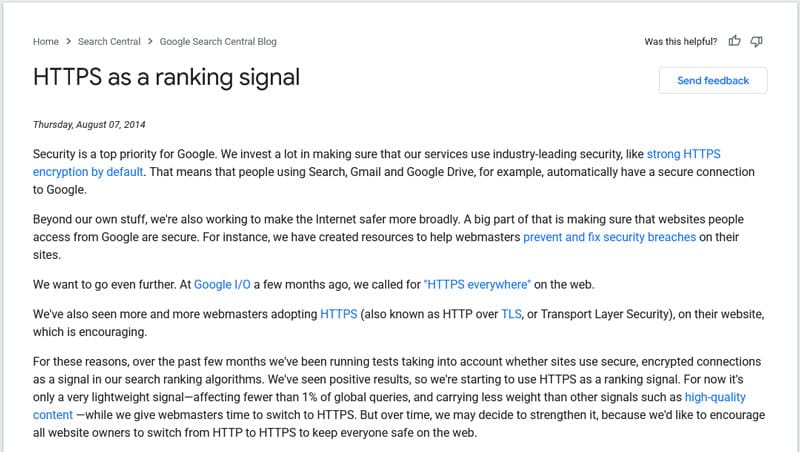
If you don’t have a certificate yet, your first place to look is your hosting provider. Many offer one-click solutions to implement one, often for free.
Another option is to get a free certificate from Let’s Encrypt. This solution, too, is supported by many hosting providers.
The exact process for implementing SSL certificates differs from hosting provider to hosting provider. In general, you need to upload the certificate to your server, then edit the configuration files to reference it. Here are some example tutorials:
2. Change Your Site Address
Next, you need to move your website over to the HTTPS version. The first step is to back it up, both your files and database. You’ll be making some major changes to your site, so it’s important that you save a working copy in case something goes wrong.
Also, be aware that, even though the only thing that will change in your website address is that it starts with https://, to search engines and other websites, this is like moving to a new domain. Therefore, there can be fluctuations in rankings and search traffic and you can lose social share counts on your site.
However, at least the rankings usually recover to levels before the change and may even improve since, as mentioned, HTTPS is a ranking signal.
With that out of the way, start by adding your new, encrypted address in your site’s wp-config.php file. To do so, add this before the “That’s all, stop editing!” comment:
define('WP_HOME', 'https://example.com');

define('WP_SITEURL', 'https://example.com');
(Of course, be sure to replace https://example.com with your actual website address.)
Additionally, do the same in Settings > General under WordPress Address and Site Address.
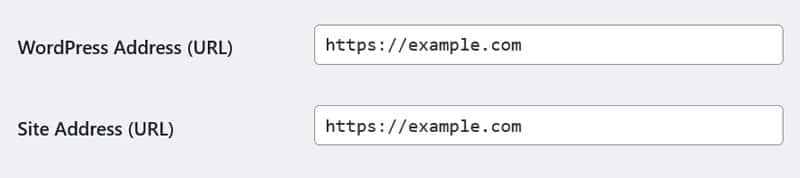
This should already enable you to access the HTTPS versions of your pages. However, it’s likely that not all content, especially images, will be loaded through the secure URL yet.
3. Fix Mixed Content Warnings
To change that, you need to replace their references in your database. For that, open the database (hosting providers usually allow you to do so with a tool like phpMyAdmin), then run the following SQL command:
UPDATE wp_posts

SET post_content = REPLACE(post_content, 'http://example.com', 'https://example.com');
Again, make sure to replace example.com with your actual site address. You can also do this operation via WP-CLI or the Search Replace DB script.
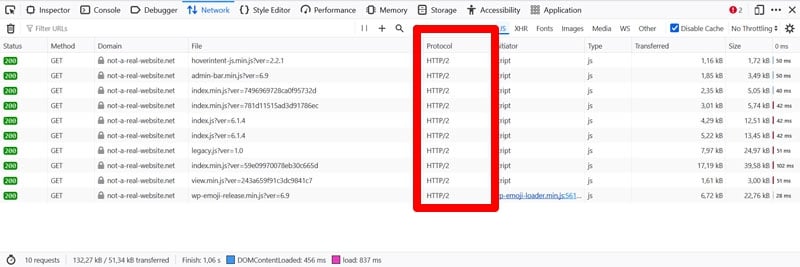
When done, view your site using browser developer tools and check the Console tab. Look for mixed content warnings. They mean part of your page is not loaded encrypted.

Alternatively, examine the Protocol column in the Network tab.
| 💡 You’ll need to manually correct any mixed content warnings left over after the search and replace. These are often third-party code like scripts and libraries. Most of them have HTTPS versions, so all you need to do is change where you link to. |
4. Redirect Traffic
The final step is to redirect your website traffic. This ensures visitors land on the HTTPS version of your pages, not a 404 error page. It also tells search engines which pages to index from now on.
Redirects happen on the server level. You can set them up with a hosting panel like cPanel and Plesk or by hand. For example, on an NGINX server, place this code inside nginx.conf:
server {
listen 80;
listen [::]:80;
server_name example.com www.example.com;
return 301 https://$host$request_uri;
}
Exchange example.com with your domain.
On Apache, you can use this in the .htaccess file (outside of the # BEGIN WordPress and # END WordPress section):
RewriteEngine On
RewriteCond %{HTTPS} !=on
RewriteRule ^ https://%{HTTP_HOST}%{REQUEST_URI} [L,R=301]
5. Change Your Server’s HTTP Version
Don’t forget, the above steps were just preparation to change the HTTP version of your site. In fact, since HTTP/2 and HTTP/3 only work with encryption, if they’re already enabled on your server, they may spring into action automatically once TLS is in place.
If that’s the case, your browser developer tools can tell you. Otherwise, you need to make the change on the server yourself.
The process is different depending on which system you are running. It’s also complex, so if you can get assistance from your hosting provider, definitely do it. Otherwise, here are instructions:
Once done, the last task is to confirm the switch was successful.
Alternative: Funnel Your Traffic Through a CDN
If you don’t want to bother with the process above, another way to use modern HTTP on your site is to run it through a CDN.
A CDN is a network of computers around the world that contain copies of your website files so they can deliver them to visitors from the location nearest to them. All major CDN providers run their systems over modern HTTP, so if you connect your website to one, you extend those benefits to visitors as well.
It’s also not very hard. The basic steps are:
- Sign up to a CDN
- Change your nameservers to the provider’s DNS
| 💡 It’s highly recommended that you also switch your main server. The shift to HTTPS is a good move for SEO and user experience and a way to modernize and future-proof your website. |
How to Improve the Modern HTTP Insight Using WordPress Plugins
Updating the HTTP version of your WordPress website always requires changes on the server level that no WordPress plugin can do for you. However, you can still use plugins to make the work happening on the site level, namely switching to HTTPS, easier.
Plugins like WP Force SSL & HTTPS SSL Redirect and Really Simple Security can enforce SSL on your site and automatically redirect traffic to the HTTPS version.
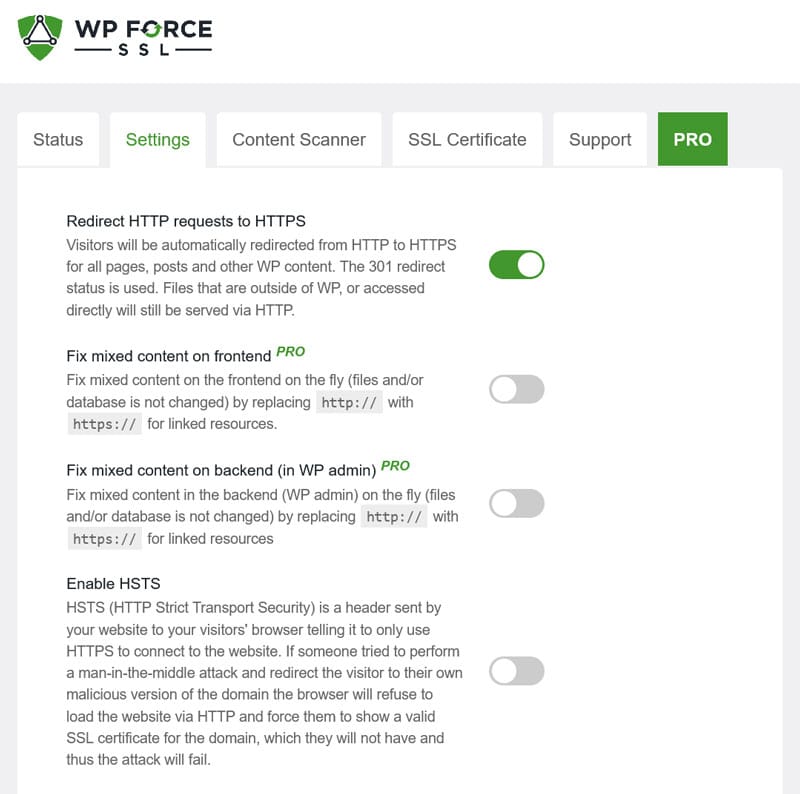
They can even generate SSL certificates as well as scan for and fix mixed content warnings (some of these are paid features).
In addition, you can use a plugin like Better Search Replace to update URLs in your database to the HTTPS version from the WordPress interface.
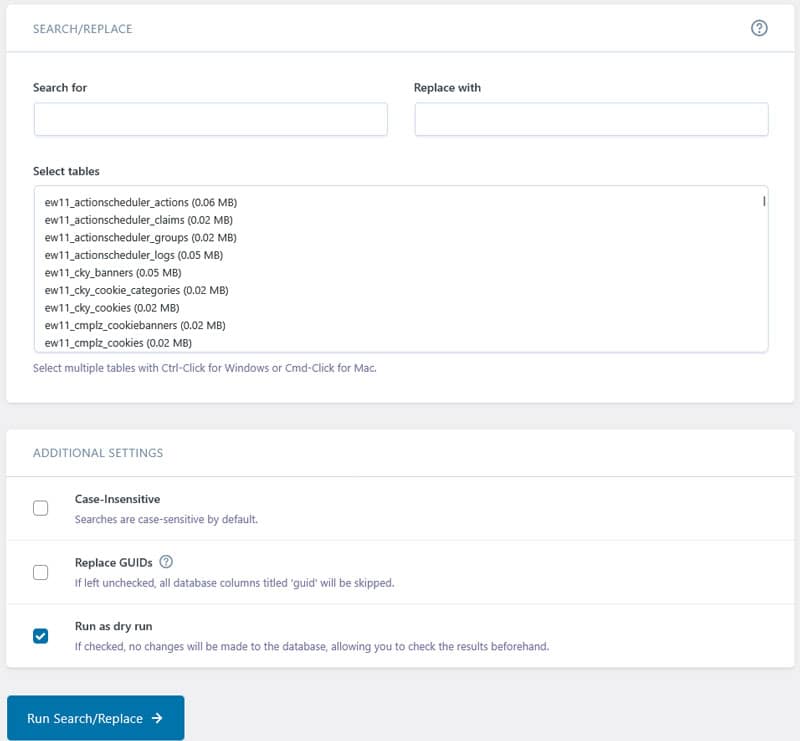
All of this streamlines the process and prevents you from having to jump between different platforms and user interfaces.
By the way, modern HTTP is just one small piece of the puzzle that is website performance. If you want to further speed up your site, consider a performance plugin like WP Rocket.
For one, it makes it easy to connect your site to a CDN and take advantage of their HTTP setup.
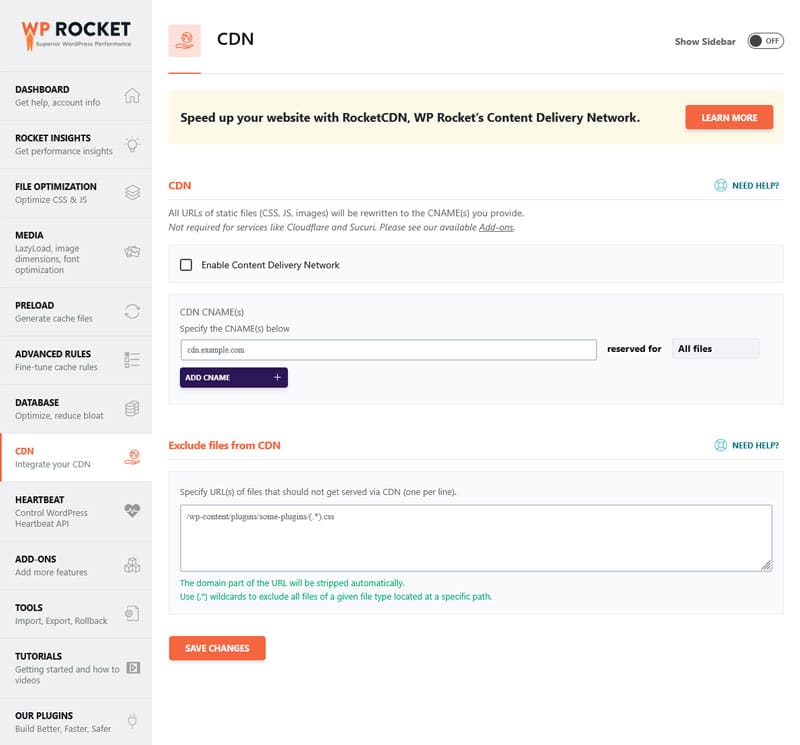
Even better, use WP Rocket’s custom network RocketCDN.
In addition, the moment you switch on the plugin, it automatically implements 80% of performance best practices, including:
- Caching (with a separate mobile cache) to reduces server work and deliver pages more quickly
- Critical image optimization for images above the fold
- Automatic lazy rendering, which accelerates initial page render
- GZIP compression as well as CSS and JavaScript minification for smaller file size and faster download
- Preconnect for third-party resources
- Google Font optimization if you use it on your site
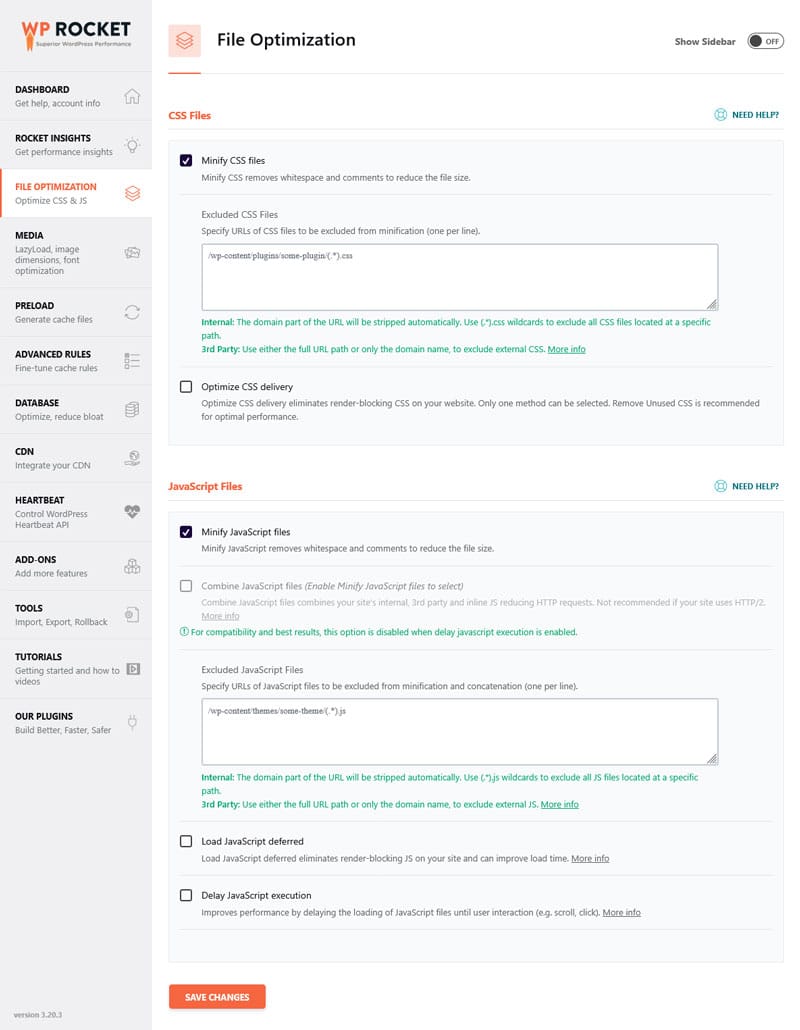
As a consequence, your site loads faster without you having to actively do anything. Besides that, there are many more optional features to further improve website speed:
- Remove unused CSS
- Combine, defer, and delay JavaScript
- Lazy loading for images, CSS backgrounds, videos, and iframes
- Preload fonts and self-host Google Fonts
You can implement the majority of them by simply checking a box.
FAQs
Let’s go over some questions that often come up in regard to this topic.
How do I tell if my website uses modern HTTP?
Open Chrome Developer Tools, go to the Network tab, and check the Protocol column. Files labeled h2 are using HTTP/2, h3 indicates HTTP/3. Alternatively, record a performance trace and look for the Modern HTTP insight.
Does the “Modern HTTP” insight flag every file on my website?
No, it only flags resources where upgrading would significantly improve performance.
Is HTTP/2 always HTTPS? Why do I need an SSL certificate?
While HTTP/2 doesn’t strictly require encryption, all major browsers only support it over an encrypted connection.
Is HTTP/3 better than HTTP/2, and should I use both?
Most modern servers and CDNs allow you to run both simultaneously. Visitors with the latest browsers get to use HTTP/3, while others can still fall back to HTTP/2.
Do all browsers support modern HTTP versions?
Yes, every modern browser, including Chrome, Firefox, Safari, and Edge, fully supports both HTTP/2 and HTTP/3. More than 90% of global users support HTTP/3.
Do I need technical skills or a developer to upgrade my HTTP version?
Many modern hosting providers enable HTTP/2 automatically once you switch your site to HTTPS. However, manually updating server configuration files does require technical knowledge, but is still very doable.
How does using a CDN help me satisfy the Modern HTTP insight?
Content Delivery Networks sit between your server and your visitors and typically use HTTP/2 or HTTP/3 by default. Even if your main server is outdated, the CDN will deliver your files to the user using a modern protocol, satisfying Google’s insight.
Make the Switch to Modern HTTP Today
The Modern HTTP insight is a vital performance indicator in Google’s toolkit. It highlights when your site is missing out on the speed and efficiency of the latest web protocols.
Resolving it usually requires ensuring your server supports modern versions of HTTP and that you have a valid SSL certificate in place. You can make these changes manually or with the help of your hosting provider. Using a CDN is also a workaround, though updating your main server is recommended.
Note that modern HTTP is a great foundation, but it’s only a small part of what makes a site fast. To optimize the rest, try WP Rocket risk-free for 14 days!