

Table of Contents
Google’s Font Display insight checks whether font files on your website are set up so that text stays visible during page load. This is important for usability, user experience, and your site’s Core Web Vitals.
To help you pass this insight, this post explains the role web fonts play in website performance and stability, what exactly the Font Display metric tracks, and how to find font-related issues on your site.
After that, we’ll give you step-by-step instructions on how to optimize font display on your site both manually and with a WordPress plugin. The post concludes with a practical example in form of a case study.
| TL;DR Reading on the go? Bus stop coming up? Here’s the version for busy commuters: ✅ Custom fonts can negatively impact the performance and visual stability of your website, especially when they come in late during the loading process. To prevent this, the Font Display insight checks if the font-display CSS property has been set to swap or optional. ✅ Besides that, there are many more techniques to reduce the impact of font files on page performance. They include loading fonts early (through inlining, using preconnect, preloading, self-hosting), optimizing font files (use system fonts and modern formats like WOFF2, reduce files through subsetting), and eliminating CSS that may delay font discovery. ✅ WP Rocket allows you to automate many of these fixes with a few clicks, ensuring your fonts and pages load fast and text stays visible without manual coding. |
What is the Font Display Insight?
First things first, why does any of this matter?
How Web Fonts Affect Website Performance
Many people use custom fonts to enhance the branding and visual appeal of their site.
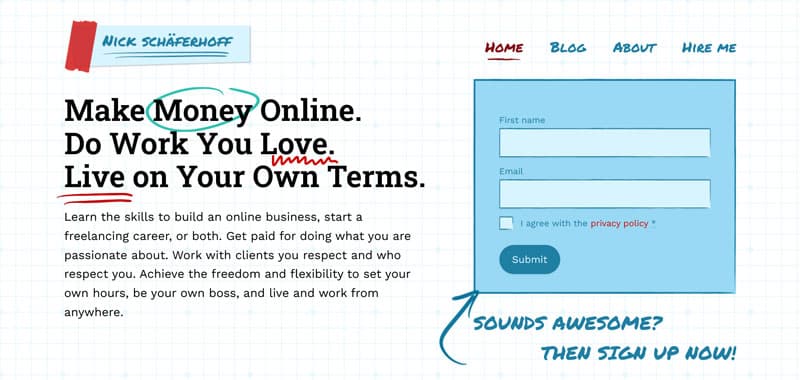
Unlike system fonts like Times New Roman or Arial, these typefaces aren’t available on the machines of visitors and have to be loaded separately to appear. But, when configured incorrectly, these fonts can interrupt the user experience by causing visual instability during the loading process.
This usually takes one of two forms:
- Flash of unstyled text (FOUT): Text on the web page first appears with a system default font before being replaced with the custom font once its file loads.
- Flash of invisible text (FOIT): The page first displays no text at all, then it appears all at once when the font files come in.
Both instances make for a less than stellar user experience and may cause visitors to leave your site quickly. They can also hurt your site’s Core Web Vitals, especially First Contentful Paint (FCP), Largest Contentful Paint (LCP), and Cumulative Layout Shift (CLS).
How so?
Delayed font files can postpone text rendering. If the LCP element is a text element, like a large heading, it may appear late, hurting your LCP score. Likewise, text whose initial font is replaced with one that is significantly larger or smaller can hurt page stability by moving elements positioned below upon swap.
What Does the Font Display Insight Check for?
It’s because of these issues that Google introduced the Font Display insight into their performance testing tools.
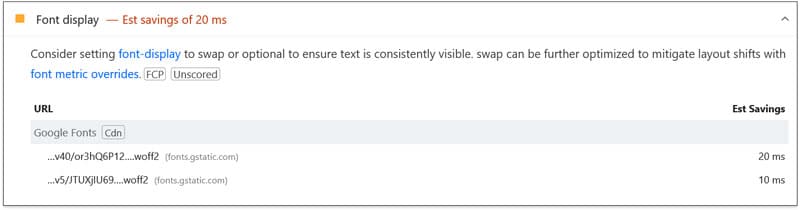
It checks whether any of the font files that load on a page could cause the aforementioned display issues. In particular, it examines if font-display has been set to swap or optional.
font-display is a CSS property that controls how browsers load and display web fonts. Specifically, it allows you to configure how long a browser will wait for the font file to arrive and its behavior when the file loads late.
The insight also lists unoptimized font files and estimated savings if you configure them correctly. Font Display replaces an older audit called Ensure text remains visible during webfont load.
Finding Font Display Issues on Your Website
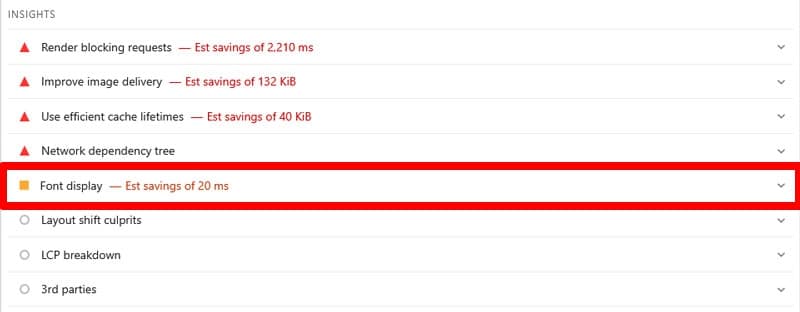
There are several ways to find out if this performance metric is relevant to your website. The easiest is to run your website through PageSpeed Insights. If detected, Font Display will appear in the Insights section.
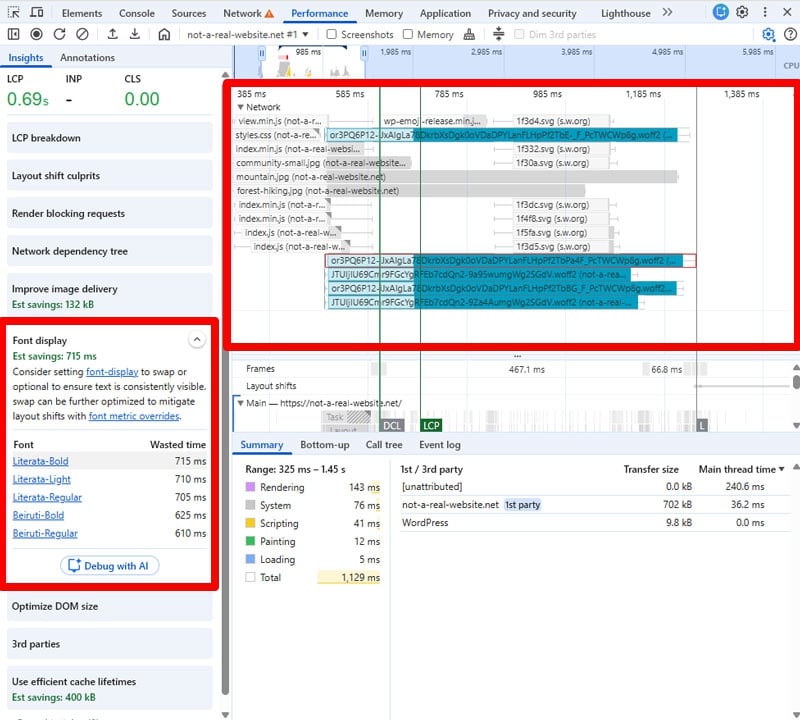
Another option is Chrome Developer Tools. Here, go to the Performance tab and record a speed trace of your website (e.g. via Record and reload).
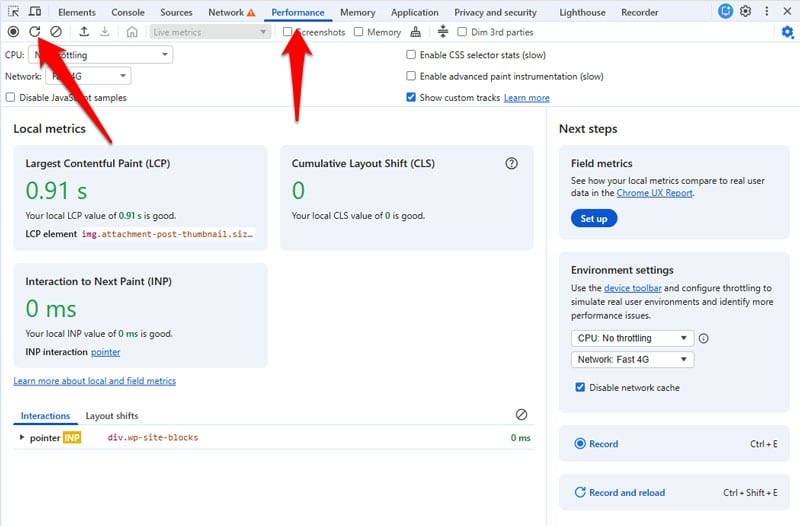
Once ready, the Font Display insight will appear in the sidebar on the left. Besides the aforementioned information, it additionally shows the font files in the loading timeline on the right and points out individual files if you hover over the names of the fonts on the left.
How to Optimize Font Display on Your Site by Hand
It’s time to put what we’ve learned into practice. Note that, even though the Font Display insight only checks for one particular thing, there are several additional steps you can take to ensure font files don’t become a performance or usability hindrance.
1. Set font-display to swap or optional
Since this is the pass/fail for this insight, it’s the most crucial step. Let’s break this topic down in detail.
Understanding CSS Font Usage
font-display is a CSS property that’s part of the @font-face rule used to load custom fonts in website style sheets.
@font-face {
font-family: 'My Custom Font';
font-display: swap;
font-style: normal;
font-weight: normal;
src: url('fonts/my-custom-font.woff2') format('woff2');
}
To understand font-display, you first need to understand fallback fonts. They are what the browser will use if the originally intended font is not available or usable, for example, because the font file hasn’t yet downloaded. Fallbacks are listed in font-family after the main font.
h1 {
font-family: 'My Custom Font', Arial, sans-serif;
}
It’s best to choose fallbacks that have a similar style and size as your intended typeface. That makes it less noticeable when the browser swaps one for the other, preserves branding, and minimizes layout shifts.
| 💡 CSS tools like size-adjust can help even out the differences between main and local fallback font families. Web.dev has a detailed article on this topic. |
The font-display Property
So what does font-display do? In a nutshell, it controls when browsers use the main or fallback font as well as when and if they switch from one to the other. It can have several different values:
- auto: This leaves font-loading behavior to the browser. It’s the default value.
- block: Keeps text invisible for three seconds while trying to load the custom font file. If the file is not available after that period, text is displayed using a fallback font and swapped whenever the file loads.
- swap: Text appears immediately in a fallback font. Once available, the custom font replaces the fallback.
- fallback: Shows the fallback font after 100ms and only waits up to three seconds for the font file to arrive and swap it in.
- optional: Waits 100ms for the arrival of the font file. If it is not available, a fallback font is used with no attempt to swap for the originally intended file afterwards.
Google’s preferred values, swap and optional, both emphasize performance and quick font display, but they are intended for different cases.
Using optional makes the font appear as quickly as possible and prevents later layout shifts. It’s a good choice when using the custom font isn’t super important, like for body text. This setting also allows the browser to deprioritize font files on weaker connections.
The swap value tries to use the custom font as quickly as possible, which makes it the right choice for branding elements or other instances where design is important. But, it also requires that the necessary font files arrive early to prevent large layout shifts.
And yes, you can use different font-display values for different text elements.
@font-face {
font-family: 'Heading Font';
src: url('fonts/heading.woff2') format('woff2');
font-display: swap;
}

@font-face {
font-family: 'Body Font';
src: url('fonts/body.woff2') format('woff2');
font-display: optional;
}
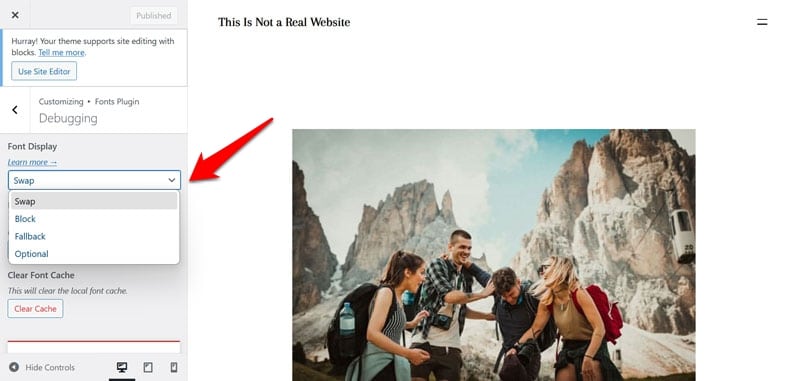
You can also set font-display values as link attributes. Google Fonts does that in the HTML code you can copy from their site.
<link href="https://fonts.googleapis.com/css2?family=Literata:ital,opsz@1,7..72&display=swap" rel="stylesheet"> Some WordPress font plugins also have settings for choosing the font-display method.
2. Load Fonts Early and Locally
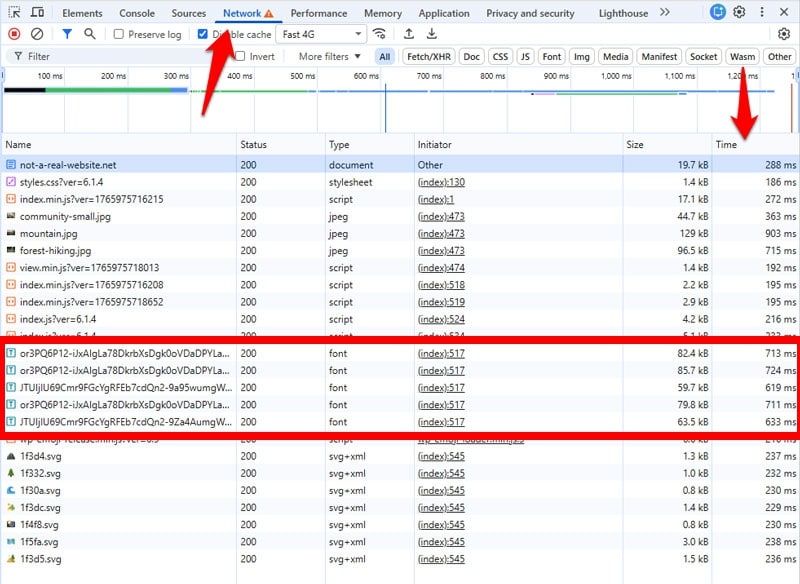
As seen above, it’s important that custom fonts load as early as possible. This applies especially to third-party fonts (e.g. from Google Fonts), which require a separate connection. The Time column in the Network panel of Chrome Developer Tools shows exactly when your font files load.
Inline Calls for Font Files
When font calls are done via CSS using @font-face, the requisite file doesn’t start loading when the browser encounters the call, but when it meets a declaration where the font is used, like the h1 below.
@font-face {
font-family: 'My Custom Font';
font-display: swap;
font-style: normal;
font-weight: normal;
src: url('fonts/my-custom-font.woff2') format('woff2');
}

h1 {
font-family: 'My Custom Font', Arial, sans-serif;
}
Therefore, font performance is also very much a CSS issue.
One workaround is to load fonts inline in the <head> section instead of a style sheet. This allows the browser to discover and start downloading them sooner.
<head>
<style>
@font-face {
font-family: 'My Custom Font';
font-display: swap;
font-style: normal;
font-weight: normal;
src: url('fonts/my-custom-font.woff2') format('woff2');
}

h1 {
font-family: 'My Custom Font', Arial, sans-serif;
}
</style>
</head>
Use preconnect
Adding preconnect to calls for third-party files tells the browser to establish a connection to an external address early, so data downloads can start quickly.
Hints like this belong in the <head> section and may need two separate declarations: one to establish the connection to the main site, and the other to the source of the font file. These addresses can be different, and the latter additionally needs a crossorigin attribute.
<link rel="preconnect" href="https://fonts.googleapis.com">

<link rel="preconnect" href="https://fonts.gstatic.com" crossorigin>
Preload Font Files
Preloading alerts the browser of important resources and tells it to load them early.
<link rel="preload" href="fonts/my-custom-font.woff2" as="font" type="font/woff2" crossorigin> Be aware, however, that this can distract browsers from loading more important resources and bypasses some of the built-in content loading strategies.
Therefore, use with caution. At the same time, it is the recommended method for Chrome.
Consider Self-hosting Fonts Files
Finally, it can be beneficial to load font files from your own server. This reduces HTTP requests by eliminating connections to external sources, which can speed up the loading process in general, not just for font files. Self-hosting also makes you independent of third-party services and is privacy-friendly and GDPR compliant.
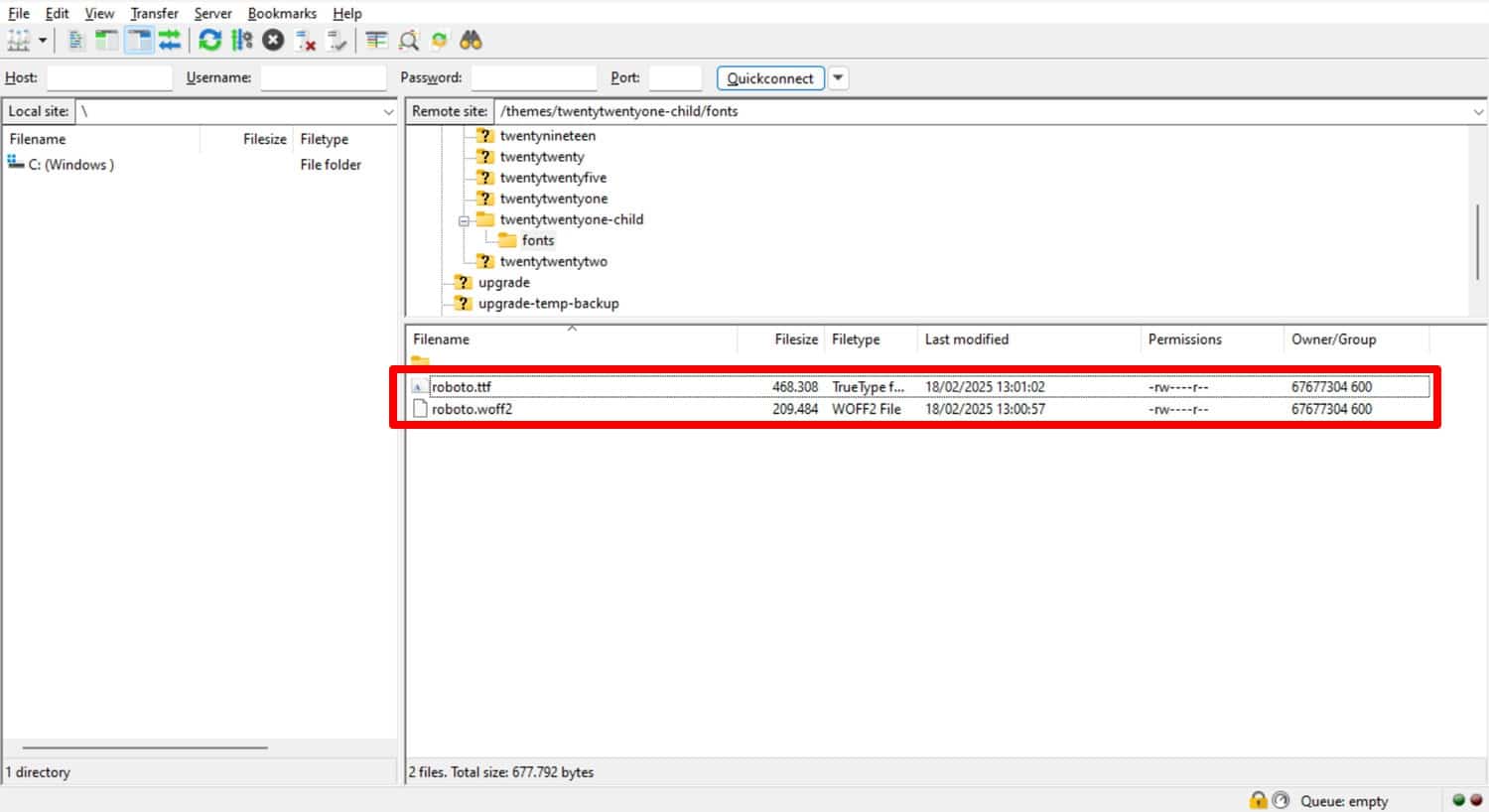
We have a detailed article how and why to self-host Google Fonts on our blog. Make sure your site uses a CDN (Content Delivery Network) and HTTP/2. Otherwise, you might deny the benefits that self-hosting offers, especially if you have a slow server.
Services like Google Fonts are well optimized for performance. Therefore, test before you commit and combine self-hosting with other improvements on this list.
3. Optimize Web Fonts on Your Site
The next step to improve font display on your website is to optimize the font files themselves.
Use System Fonts
One thing you can do is consider using system fonts for your design.
body {
font-family: system-ui;
}
These are already present on your visitors’ machines, meaning there’s nothing to download and thus nothing to delay the loading process.
| 💡 You don’t have to do that with all your fonts. Even if you pick a system font only for your headings or body text, it already reduces the amount of data visitors have to download. |
Choose the Right Font Format
For the fonts you do use, try to keep their file size as small as possible, so they load quickly. One of the easiest ways to do so is to pay attention to the file format.
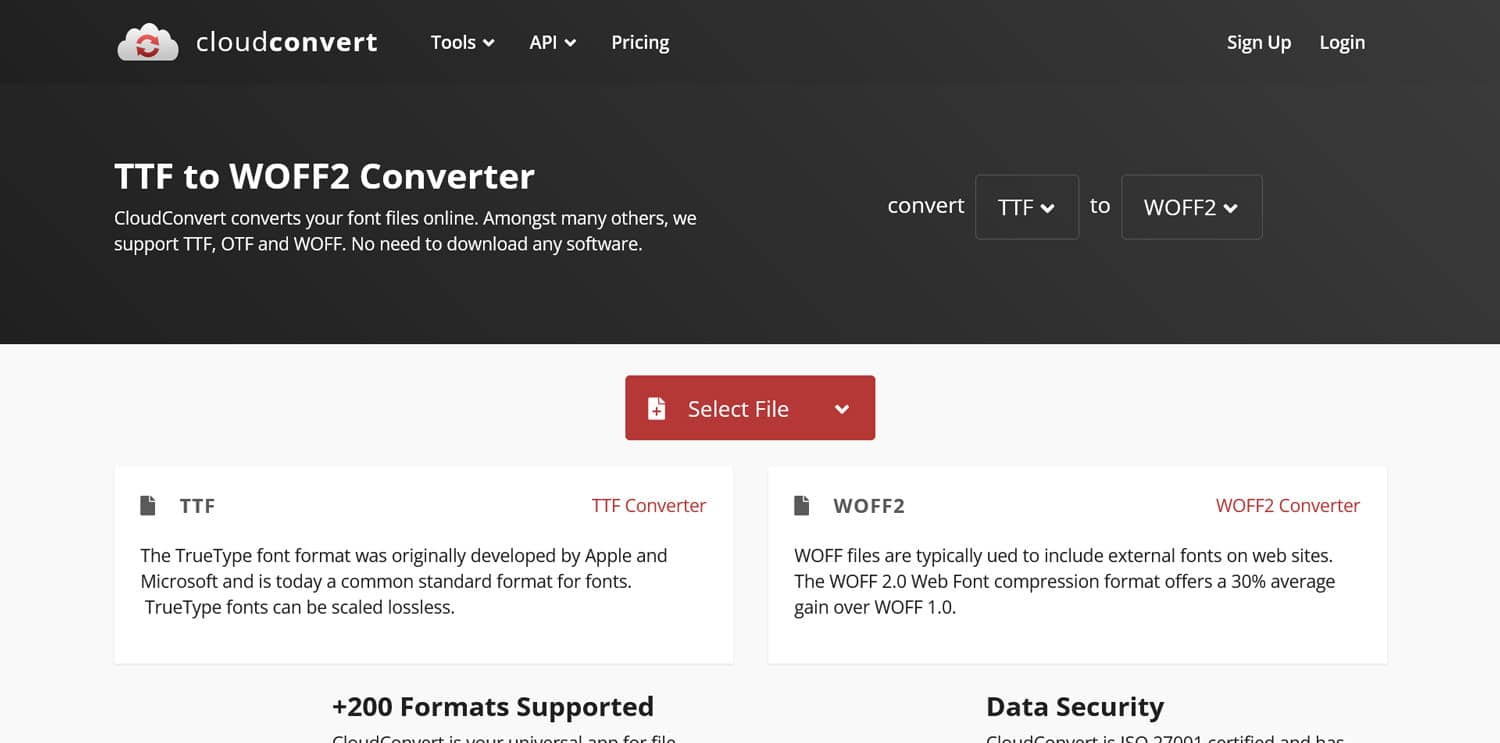
WOFF2 is the recommended format, since it is the most modern with the best compression and wide browser support. If your font is currently not in this format, there are many online converters available (e.g. this one or this one).
Reduce the Number of Glyphs
Another way to reduce font file size is to only include the glyphs (meaning letter styles) that actually appear on your site. For example, your font may include glyphs for Arabic, Japanese, Korean, or other alphabets you don’t need. Getting rid of those can shrink the file size.
Tools to create glyph subsets for local fonts are Font Squirrel Web Font Generator, Subsetter, and Fontlab (paid desktop tool). Make sure your font license allows subsetting and local hosting!
An alternative is to use variable fonts. They can be manipulated and can represent several styles from one file that usually would need separate font files. But they also tend to be larger in size, so it’s a judgement call and a matter of testing.
Finally, the unicode-range descriptor inside @font-face allows you to define a range of characters to be used from a particular font.
@font-face {
font-family: 'My Custom Font';
src: url('fonts/my-custom-font-latin.woff2') format('woff2');
unicode-range: U+0000-007F;
font-display: swap;
}
If no characters from that range appear on the page, the browser doesn’t download the font, saving bandwidth.
You can use a unicode table to figure out which characters to include and CSS Tricks has a good tutorial on unicode-range. Some providers, like Google Fonts, allow you to specify subsets directly in the embed link.
<link href="https://fonts.googleapis.com/css?family=Roboto+Mono&subset=greek" rel="stylesheet"> 4. Reduce Unused CSS on Your Site
As mentioned earlier, font performance is often a CSS matter. Streamlining your website’s CSS, therefore, helps the browser discover and begin loading any necessary fonts more quickly.
A great way to do that is to remove unused CSS from your pages. That’s code that doesn’t do anything adds page size and slows down the loading process.
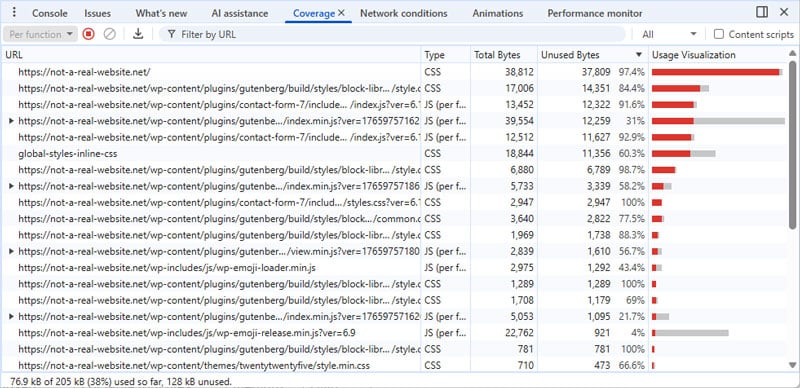
You can diagnose unused CSS via the Coverage section in Chrome Developer Tools.
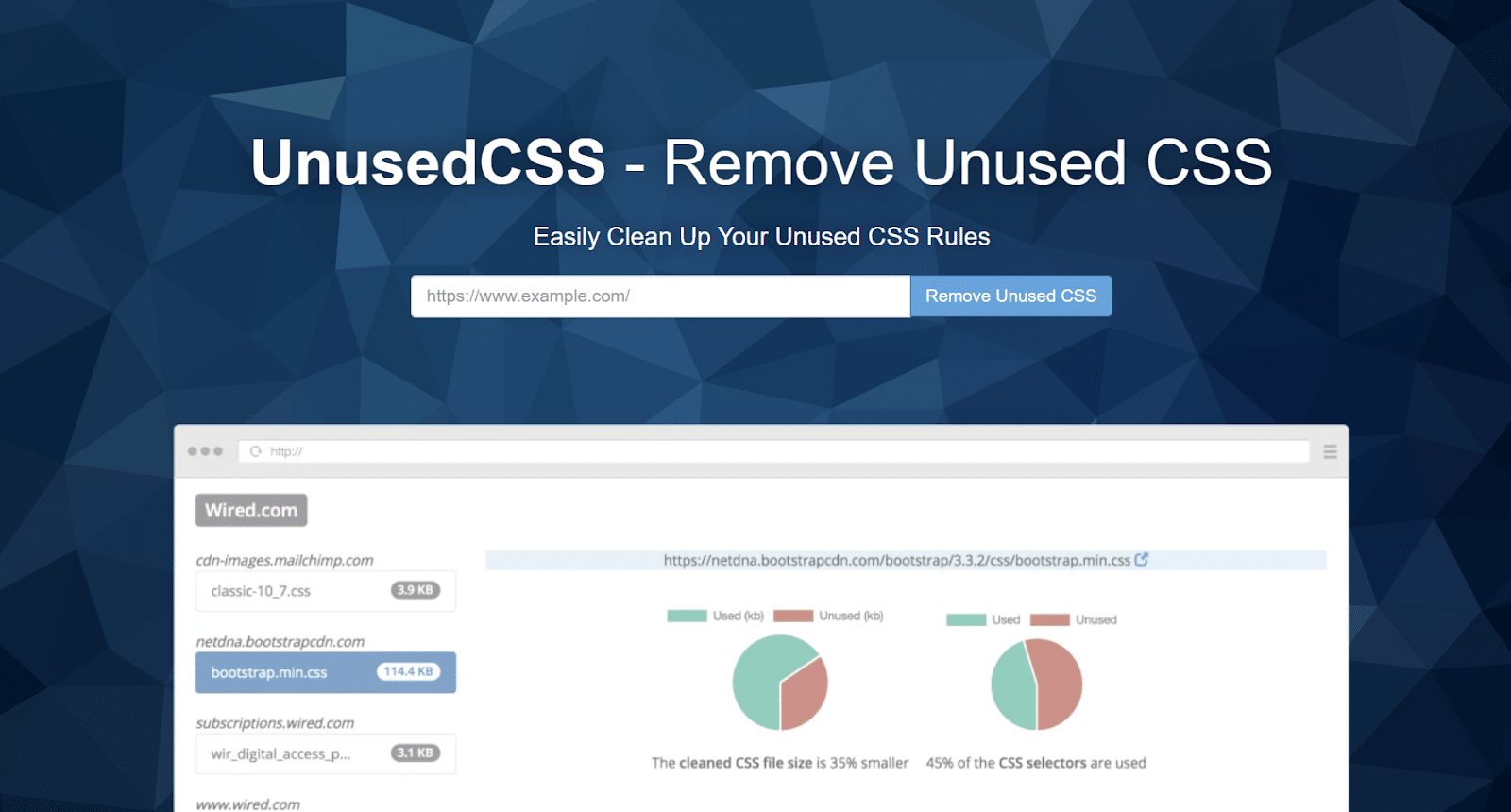
A tool such as Unused CSS helps you create streamlined markup.
| 💡 We have detailed article on removing unused CSS on the blog. |
How to Improve Font Display with a WordPress Plugin
If you want an easier way to optimize font performance speed up your website in general, a performance plugin like WP Rocket is a great solution. If you use custom fonts from Google Fonts, the plugin automatically:
- Combines several font requests into one.
- Adds the display=swap parameter to the request (if you’d rather use optional, you can find a helper plugin for that here).
- Preloads and loads the Google Font file asynchronously.
- Adds the preconnect resource hint to the request.
In short, it implements about 80 percent of the techniques mentioned above. You can additionally choose to self-host Google Fonts by simply checking a box in the settings.
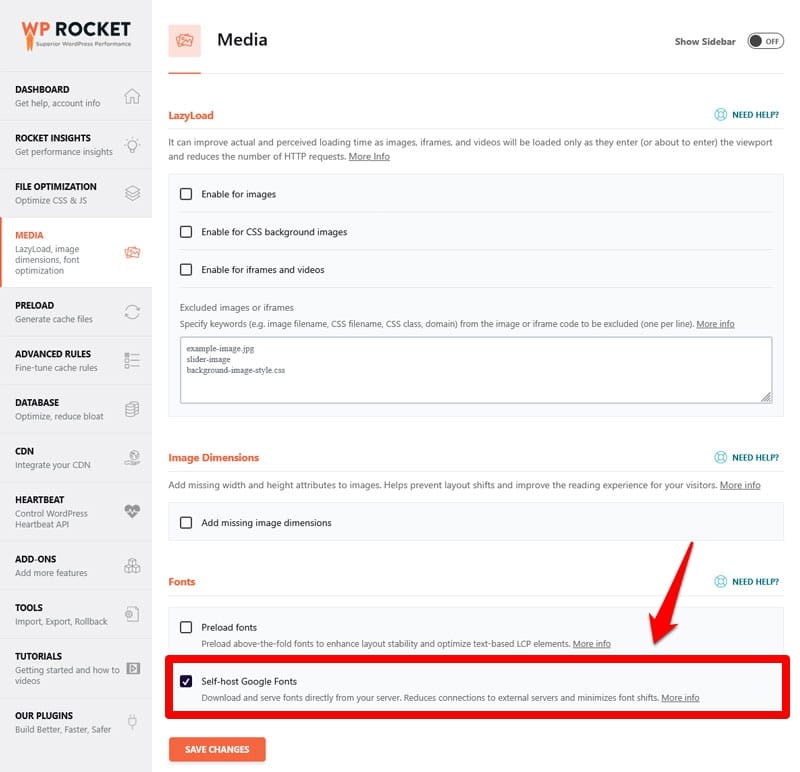
Even if you are not using Google Fonts, WP Rocket automatically minifies CSS (along with JavaScript) and adds font-display: swap to all @font-face rules in style sheets. Aside from that, you can manually choose to preload font files and also remove unused CSS from the same convenient user interface.
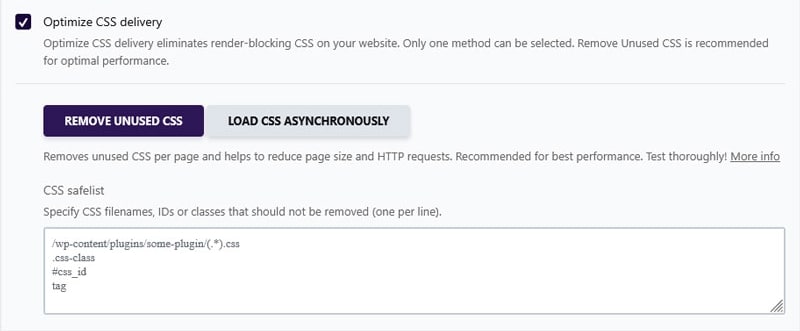
Here, WP Rocket offers many more ways to improve general website speed:
- Lazy loading for images, including CSS backgrounds, videos, and iframes
- Combining, deferring, or asynchronously loading JavaScript to eliminate render-blocking requests
- Delaying non-critical JavaScript until after user interaction
- Database optimization
- Easy CDN connection
What’s more, the plugin has a number of automatic features that spring into action the moment you activate it:
- Caching (with a separate mobile cache)
- Critical image optimization (exclude images above the fold from lazy loading)
- Automatic lazy rendering
- GZIP compression
That way, your website becomes faster automatically without you having to do anything. Want to see what kind of impact this can have on your website? Let’s go over a practical example.
Overview: Web Font Performance Optimization Strategies
Here’s everything we have discussed so far in one handy-dandy table:
| Action | What does it do? | Recommended value/use case | Impact | Effort | Supported by WP Rocket? |
| Set font-display | Controls text visibility while the font loads. | Use swap for branding/headings; optional for body text | High (Essential to pass audit) | Low | ✅ |
| Inline font calls | Makes font declarations independent from style sheet discovery | Use in <head> to help browsers discover fonts sooner | Medium | Medium | ❌ |
| Use preconnect | Establishes connection to font sources early | Best for third-party fonts like Google Fonts | Medium | Low | ✅ |
| Preload font files | Tells browser to prioritize specific font files | Use for critical, above-the-fold fonts | Medium | Low | ✅ |
| Host fonts locally | Reduces external connections and improves privacy | Best when combined with a CDN and HTTP/2 | Medium | High | ✅ |
| Choose system fonts | Eliminates the need to download font files | Great for body text | High | Low | ❌ |
| Use the WOFF2 font format | Provides the smallest file size with the best compression | Should be your primary file for all modern browsers | High | Medium | ❌ |
| Subset glyphs | Removes unused characters to shrink files | For large font files that contain unused languages or symbols | Medium | High | ❌ |
| Remove unused CSS | Cleans up code that might block font discovery | Best when fonts are called within style sheets | High | High | ✅ |
Case Study: Optimize Font Display Using WP Rocket
To test WP Rocket’s impact on the Font Display insight and general website performance, we set up a demo site using custom typefaces imported from Google Fonts that have been purposely unoptimized. When we ran the site through PageSpeed Insights, the results were as follows:
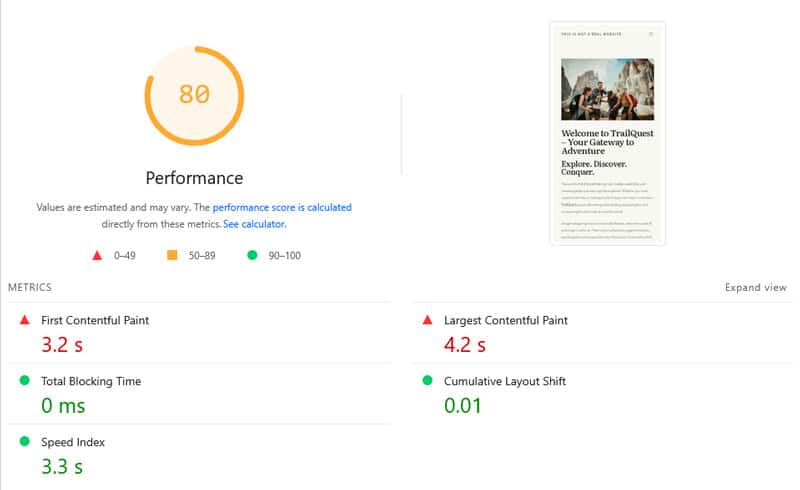
It’s not completely awful, but could definitely be better. Additionally, the Insights section also showed the Font display warning.
With that in hand, we installed and activated WP Rocket and enabled the following features:
- Minify CSS and JavaScript (automatically activated)
- Remove unused CSS
- Preload fonts and self-host Google Fonts
This produced much better results in the next PageSpeed Insights test:
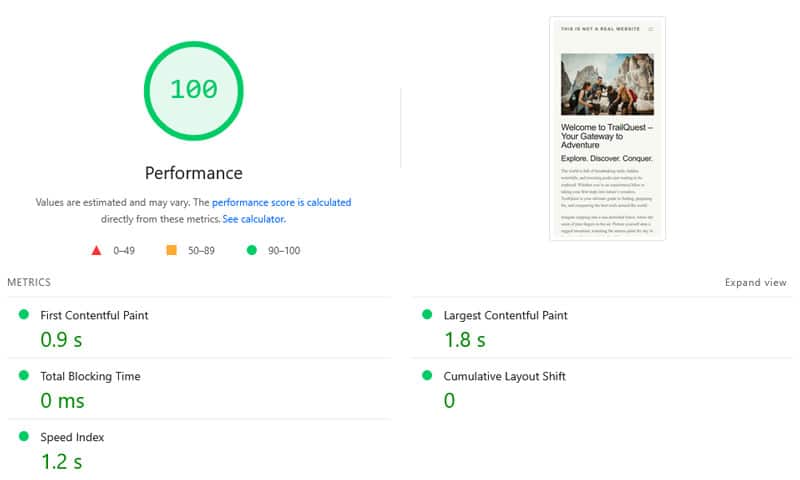
A perfect score and no more Font Display warning. And it took less than five minutes to implement. Here’s a comparison of the test before and after using WP Rocket:
| Value | Before | After |
| Mobile Performance score | 80 | 100 |
| First Contentful Paint | 3.2s | 0.9s |
| Largest Contentful Paint | 4.2s | 1.8s |
| Speed Index | 3.3s | 1.2s |
FAQs
Finally, let’s go over some frequently asked questions on the topic of Font Display.
What Is the Font Display Insight?
It’s a Google performance audit that checks if your web fonts are configured to remain visible while the page is loading, by setting font-display to swap or optional.
Why Do Web Fonts Matter for Website Performance?
They are files that must be downloaded, often from third-party sources, and can delay text rendering or cause layout shifts, which negatively impacts Core Web Vitals.
What Can I Do to Optimize Web Fonts for Website Speed?
Set the font-display property, use strategies to load font files early, reduce their file size, and reduce CSS. WP Rocket helps you automate many of these tasks.
Is It Better to Use swap or optional for My Fonts?
Use swap when the custom font is essential for your brand identity, optional for body text or less critical elements. Take further steps to ensure font files load early.
Does the Font Display Insight Affect SEO?
Yes, indirectly. It impacts Core Web Vitals, which are Google ranking factors.
Can I Use Different font-display Values for Different Fonts on the Same Page?
Yes, it often makes sense to use different settings for text where the custom font is or isn’t essential.
Will Self-Hosting Fonts Always Make My Site Faster?
No, it depends on your setup. Use a CDN and HTTP/2 and test the difference between self-hosting and external hosting. Self-hosting has additional benefits, like being privacy-friendly.
Start Optimizing Fonts on Your Website Today
Font display is one of many insights Google uses to measure and help improve the performance of websites. It focuses on custom fonts, which are widely used and can have a real impact on page loading time.
Font Display has clear pass/fail conditions, but there are many more techniques that work together to further reduce the speed impact of font files. If implementing them manually seems beyond your skills, using a plugin solution is a convenient alternative.
Get WP Rocket today and see how it can help your website performance — risk-free for 15 days!