

Table of Contents
By Nick Schäferhoff - Last update on
Web browsers constantly evolve, gain features, and become more powerful. They can now do many things natively that required JavaScript in the past.
Yet, many websites continue to serve unnecessary code to modern browsers, which can negatively impact website performance. That’s where Google’s Legacy JavaScript insight comes in.
To help you understand its significance for your site, we’ll discuss the performance insight in detail below: What exactly it tracks, how to find out if your site uses legacy JavaScript, and how to eliminate it by hand and with the help of a WordPress plugin.
| TL;DR Are you reading this in line at the bank and don’t have time for the entire post? Here are the most important takeaways: ✅ The Legacy JavaScript insight flags fallback code for older browsers (polyfills and transforms) that add more than 5KB of data to your pages. You can find out if your site is affected by running it through PageSpeed Insights or Chrome Developer Tools. ✅ To fix legacy JavaScript, start by updating your plugins and themes or replacing outdated resources. If you have the technical skills, you can manually refactor your code or implement differential serving, where your site presents different files to modern and legacy browsers. ✅The WordPress performance plugin WP Rocket offers a workaround for the Legacy JavaScript insight by delaying JavaScript execution until user interaction. While this doesn’t fix the outdated code itself, it prevents it from loading initially, making the warning disappear. The plugin also comes with many other features to make the code on your site leaner and improve page speed and Core Web Vitals. |
What is the Legacy JavaScript Insight?
First up: Some important definitions.
What Exactly is “Legacy JavaScript”?
As we have already alluded to it in the introduction, modern browser versions can perform many tasks out of the box that used to require JavaScript. Examples include content accordions that open on click, smooth scrolling, or popups.
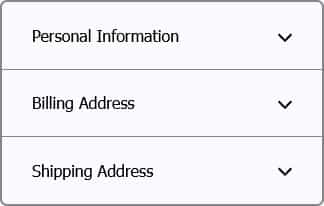
They now exist as native HTML elements (<details>/<summary> for accordions, <dialog> for popups) and CSS properties (scroll-behavior: smooth;) that can do the same job. However, those only work in newer browsers, which not every website visitor uses.
To provide those people with the same user experience, many websites include fallback code for older browsers, especially:
- Polyfills: Pieces of code that evaluate support for browser features and, if they are not supported, use JavaScript to try and add the missing functionality.
- Transforms: JavaScript that has been modified so it works in older browsers, often via transpilers like Babel.
This can add a lot of markup to web pages that browsers need to download and parse even if it’s not relevant to them. This increases page weight and loading time. Plus, it can be render-blocking and clog up the browser’s main thread.
This affects Core Web Vitals, especially First Contentful Paint (FCP), Largest Contentful Paint (LCP), Interaction to Next Paint (INP), as well as Total Blocking Time (TBT). These directly influence ranking, which is why legacy JavaScript can negatively impact your site’s SEO and traffic.
What Does the Legacy JavaScript Insight Measure?
Because of the negative effect on website speed, Google has added the Legacy JavaScript insight to its speed testing tools.
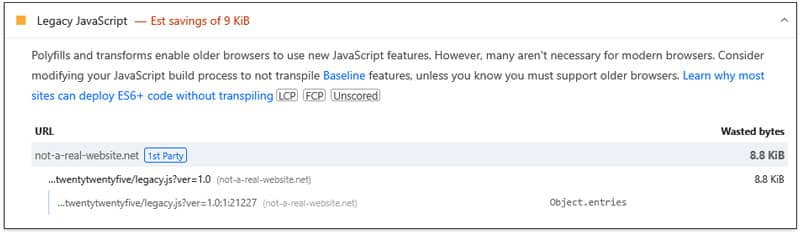
Legacy JavaScript evaluates the share of polyfills and transforms on web pages and the amount of extra code they add. The audit fails if it detects more than 5KB of outdated code for features that are widely supported in modern browsers.
It also points out both the files that contain legacy JavaScript, the legacy feature/function present in those files, and the amount of data you could save if you eliminated it.
How to Check Your Website for Outdated Code Problems
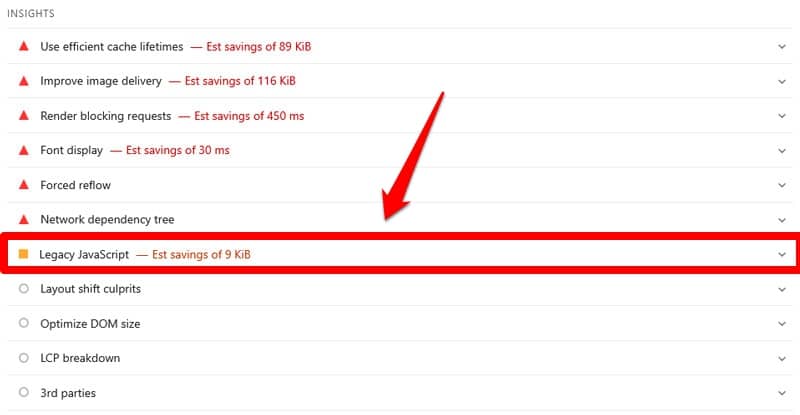
Do you have outdated JavaScript on your web pages? One way to find out is to run them through PageSpeed Insights. Just enter your URL and run the test. If triggered, the Legacy JavaScript insight appears in the Insights section.
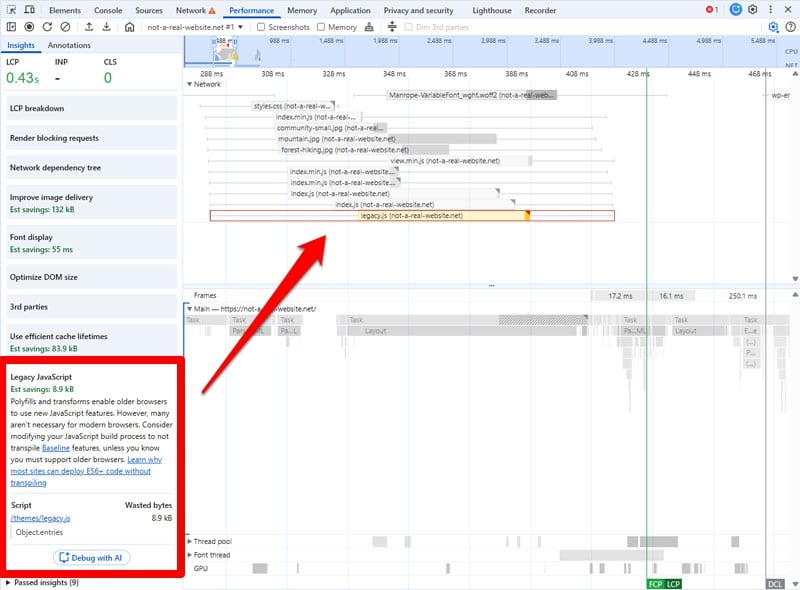
Alternatively, you can also use Chrome Developer Tools. For that, run a performance trace in the Performance tab (for example, via Record and reload).
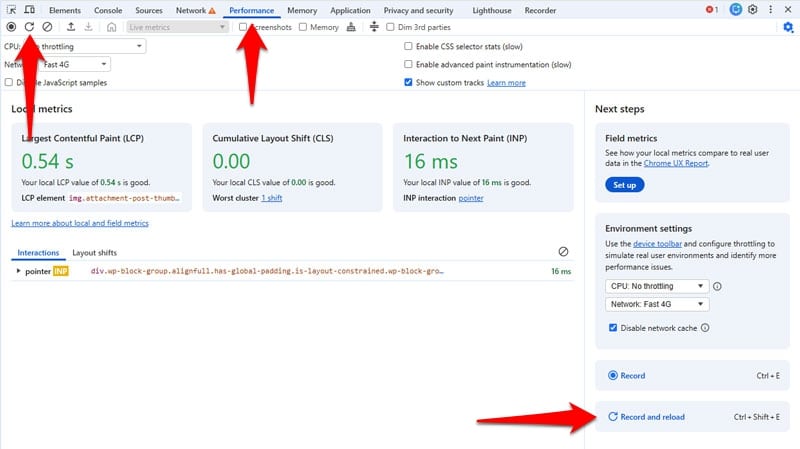
The Legacy JavaScript insight appears in the left sidebar if it applies to the tested page. Click it to see the files that trigger it in the timeline on the right.
How to Manually Eliminate Legacy JavaScript
So, what should you do if Google alerts you to outdated code on your website? We’ll first cover how to address the problem manually, then how to do it using a plugin.
1. Check If Support for Old Browsers Matters on Your Website
There are good reasons to have legacy code on your site. Its goal is to ensure people on older browsers have the intended user experience with the same features as everyone else.
Therefore, if you have a lot of visitors using legacy browsers, providing fallback code is absolutely warranted. On the other hand, if you don’t, you are just wasting bandwidth and slowing down your web pages for no reason.
So, how can you find out which one is true?
Consider Baseline
Baseline is a project that tracks which web platform features are supported across all major browsers (Chrome, Edge, Firefox, Safari).
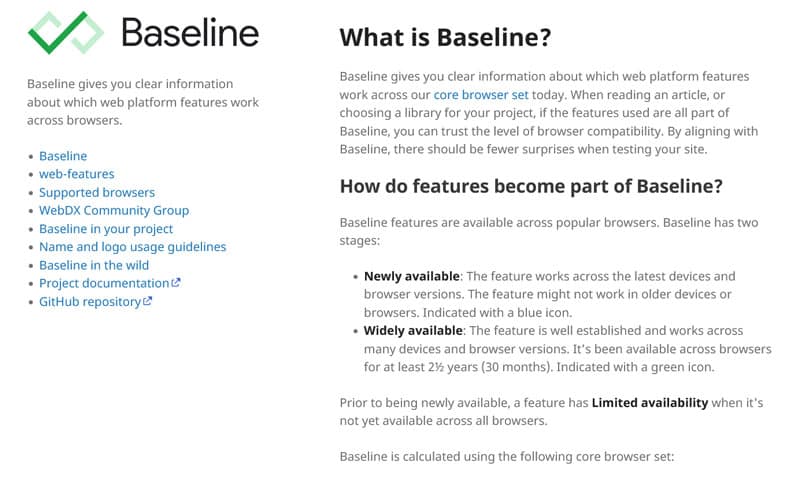
Baseline categorizes web features in three ways:
- Limited availability: For features that are not (yet) supported across all major browsers.
- Newly available: Features that have become available within the last 30 months.
- Widely available: Features that have been supported for more than 30 months.
If a feature you are currently supporting via legacy JavaScript is readily available as a native browser function, it’s an indicator that you can safely make the switch without negatively affecting the majority of website visitors.
Two useful tools in this regard are Can I Use and RUM Archive Insights.
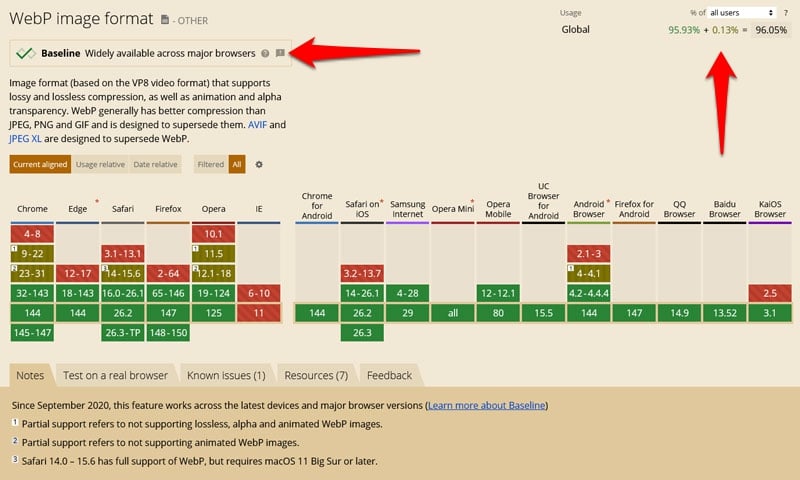
Can I Use is a tool where you can search for specific web features and see which browser versions support it. It also displays a badge for the Baseline level of each feature and the percentage of global users whose browser can handle it.
RUM Archive Insights takes a slightly different approach. It shows the percentage of users with browser support for Baseline features ordered by year.
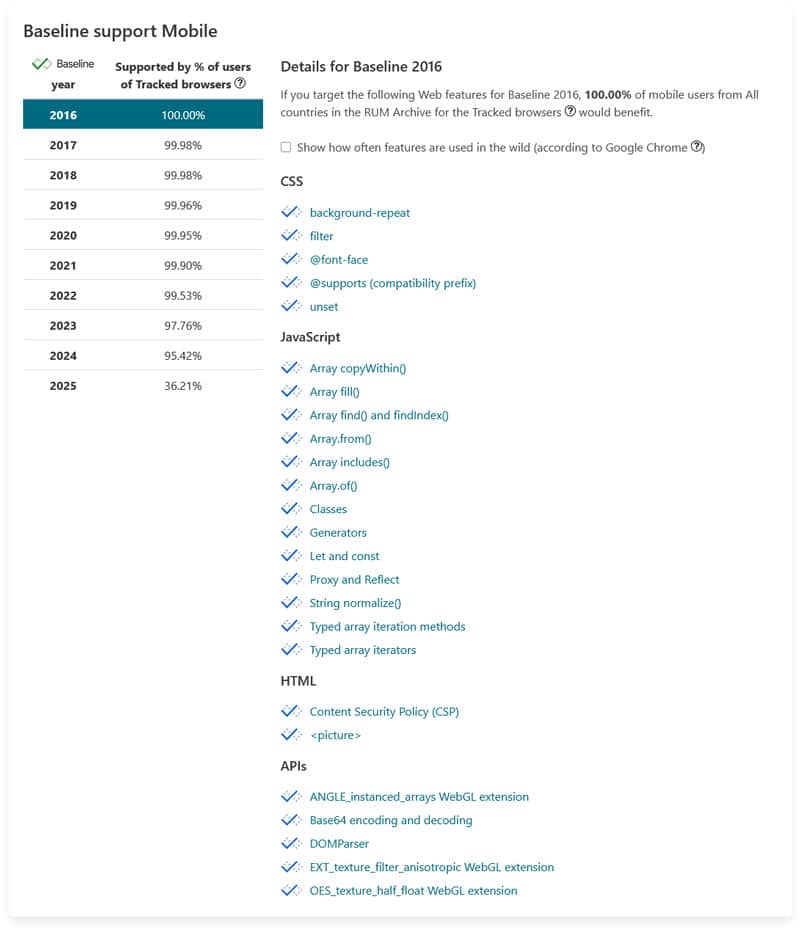
This tells you which features are safe to implement and where you might have to provide a polyfill fallback.
| 💡 Evaluate how important the features you provide fallback code for are for the user experience. If they’re not essential and their absence won’t affect users without browser support very much, it’s safe to go without them. |
Examine Your Audience Analytics
This leaves the question, how do you know what browsers and browser versions people use to access your website? No legacy browsers means no need for legacy code.
You can find that out in your analytics. For example, if you have Google Analytics on your site, go to Explore → Free form.
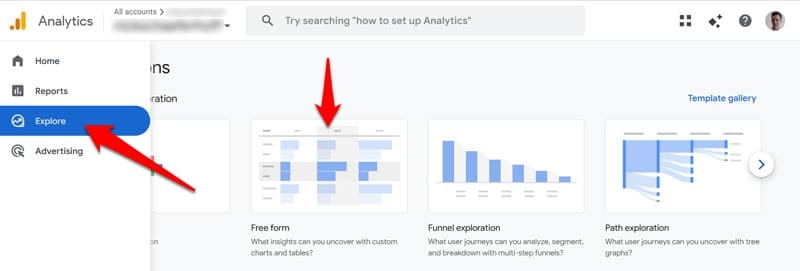
In the next screen, add Browser and Browser version both in Dimensions and Rows. This will make the browser versions used on your website show up on the right.
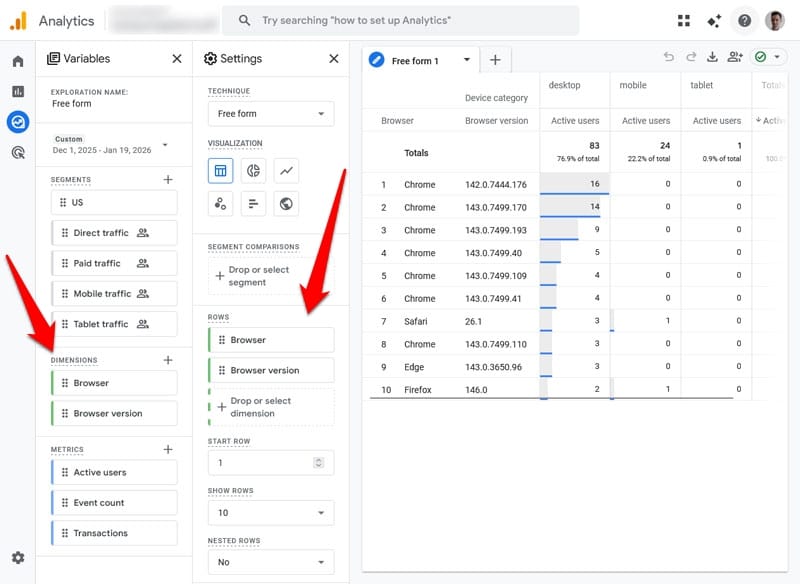
Evaluate whether supporting that share of your audience with legacy code is worth the possible tradeoff in performance.
2. Audit Your Site Code
The only thing you can do to fix the message in Google’s performance tools is to remove the legacy code on your site. There are two ways to go about that:
- Refactor your code to use modern solutions
- Serve different markup to older and newer browsers
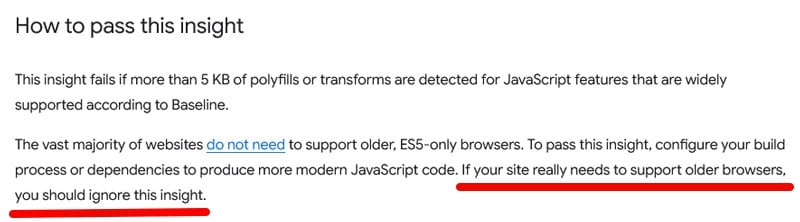
The right approach depends on your audience. If your site is mainly visited by people using modern browsers, eliminating legacy JavaScript may be enough. If it still makes sense to support older browsers, serving different files is the way to go.
| 💡 Side note: If you really need to support older browsers, the official advice from Google is to simply ignore this insight. While not the most elegant solution, it is an option. |
How to Find and Eliminate Legacy Code
Finding the code to fix is pretty simple. The Legacy JavaScript insight clearly flags which files contain problematic code, including their path on your website.

On WordPress, that’s usually:
- WordPress Core (contains /wp-includes/)
- Your theme (contains /wp-content/themes/)
- A plugin (contains /wp-content/plugins/)
- A third-party resource (uses a URL that doesn’t belong to your domain, like ajax.googleapis.com).
To fix the code, your first plan of action is to check if there is an update for the highlighted resources. Developers often publish new versions of their themes, plugins, and third-party scripts specifically to address PSI warnings like this. So, try that first (on a staging or development site) and see whether it fixes the problem.
If the resource in question is really old and no longer receives updates, you may have to replace it with a modern, lightweight alternative.
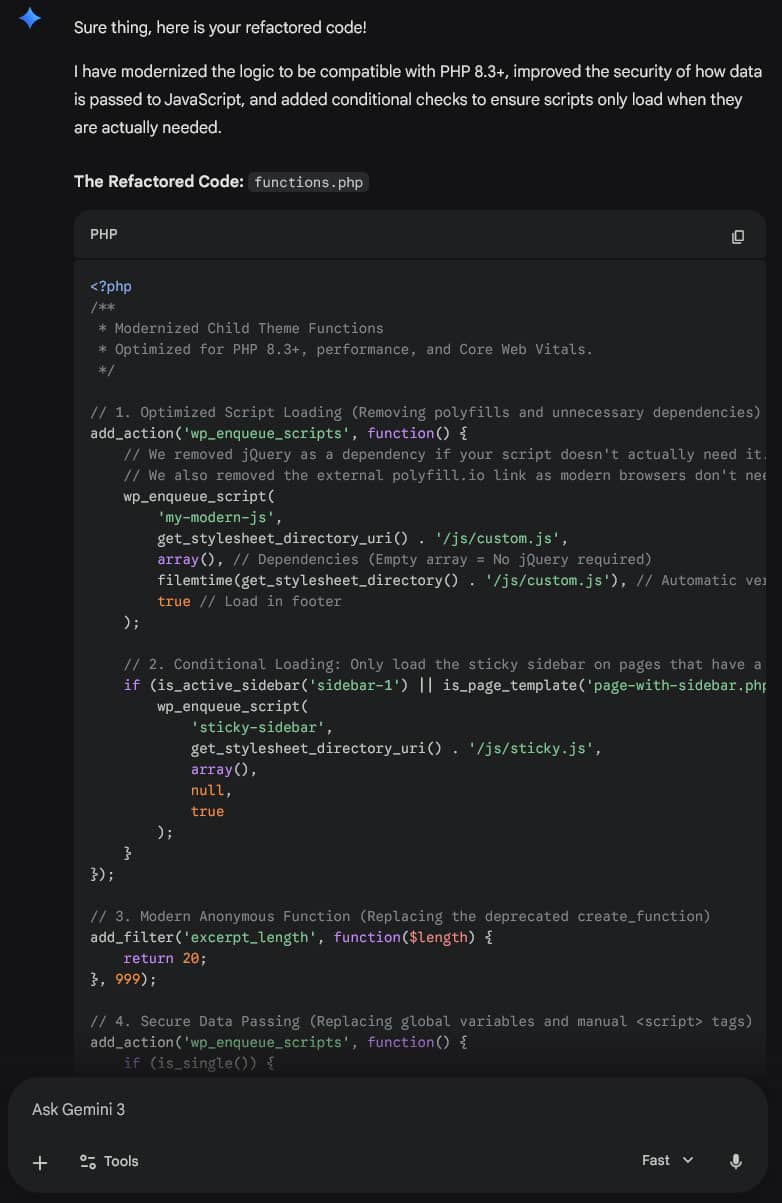
Finally, if the legacy code was added manually, e.g. inside functions.php of a child theme, you’ll have to replace it with a modern solution by hand. If your skills don’t allow you to do that, hire a developer or see if AI can help you refactor your code.
Setting Up Differential Serving
Should you still want or need to support legacy browsers, differential serving — providing separate files for different browsers — is the better solution. You can serve them to using the module/nomodule pattern:
<script type="module" src=".../js/main.js"></script>

<script nomodule src=".../js/main-legacy.js"></script>
Modern browsers only load the script tagged with “module,” while legacy browsers ignore it and load “nomodule” instead.
Implementing this in WordPress manually is a bit fussy, since there is no native support. You have to enqueue your scripts in your (child) theme and then add the “type” attribute afterwards like so:
function ns_differential_serving() {

wp_enqueue_script('modern-browser-scripts', get_template_directory_uri() . '/js/main.js', array(), null, true);

wp_enqueue_script('legacy-browser-scripts', get_template_directory_uri() . '/js/main-legacy.js', array(), null, true);
}

add_action('wp_enqueue_scripts', 'ns_differential_serving');

add_filter('script_loader_tag', function($tag, $handle, $src) {

if ('modern-browser-scripts' === $handle) {

$tag = '<script type="module" src="' . esc_url($src) . '"></script>';

}

if ('legacy-browser-scripts' === $handle) {

$tag = '<script nomodule src="' . esc_url($src) . '"></script>';

}

return $tag;

}, 10, 3);
How to Address Legacy JavaScript with a WordPress Plugin
One more time: the only way to really address the Legacy JavaScript insight is to get rid of the outdated code on your site as described above. But you can also improve the audit with a performance plugin like WP Rocket. It has many features that help mitigate the performance cost of JavaScript and improve overall site speed.
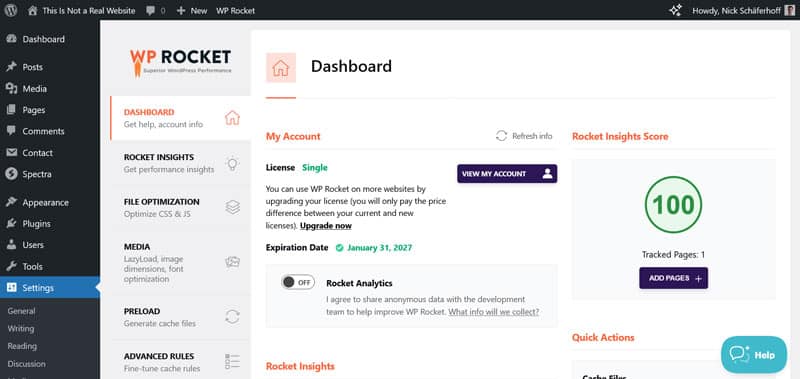
For one, its Delay JavaScript execution feature halts the loading of JavaScript files until a user interaction occurs. This is often enough to make the warning disappear, since when the outdated code doesn’t load, it can’t trigger the performance insight. Note, however, that this is only a workaround, not a true fix.
Besides that, WP Rocket has additional features that help make your pages leaner:
- Remove unused CSS: Eliminates CSS markup that’s unnecessary and could block pages from rendering quickly.
- Combine and defer JavaScript: Reduces download time and removes render-blocking requests.
- Lazy loading for visual elements: Prevents images, CSS backgrounds, videos, and iframes low on the page from loading until visitors scroll towards them. This helps critical elements load faster.
- Self-hosting Google Fonts: Removes requests to external sources that could lead to delays.
The best part: enabling these options is as easy as checking a few boxes in the plugin settings.
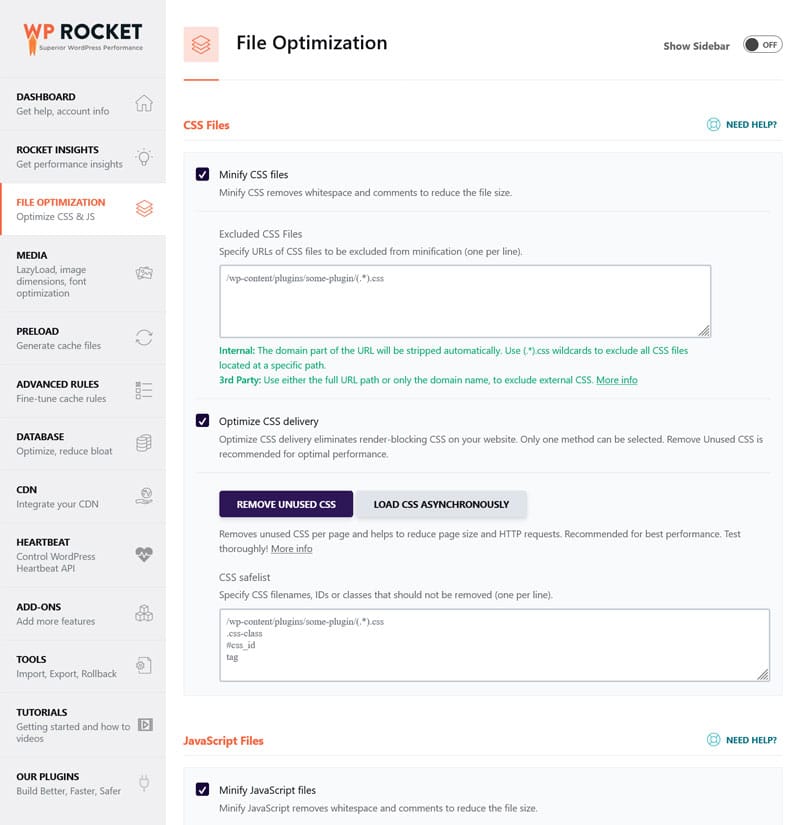
Additionally, WP Rocket comes with a number of optimizations that automatically spring into action when you activate the plugin:
- Caching (with a separate mobile cache): Reduces server work and pre-renders your pages so browsers can load them instantly.
- Critical image optimization: Means images above the fold load early and are excluded from lazy loading.
- Automatic lazy rendering: Like lazy loading but for HTML elements. Speeds up initial page render and shows important page elements more quickly.
- GZIP compression and minification: Reduces file size, improving download time and page speed.
- Preconnect: Establishes connections to third-party resources early to improve load times.
In fact, the plugin implements 80% of performance best practices automatically with no action required on your part.
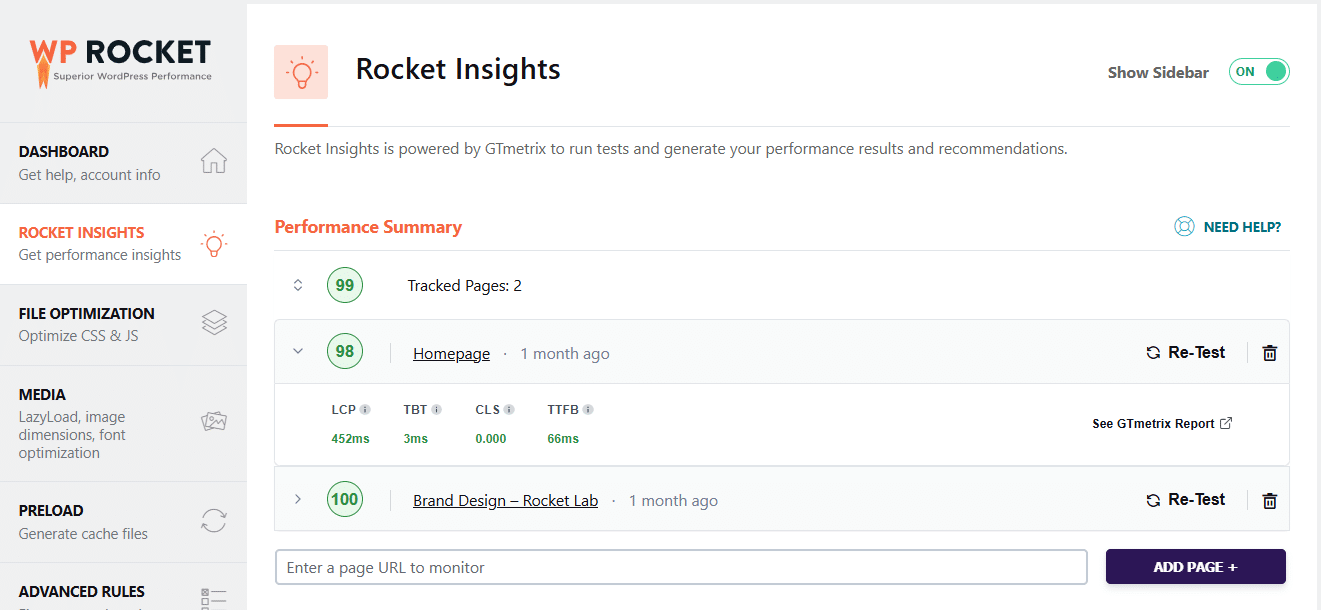
Finally, Rocket Insights lets you automatically monitor your top pages’ performance right inside the WordPress dashboard for free, with performance indicators, recommendations on which WP Rocket features to enable, and re-testing options.
Overview: Correcting Legacy JavaScript
Here’s how to deal with legacy code on your WordPress site in one easy-to-grasp table:
| Source of legacy code | Where to find it | What to do | Effort | Supported by WP Rocket? |
| WordPress Core | /wp-includes/js/ | Update WordPress, dequeue/deregister via PHP snippet. | Low to medium | ❌ |
| Active plugins | /wp-content/plugins/plugin-name | Update plugin or replace with a modern alternative. | Low to medium | ✅ (Delay JS) |
| Active theme | /wp-content/themes/theme-name | Update theme, replace it, or refactor code manually. | Low to high | ✅ (Delay JS) |
| Custom code | Inside your child theme folder | Refactor code (by hand or with AI). | Medium to high | ✅ (Delay JS) |
| Third-party | External (e.g., Google Maps, YouTube) | Update file, delay execution. | Medium | ✅ (Delay JS) |
| Legacy fallback | — | Implement the Module/NoModule pattern. | High | ❌ |
Case Study: Reduce Legacy Code With WP Rocket
To test WP Rocket’s impact on the Legacy JavaScript insight and general website performance, we set up a demo site with a default theme, a few standard plugins, and some dummy content. We also had it load a JavaScript file with outdated markup. Its initial PageSpeed Insights looked like this:
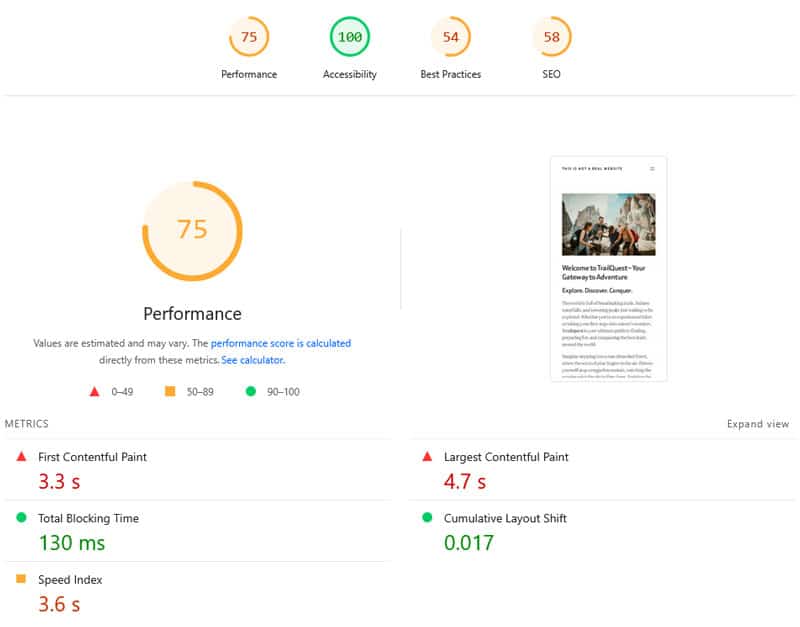
I think we can all agree that it could be better. Additionally, the Insights section showed the Legacy JavaScript warning (along with many other issues).
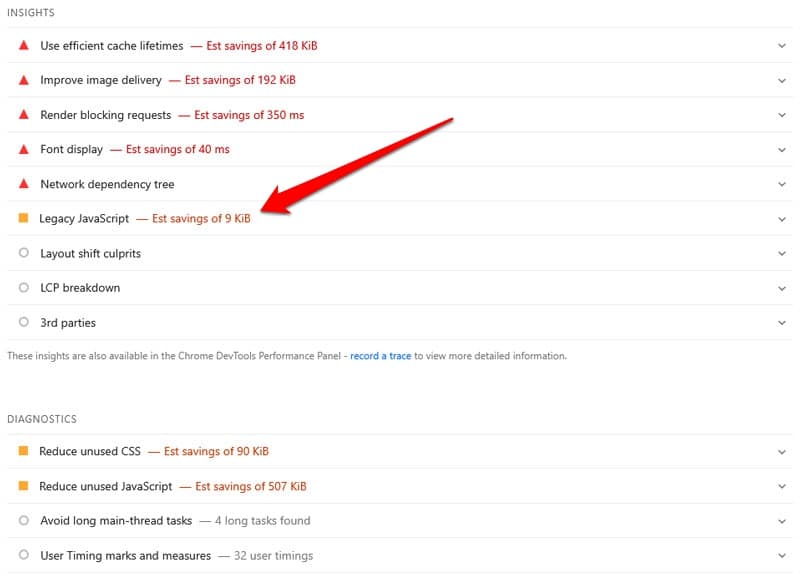
We then installed and activated WP Rocket along with these features:
- Remove unused CSS
- Load JavaScript deferred and delay its execution
- Lazy loading for images and video embeds
- Preload fonts
This produced much better results in the next PageSpeed Insights test:
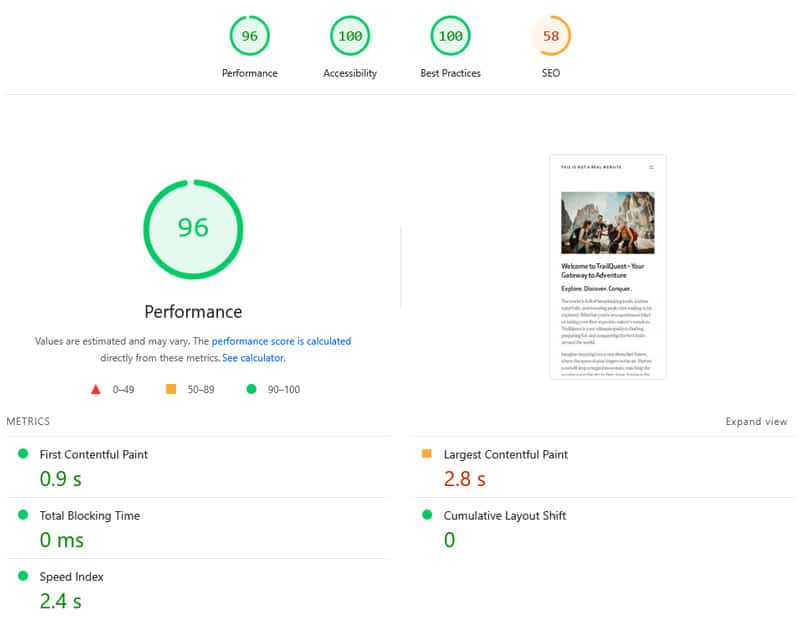
A near perfect score. Plus, the Legacy JavaScript insight also vanished from the list.
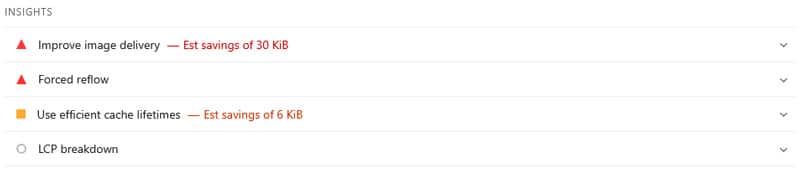
And all it took was five minutes. Here’s a comparison of the test before and after using WP Rocket:
| Value | Before | After |
| Mobile Performance score | 75 | 96 |
| First Contentful Paint | 3.3s | 0.9s |
| Largest Contentful Paint | 4.7s | 2.8s |
| Speed Index | 3.6s | 2.4s |
FAQs
Finally, let’s go over questions that often come up in connection with this topic.
Why is having legacy JavaScript on your site bad for performance?
Legacy code uses complex workarounds to mimic modern browser features, resulting in much larger file sizes. This extra code forces the browser to spend more time downloading, parsing, and executing scripts, which delays page rendering.
Does failing the Legacy JavaScript audit hurt my SEO rankings?
Not directly, however, it negatively affects site speed and Core Web Vitals like Interaction to Next Paint (INP) and Largest Contentful Paint (LCP), which are confirmed ranking factors.
How do I identify which website files are causing the warning?
In your PageSpeed Insights or Chrome Developer Tools report, expand the “Legacy JavaScript” audit to see a list of specific file URLs.
What options do I have to fix outdated JavaScript on my site?
The most common fix is updating your plugins and theme. For a manual approach, you can refactor your own code or implement the module/nomodule pattern to serve different files to different browsers. Performance plugins like WP Rocket can “delay” scripts to hide the impact from speed tests.
How do I know if my visitors are using old browsers?
The best way is to check your Google Analytics report to see what percentage of your audience is using outdated browser versions.
What happens if a user with an old browser visits my site after I remove legacy code?
The website will still load, but specific enhanced features may stop working. This often isn’t a problem if they are not essential for the basic functioning of the page.
If I need to support old browsers, should I just ignore this warning?
If your analytics show a significant portion of users on old browsers, Google actually recommends ignoring the insight. However, a better strategy is to use differential serving, so modern and outdated browsers each receive the code they need.
Effectively Address Legacy JavaScript on your WordPress Site
The Legacy JavaScript insight is an important performance marker in Google’s toolkit, highlighting when your site is sending outdated instructions and bloated code to modern browsers.
Resolving it typically requires at least some manual cleanup, even if it’s just updating themes and plugins or replacing outdated site components. While delaying JavaScript with a plugin offers an alternative approach, it doesn’t fix the underlying issue.
At the same time, legacy JavaScript is just one small piece in the puzzle of site performance. If you want help with automating the other 99%, try WP Rocket risk-free for 14 days!