

Table of Contents
By Marine Larmier - Last update on
Is your website fast? It’s easy to test, but not always easy to optimize! Thankfully, there are some excellent WordPress performance optimization plugins to help you get there faster.
A slow website has real consequences. If your pages take too long to load, users leave, abandon their carts, and may hesitate to trust your site with their data or their payment details.
Google sees it the same way with the Core Web Vitals; it measures how quickly your pages load, how stable they are, and how fast users can interact with them. If your site struggles here, your rankings will too.
That’s why performance optimization matters!
In this guide, we explore the best WordPress performance plugins and WordPress optimization tools. You’ll discover the right tools to improve speed, boost Core Web Vitals, and build an effective optimization stack that fixes the most common performance issues.
| TL;DR Performance optimization involves multiple techniques, and handling things manually, like trimming CSS or optimizing scripts, can quickly become complex and risky for your site. WordPress performance optimization plugins simplify this process by automating key improvements and reducing the chances of errors. WP Rocket stands out as an easy-to-use solution that applies around 80% of the performance best practices upon activation. And with Rocket Insights, it not only fixes issues but also shows you what’s slowing your site down, so you can optimize without guesswork. Key Takeaways ✅ Performance plugins automate critical optimizations and save time. ✅ Not all plugins serve the same purpose; some focus on caching, others on code or images. ✅ Using too many plugins with overlapping features can hurt performance. ✅ Core Web Vitals depend on multiple factors like code optimization, caching, and image compression. ✅ Ease of use matters as much as features; tools like WP Rocket make optimization accessible without technical skills. |
12 Best WordPress Performance Optimization Plugins
From caching and code optimization to image compression and CDN delivery, these WordPress speed-optimization plugins help you improve your site’s speed. Below, you’ll find the 12 best WordPress performance plugins to optimize your site efficiently.
1. WP Rocket
Overview
WP Rocket is the easiest and most powerful WordPress performance optimization plugin designed to improve loading speed and Core Web Vitals without requiring technical skills. It automatically applies 80% of the performance best practice upon activation, including caching, CSS and JavaScript minification, critical image optimization, and lazy rendering. It also comes with an intuitive interface that lets you easily enable advanced optimizations, such as delaying JavaScript execution, deferring JavaScript, removing unused CSS, and cleaning your database, all in just a few clicks.
Key Features
Automated features upon activation:
- Page caching, browser caching, cache preloading.
- Critical image optimization.
- Automatic lazy rendering.
- CSS and JavaScript minification.
Other key features activable in one click:
- Remove unused CSS.
- Delay, and defer JavaScript.
- LazyLoad.
- Preload links, DNS prefetch, and support any CDNs.
- Database optimization: cleanup of revisions, transients, and overhead.
Ease of Setup
Very easy (80% of the performance best practices are automatically applied upon plugin activation).
Main Strength
Rocket Insights is included for free in WP Rocket and lets you monitor the global website performance score (out of 100) and key performance metrics like LCP, CLS, TBT, and TTFB, with clear recommendations on which WP Rocket feature to enable next. It also offers unlimited re-tests and automatic scheduling, so you can track improvements over time and measure the impact of every change without guesswork.
Pros
- It delivers immediate speed improvements.
- It is beginner-friendly.
- It boosts your PageSpeed performance score and improves your Core Web Vitals.
- Wide compatibility with the most popular themes, plugins, and hosting.
Cons
- No free version.
Best for
Beginners, business owners, freelancers, agencies, and anyone who wants a blazing-fast performance plugin without technical setup.
Pricing
From $59/year, depending on your country and applicable taxes.
2. LiteSpeed Cache
Overview
LiteSpeed Cache is a powerful performance plugin that combines server-level caching with front-end optimization features. It significantly improves load times on LiteSpeed servers and includes tools for code, image, and database optimization.
Key Features
- Caching: server-level full-page caching.
- Code optimization: CSS and JavaScript minification, combination, and defer options.
- Media optimization: image compression, lazy loading.
- CDN integration: Yes.
- Database optimization: cleanup and optimization tools.
Ease of Setup
Moderate.
Main Strength
It provides server-level caching for high performance.
Pros
- It is free and feature-rich.
- It delivers strong performance gains.
Cons
- It works best on LiteSpeed hosting (so you are a bit limited).
- Its setup can feel complex for beginners.
Best for
Users on LiteSpeed hosting, developers, and advanced users who want deep control over caching and server-level optimization.
Pricing
Free.
3. FlyingPress
Overview
FlyingPress is a modern WordPress performance plugin focused on improving real-world loading speed and Core Web Vitals through lightweight optimization techniques.
Key Features
- Caching: page caching and preload.
- Code optimization: CSS and JavaScript optimization, unused CSS removal.
- Media optimization: lazy loading for images and iframes.
- Font optimization: local fonts and preload.
Ease of Setup
Easy.
Main Strength
It is optimized for real user performance.
Pros
- It is lightweight.
- It improves Core Web Vitals performance.
Cons
- It is a premium-only plugin.
Best for
Performance-focused users, developers, and site owners who want lightweight optimization focused on Core Web Vitals.
Pricing
From $60/year.
4. NitroPack
Overview
NitroPack is a cloud-based performance optimization solution that automates caching, CDN delivery, and front-end optimization to improve loading speed and Core Web Vitals.
Key Features
- CDN: built-in global CDN.
- Caching: full-page caching system.
- Code optimization: CSS and JavaScript optimization.
- Media optimization: image compression and lazy loading.
Ease of Setup
Easy.
Main Strength
It provides fully automated optimization.
Pros
- It delivers fast results.
- It offers an all-in-one solution.
Cons
- It gives limited control over fine-tuning: you have less control over how each optimization is applied. You can’t easily decide which scripts to delay, which CSS to remove, or how specific elements should be handled.
Best for
Non-technical users, small businesses, and site owners who want a fully automated, all-in-one performance solution.
Pricing
Free plan available. Paid plans range from around $7/month to $83/month, with agency plans starting higher.
5. WP Fastest Cache
Overview
WP Fastest Cache is a lightweight caching plugin that improves page load speed with essential caching and optimization features.
Key Features
- Page caching system.
- CSS and JavaScript minification.
- CDN support.
- Cache preload.
Ease of Setup
You need to configure it manually.
Main Strength
It has a strong focus on caching.
Pros
- It offers a free version.
- Lightweight and stable.
Cons
- It requires manual configuration, as you need to enable each optimization. individually rather than benefiting from automatic performance improvements.
Best for
Beginners and small websites looking for a free and quick caching solution.
Pricing
Free and premium. Premium is a one-time payment from $49, depending on the license.
6. Perfmatters
Overview
Perfmatters is a lightweight performance plugin that improves speed by disabling unnecessary scripts and reducing page bloat.
Key Features
- Script management: disable scripts per page.
- Optimization: reduce HTTP requests and bloat.
- Database optimization: cleanup tools.
- Font optimization: local Google Fonts.
Ease of Setup
Moderate
Main Strength
It focuses on bloat reduction and script control.
Pros
- It is lightweight.
- It offers high customization.
Cons
- Its setup can feel technical for beginners.
Best for
Developers, performance experts, and advanced users who want full control over scripts and site bloat.
Pricing
From $24.95/year.
7. Asset CleanUp
Overview
Asset CleanUp improves performance by unloading unused CSS and JavaScript files on specific pages, reducing page size and HTTP requests.
Key Features
- Script control: unload CSS and JavaScript per page.
- Code optimization: minification and combination.
- Performance: reduce HTTP requests.
Ease of Setup
Advanced
Main Strength
It provides fine control over assets.
Pros
- It allows precise optimization.
- It delivers significant performance gains.
Cons
- It can break layouts if not configured carefully.
Best for
Developers and technical users who want precise control over which CSS and JavaScript files load on each page.
Pricing
Free and pro versions available (around $49 one-time or yearly, depending on license).
8. Autoptimize
Overview
Autoptimize focuses on improving front-end performance by optimizing CSS, JavaScript, and HTML files to reduce page size and improve loading speed.
Key Features
- Code optimization: CSS, JavaScript, and HTML minification.
- Aggregation: combine files.
- Media optimization: basic lazy loading.
- CDN: CDN compatibility.
Ease of Setup
Easy.
Main Strength
It focuses on front-end optimization.
Pros
- It is free.
- It offers a flexible configuration.
Cons
- It works best when combined with a caching plugin.
Best for
Intermediate users who want to optimize front-end code and combine it with a caching plugin.
Pricing
Free version available. Pro add-ons or bundles from around $60/year.
9. Imagify
Overview
Imagify is the easiest image optimization plugin, reducing image sizes while preserving visual quality through Smart compression. It helps reduce page weight by compressing images and converting them to modern formats, improving load times, and overall performance.
Key Features
- Smart compression: it reduces the file size through compression while keeping quality.
- WebP and AVIF conversion.
- Bulk optimization of the entire media library.
- Restore original images easily.
Ease of Setup
Very easy.
Main Strength
The Smart compression algorithm is very efficient in automatically compressing the images to the maximum without impacting quality.
Pros
- It is very easy to use.
- It maintains good image quality.
- It saves time with bulk optimization.
Cons
- It has no built-in lazy loading.
Best for
Bloggers, WooCommerce sites with large product catalogs, designers who need fast bulk optimization, and WordPress agencies managing image-heavy websites.
Pricing
Free for 20MB of data/month, then $4.99/month for 5000 images, and $9.99/month for unlimited compressions and conversions.
10. ShortPixel
Overview
ShortPixel is an image optimization plugin that reduces page weight by compressing images and converting them into modern formats while maintaining visual quality.
Key Features
- Compression: lossy, lossless, glossy.
- Formats: WebP and AVIF conversion.
- Bulk optimization: entire media library.
- CDN: adaptive image delivery.
Ease of Setup
Easy to moderate.
Main Strength
It delivers high compression efficiency.
Pros
- It offers strong compression performance.
- It provides flexible optimization settings.
Cons
- It may use server space for image backups.
- Its setup can feel overwhelming for beginners.
Best for
Image-heavy websites, photographers, and users who want flexible compression control.
Pricing
Free plan available. Paid plans based on credits (from $9.99/month depending on volume).
11. Advanced Database Cleaner
Overview
Advanced Database Cleaner improves performance by removing unused data and optimizing database tables, reducing size and improving efficiency.
Key Features
- Cleanup: revisions, drafts, spam comments.
- Optimization: database tables.
- Scheduling: automated cleanup tasks.
Ease of Setup
Moderate.
Main Strength
It provides deep database cleanup.
Pros
- It improves backend performance.
- It is useful for large or older sites.
Cons
- Its advanced options can lead to mistakes if not used carefully.
Best for
Large websites, WooCommerce stores, and site owners managing older installations with heavy databases.
Pricing
Free version available. Pro version from around $39–$59/year.
12. RocketCDN
Overview
RocketCDN improves loading speed by delivering your website content from servers closer to your users, reducing latency and improving global performance.
Key Features
- CDN: global content delivery.
- Integration: seamless with WP Rocket.
- Performance: reduced latency and faster delivery.
Ease of Setup
Very easy.
Main Strength
It offers plug-and-play CDN performance.
Pros
- It requires no technical setup.
- It improves global loading speed.
Cons
- It has limited image optimization features.
Best for
Websites, agencies, and site owners with international visitors who want an easy CDN setup without technical configuration.
Pricing
From $8.99/month
WordPress Performance Plugins Comparison
Choosing between the best WordPress performance optimization plugins can feel overwhelming. These comparison tables help you quickly evaluate the best WordPress speed-optimization plugins based on features, pricing, and real-world performance use cases.
Comparison Overview of WordPress Performance Optimization Plugins
This table gives you a quick overview of the best WordPress performance plugins, including their main strengths, limitations, ease of setup, and pricing.
| Performance Optimization Plugin Name | Key features | Cons | Easy Setup | Pricing |
| WP Rocket | All-in-one optimization and built-in performance hub | No free version | ✓ | From $59/year (WP Rocket) |
| LiteSpeed Cache | Server-level caching | Configuration complexity | ✗ | Free |
| FlyingPress | Core Web Vitals optimization | Premium only | ✓ | From $59/year |
| NitroPack | Fully automated optimization | Limited control | ✓ | Free + from $7/month |
| WP Fastest Cache | Simple caching | Limited features | ✓ | Free + from $49 one-time |
| Perfmatters | Script control & bloat removal | Technical setup | ✗ | From $29.95/year |
| Asset CleanUp | Unload unused CSS/JS | Risk of layout issues | ✗ | Free + from $39/year |
| Autoptimize | Front-end optimization | Needs a caching plugin | ✓ | Free. Pro add-ons or bundles from around $60/year. |
| Imagify | Smart image compression | No lazy loading | ✓ | Free + from $4.99/month (WP Rocket) |
| ShortPixel | Advanced compression control | Credit-based pricing | ✓ | Free + pay-as-you-go |
| Advanced Database Cleaner | Database cleanup | Advanced settings can be misused | ✗ | Free + from $39/year |
| RocketCDN | Global content delivery | Limited image optimization | ✓ | From $8.99/month |
Now that you know the best WordPress performance optimization plugins, let’s take a quick look at how they actually work behind the scenes. If you’re curious about the technical side, the next section will give you a better understanding.
How Do WordPress Speed Optimization Plugins Work?
You now have 12 tools to choose from, so let’s see how WordPress speed optimization plugins really work. They reduce unnecessary resources and prioritize what should be displayed first. They remove or optimize anything that isn’t essential to render your content, while ensuring critical elements load as quickly as possible.
When someone visits your site, their browser has to download and process everything on the page, including text, images, styles, and scripts. If everything loads at once without any structure, your site feels slow and heavy. Part of the job is also to make this content lighter by compressing images, optimizing code, and eliminating unnecessary data. Here’s an example of code optimization with WP Rocket:
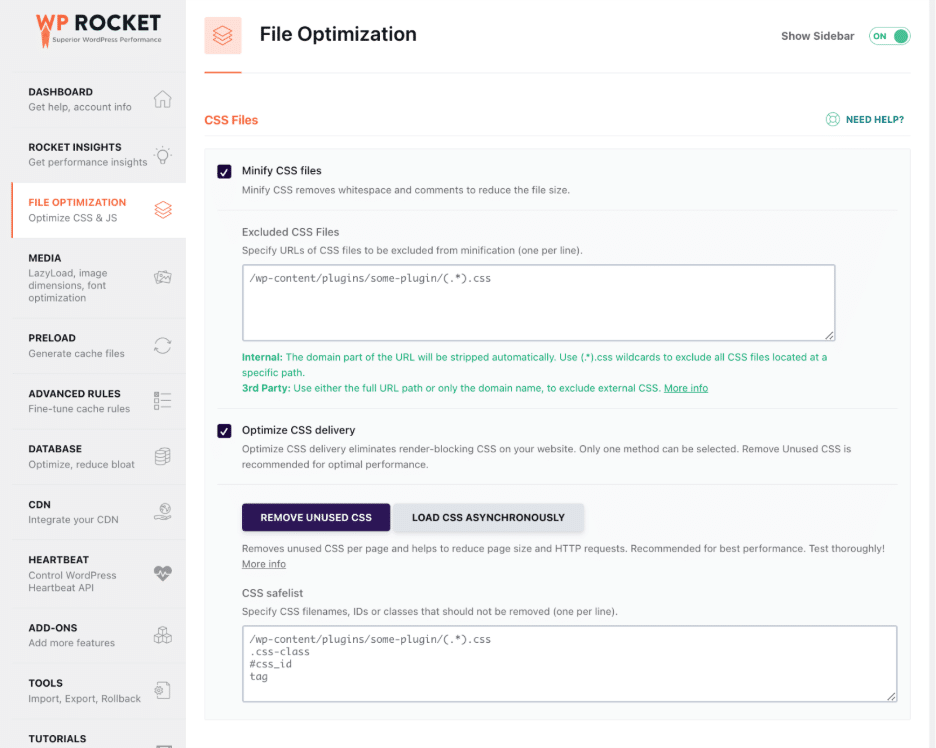
Performance plugins streamline this process by controlling which assets load first and reducing the amount of data the browser needs to handle.
| 💡 Hint: With WordPress speed optimization plugins, your key content is lighter, appears faster, and is prioritized, while the rest loads in the background or later. |
Let’s take a look at a few Core Web Vitals WordPress plugins and see how to choose the right one for your optimization journey.
Do You Need a WordPress Performance Optimization Plugin?
Always. While it’s technically possible to optimize a WordPress site without a plugin, it often requires time, technical knowledge, and ongoing maintenance. Tasks like manually compressing images, minifying CSS and JavaScript files, or configuring caching rules can quickly become complex.
Here’s an example with Toptal, an online CSS tool that lets you minimize your CSS. You have to copy paste the code from your site into that field below and then put the minified code back into WordPress. It’s a pretty long and risky process, right?
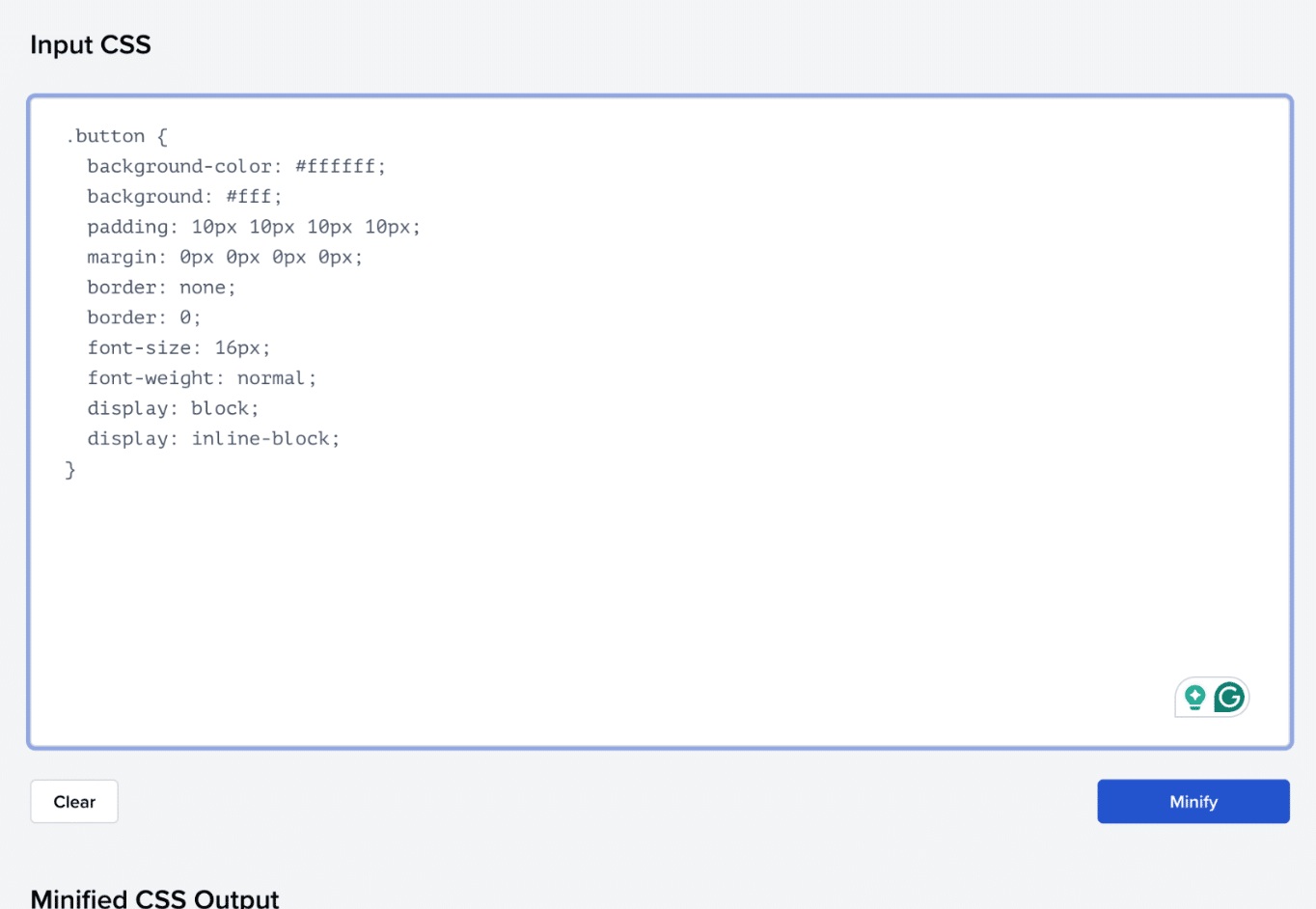
Performance optimization plugins simplify this process by automating these tasks. Instead of handling everything manually, you can improve your site’s speed and efficiency in just a few clicks, without modifying code or risking errors.
Common Speed Problems That Performance Plugins Like WP Rocket Fix
Most slow websites have a few common issues behind them. Let’s go through some easy fixes using WP Rocket and other plugins.
Before we dive in, let’s take a minute to understand why you should choose WP Rocket. As seen in the previous list of tools, it’s the most powerful WordPress performance optimization plugin, applying around 80% of the performance best practices right after activation. This includes page caching, browser caching, and cache preloading along with GZIP compression, lazy rendering, minification of CSS and JavaScript files, font optimization, and critical image optimization to improve loading speed and Core Web Vitals.
From there, you can go even further with advanced options available in just a few clicks. Features like LazyLoad, Delay JavaScript execution, and Remove Unused CSS help you optimize your pages loading times and how quick content loads. You can also clean your database and reduce the impact of third-party scripts to further improve WordPress performance.
Here’s your cheat sheet:
❌ Slow-loading pages
When a page takes time to appear, it’s usually because WordPress has to build everything from scratch on each visit.
✅ Easy fix: Use page caching in WP Rocket so your site can serve a ready-to-load version instantly.
❌ Heavy JavaScript is slowing interactions
Some scripts block the page and delay when users can click, scroll, or interact.
✅ Easy fix: Use Load JavaScript deferred and Delay JavaScript execution in WP Rocket to reduce their impact.
❌ Too much unused CSS
Your site may load styles that aren’t even used, making pages heavier than necessary.
✅ Easy fix: Turn on Remove Unused CSS in WP Rocket to keep only what’s needed.
❌ Images making pages heavy
Large images are one of the most common reasons a site feels slow, especially on mobile.
✅ Easy fix: Enable LazyLoad in WP Rocket and compress images with Imagify to reduce page weight.
❌ Too many CSS and JavaScript files
Each file adds a request, which can slow down your page’s load time.
✅ Easy fix: Use minification features in WP Rocket to reduce file sizes and improve loading speed.
❌ Slow loading for international visitors
If your server is far from your audience, your content simply takes longer to reach them.
✅ Easy fix: Use a CDN like RocketCDN to deliver content closer to users around the world.
That said, plugins are only part of the equation.
Your hosting plays a critical role in your website’s performance. A slow server, limited bandwidth, or poor global delivery can impact loading times regardless of how well your site is optimized. Many hosting providers already include built-in caching or CDN services, which provide a solid performance foundation.
However, these features are rarely sufficient on their own. Plugins help refine and extend these optimizations, ensuring that every layer of your site is properly optimized.
If you’re unsure whether you need a performance plugin, the best approach is to test your site. Run a quick audit with GTmetrix, then review your load time, page size, and Core Web Vitals scores.
| 💡Hint: As a general guideline, if your pages take more than three seconds to load or your scores are below recommended thresholds, performance optimization should be a priority. |
Quick checklist: Should You Use a Performance Plugin?
If you answer yes to even one of these, you likely need a WordPress performance optimization plugin to improve your speed and Core Web Vitals.
| Most popular website performance issues and needs | Do you need a performance plugin? |
| Your site feels slow or unresponsive | ✓ |
| Your pages take more than 3 seconds to load | ✓ |
| Your images are large and take too long to load | ✓ |
| Your performance scores are in orange or red on GTmetrix or PageSpeed Insights | ✓ |
| You prefer not to handle technical optimizations manually | ✓ |
| Your LCP (Largest Contentful Paint) is above 2.5s | ✓ |
| Your INP (Interaction to Next Paint) is above 200 ms | ✓ |
| Your CLS (Cumulative Layout Shift) is above 0.1 | ✓ |
| You want to reach an international audience and need a fast site worldwide | ✓ |
How to Choose the Right WordPress Performance Optimization Plugin
Choosing the right WordPress performance optimization plugins depends on 2 main elements. First, you need to understand what’s slowing down your site, then decide how hands-on you want to be, and only then can you choose the right solution for your needs.
Here’s a simple decision process you can follow.
Step 1: Diagnose and Test Your Website
Before installing anything, start with a performance audit.
Use tools like GTmetrix, Google PageSpeed Insights, or Rocket Insights to analyze your site.
Why does this matter? Because you need to understand what’s actually slowing your site down.
Some tools don’t directly improve speed but help you diagnose issues. For example, Query Monitor shows what’s happening behind the scenes, such as slow database queries or heavy scripts.
GTmetrix provides key performance indicators like page speed, page weight, load time, and Core Web Vitals. In the example below, the website is too slow, JavaScript is taking up all the space, and the page requests are too high.
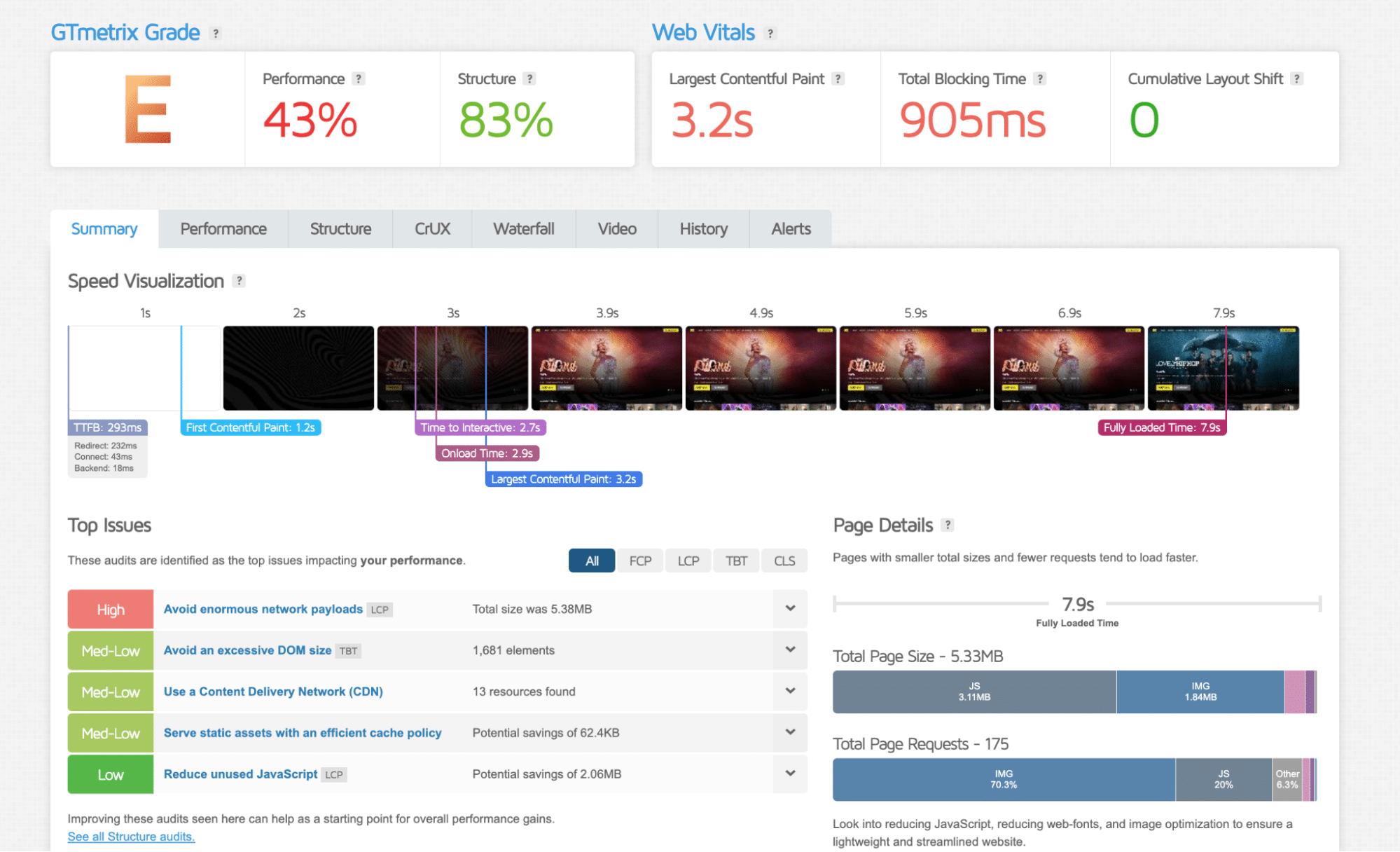
👉 You can clearly identify bottlenecks and take the right actions to improve performance.
Step 2: Define Your Technical Level
Next, ask yourself how much you want to handle manually.
You can optimize your site without plugins by editing code, implementing caching, setting up lazy loading, and compressing images yourself. This gives you full control, but it’s time-consuming and comes with higher risks. A small mistake can break your layout or affect functionality.
Most users prefer to rely on WordPress speed optimization plugins to handle these tasks automatically. They simplify the process, reduce risk, and save significant time.
The question is simple: Do you want full control, or a tool to do the heavy lifting for you? Here’s a simple table that should help you make up your mind:
⚖️ Optimization Plugins vs Manual Optimization
| Criteria | WordPress speed optimization plugins | Manual |
| Less risk of breaking the code (and the site) | ✔ | ✖ |
| Time-saving (no back-and-forth, no manual coding) | ✔ | ✖ |
| Optimize CSS & JS easily | ✔ | ✖ |
| Image optimization (no quality loss) | ✔ | ✖ (risk of pixelated images if over-compressed) |
| Everything within WordPress | ✔ | ✖ |
| Ease of use (no back-and-forth, no manual coding) | ✔ | ✖ |
Step 3: Choose the Right Stack for Your Needs
This final step is about matching your needs to the right WordPress performance optimization plugins. For example, if your site is slowed down by heavy images, an image optimization plugin may be enough. If your audience is international, adding a CDN can make a big difference. Some sites, however, need a more complete solution to handle caching, code optimization, and resource prioritization.
The next section will help you further narrow down which WordPress speed optimization plugins you actually need to improve performance and Core Web Vitals.
Which Performance Plugin Do You Actually Need?
Because not every site needs the same setup, the best approach is to focus on the tools that solve your specific performance issues. Here are a few common scenarios to help you decide which plugin you need:
For beginners who want the easiest setup
⚠️ Daily performance challenges: slow page load times, no caching, large images, and poor Core Web Vitals.
👉 Recommended setup: all-in-one performance plugin. Use WordPress caching plugins like WP Rocket or WP Fastest Cache.
If your hosting already provides caching
⚠️ Daily performance challenges: render-blocking CSS and JavaScript, unused code, front-end bottlenecks.
👉 Recommended setup: front-end optimization tools. Use Autoptimize or Perfmatters.
For WooCommerce or content-heavy sites
⚠️ Daily performance challenges: large product images, slow category pages, dynamic content, and database bloat.
👉 Recommended setup: caching + image optimization + database cleanup. Use WP Rocket with Imagify or ShortPixel, and Advanced Database Cleaner.
For developers
️⚠️ Daily performance challenges: unused CSS/JS, too many requests, inefficient script loading, need for full control.
👉 Recommended setup: script management and fine-tuned optimization. Use Perfmatters or Asset CleanUp.
For web designers
⚠️ Daily performance challenges: heavy visuals, large images, layout shifts, and animations slowing down pages.
👉 Recommended setup: image optimization + front-end optimization. Use Imagify or ShortPixel with Autoptimize.
For bloggers
⚠️ Daily performance challenges: slow blog posts due to images, high page weight, and poor mobile performance.
👉 Recommended setup: simple performance stack. Use WP Rocket with Imagify.
For SEOs and marketers
⚠️ Daily performance challenges: poor Core Web Vitals, slow LCP, render-blocking resources, and low PageSpeed scores.
👉 Recommended setup: performance-focused optimization. Use WP Rocket, FlyingPress, or NitroPack.
For business owners and agencies
⚠️ Daily performance challenges: multiple sites, inconsistent performance, global audience.
👉 Recommended setup: CDN + optimization plugins. Use WP Rocket with RocketCDN and Imagify. If you’re on LiteSpeed hosting, LiteSpeed Cache can also be a strong alternative.
FAQs About WordPress Performance Optimization Plugins
What’s The Best WordPress Performance Optimization Plugin?
WP Rocket is considered one of the best WordPress performance optimization plugins because it implements 80% of the performance best practices upon activation, including caching, JS/CSS minification, and critical image optimization. Plus, it comes with Rocket Insights which lets you monitor your website speed, with clear recommendations to optimize it and track improvements, all without guesswork.
Do WordPress Performance Plugins Really Improve Website Speed?
Yes, they do. WordPress speed optimization plugins can significantly reduce loading times by optimizing code, compressing files, and prioritizing content. You can easily measure the impact using tools like Google PageSpeed Insights or GTmetrix by comparing your page speed and loading time before and after optimization.
Which Plugin Improves Core Web Vitals the Most?
WP Rocket is one of the most effective Core Web Vitals WordPress plugins because it reduces unnecessary resources and prioritizes critical content. This helps your pages load faster, remain stable, and become interactive more quickly.
Can I Use Multiple WordPress Performance Plugins Together?
Yes, but only if they serve different purposes. Avoid using multiple plugins with overlapping features, such as two caching plugins. For example, don’t combine WP Rocket with another caching plugin, such as WP Fastest Cache. Instead, pair it with complementary WordPress optimization tools, such as an image optimization plugin like Imagify.
What’s The Difference Between Caching Plugins And Performance Optimization Plugins?
Caching is just one part of performance. WordPress caching plugins store ready-to-load versions of your pages, but full performance optimization goes further. It includes image compression, code optimization, lazy loading, database cleanup, and resource prioritization. That’s why broader WordPress performance plugins cover multiple layers of optimization.
Are Free WordPress Performance Plugins Enough For Good Performance?
Free plugins can be a great starting point and help improve basic performance. However, they often lack advanced features like JavaScript optimization or removing unused CSS, which are essential for improving Core Web Vitals. Premium WordPress performance-optimization plugins usually provide a more comprehensive solution.
How Do I Know Which WordPress Performance Plugin I Need?
Start by testing your site with tools like GTmetrix. Identify what’s slowing your site down, then choose the right tool for the job. If your issue is mainly image-related, an image plugin may be enough. If it’s related to global delivery, caching and a CDN might solve it. The best approach is to match the plugin to your specific performance issues.
Do I Still Need A Performance Plugin If I Have Good Hosting?
Yes, in most cases. Hosting provides a strong foundation, but it doesn’t cover every aspect of performance. Check what your hosting already includes, such as caching or CDN, and choose WordPress performance optimization plugins that complement those features rather than duplicate them. Make sure features don’t overlap.
Wrapping Up
Each WordPress performance optimization plugin solves a specific problem. Some focus on caching, others on images, code, or global delivery. The key is not to use everything, but to choose the right combination based on your site’s needs.
Compared to manual optimization, plugins make the process faster, safer, and much easier to manage. You reduce the risk of breaking your site while still applying best practices that improve speed and Core Web Vitals.
If you want a powerful solution, WP Rocket is a great place to start. It handles most optimizations automatically and helps you get results quickly without technical complexity.
And there’s no real risk. You can choose between a 14-day free trial or a purchase with a 14-day money-back guarantee. The only thing you might notice is your site getting faster, even faster than expected! 🚀