

Table of Contents
Last update on
JavaScript is a staple of modern web development. It helps make websites interactive, dynamic, and engaging. At the same time, when unoptimized, it can also seriously hamper loading speed, which is why JavaScript performance optimization is essential.
In this post, we’ll lay out why JavaScript matters for website performance, manual techniques for JavaScript speed optimization, and how to optimize JavaScript handling with a WordPress plugin. We’ll end with a case study that shows the direct impact of improving JavaScript performance on website speed scores.
| TL;DR Really pressed for time? We hear you. Here’s what you need to know: ✅ JavaScript performance directly affects page loading speed and responsiveness. Large scripts, render-blocking code, and long main-thread tasks can slow down loading and delay user interactions, impacting user experience and SEO. ✅ The most effective optimization strategies focus on the three phases of JavaScript processing: downloading, parsing, and execution. Techniques like reducing unused code, minifying and compressing files, using caching and CDNs, deferring non-critical scripts, and serving modern JavaScript can significantly reduce the work browsers need to do. ✅ You can further improve performance by reducing DOM manipulation, avoiding long tasks, optimizing event handlers and animations, and moving heavy computations off the main thread. ✅ If you run a WordPress site, a performance plugin like WP Rocket can automate many of these optimizations, including caching, lazy loading, compression, and delaying non-critical JavaScript execution with minimal manual configuration. |
Why JavaScript Performance Matters
JavaScript plays a role in every phase of the website loading process and user experience. The two main parts where it can interfere with site performance are:
- Block page rendering: JavaScript is render-blocking by default. Unoptimized files can stop the browser from downloading or processing more important files, slowing down the loading process overall.
- Site responsiveness: Heavy scripts and long-running tasks can prevent websites from responding to user input in a timely manner, leading to a sluggish user experience.
As a consequence, JavaScript performance optimization or lack thereof has a direct impact on important performance indicators. They include Core Web Vitals like First Contentful Paint (FCP), Total Blocking Time (TBT), Largest Contentful Paint (LCP), and Interaction to Next Paint (INP). Since they are ranking factors, JavaScript performance also directly affects your site’s SEO.
How Browsers Process JavaScript
Understanding JavaScript performance optimization is easier if you know how the JavaScript loading process works. It consists of three phases:
- Download: To do anything with the JavaScript on your site, the browser first has to download the files containing it. This can take longer or shorter, depending on their size.
- Parsing: Once available, the browser goes through the code, checks it for syntax errors, and prepares it for the next stages.
- Execution: Finally, the JavaScript is executed in the browser main thread. This is where it interacts with the DOM (the elements on your web page) or handles user events.
Below, we are covering techniques that address each phase in order.
How to Measure JavaScript Performance
The first step to improving JavaScript performance is to measure the status quo. Besides the aforementioned TBT, INP, and FCP, important metrics to track are:
- Long tasks (browser tasks that take longer than 50ms to complete)
- Main thread scripting time
- JavaScript execution time
- Memory usage
The best tool to assess those are your browser developer tools. In Chrome, the Performance tab lets you record and analyze runtime performance, main thread activity, long tasks (marked with a red triangle), scripting time, rendering, and more.
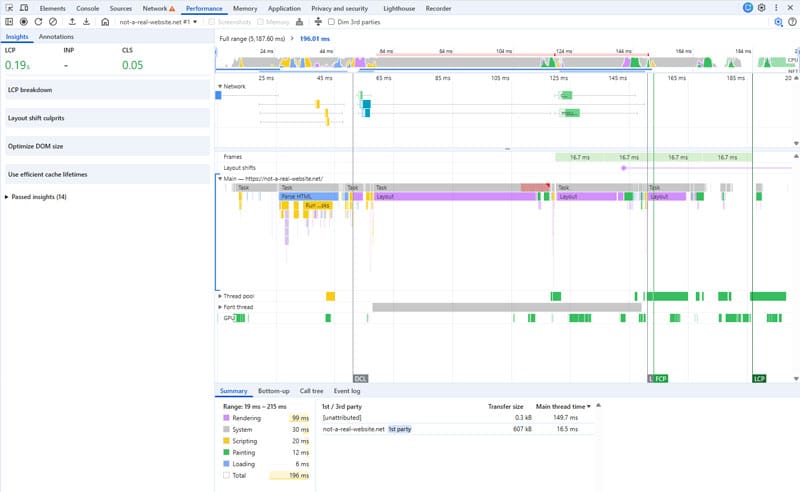
You also find information about Core Web Vitals and other performance insights, similar to PageSpeed Insights. The Memory panel helps identify memory leaks and excessive memory usage.
Finally, JavaScript has a built-in Performance API with functions that allow you to measure performance, such as performance.now(), console.time(), and console.timeEnd().
Optimizing JavaScript Downloads
Once you have an idea where the problem lies, next is taking steps to mitigate it, starting off with the download phase.
1. Reduce JavaScript on Your Site
The fastest, least-blocking JavaScript you can use is no JavaScript at all. The fewer code there is, the less the browser has to download, parse, and execute.
A few tips to make that happen:
- Don’t use a framework if you don’t need it: JavaScript frameworks like React, Vue, or Angular are quite heavy. If your site needs only minimal JavaScript, it may not be necessary to load an entire framework library, you may be able to achieve the same with few lines of vanilla JavaScript.
- Remove unused code: Not all code created in development is actually necessary in production. Take the time to find and remove unused JavaScript code on your website (“tree shaking“). A bundler like webpack or Rollup can help.
- Use built-in browser features: Modern browsers can do many things that required JavaScript in the past via native functionality and CSS. Examples include smooth scrolling, animations, and form validation.
- Simplify your code: Is the implementation you are considering essential or just a nice-to-have? If it’s the latter, consider whether a simpler, less code-intensive solution may be enough.
2. Minify and Compress Your Files
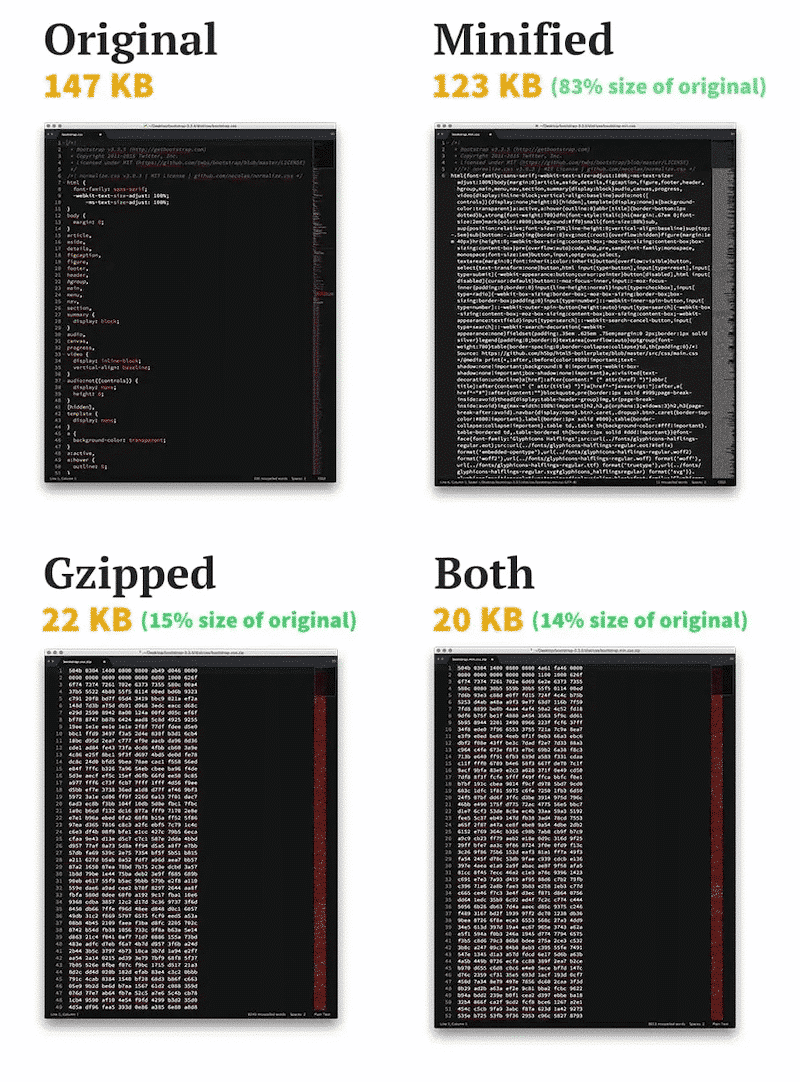
Minification removes characters that make files more legible but aren’t necessary for execution. Think indents, comments, and line breaks.

Removing them shrinks the size of your JavaScript files, making them faster to download. You can use tools like Google Closure and JSMin for minification.
Compression is another way to make files smaller. It’s similar to how a ZIP file works. Enabling text compression on your server is a great general performance improvement. If you can, use Brotli over Gzip.
3. Load JavaScript Using a CDN
A Content Delivery Network delivers important website files more quickly to visitors by placing copies of them on servers in different areas of the world.

This reduces download latency caused by distance. Many CDNs also automatically minify and compress files by default.
4. Enable Caching
Caching means storing important or frequently requested data in a place that allows quick access. Several types of caching exist that are relevant for JavaScript performance optimization.
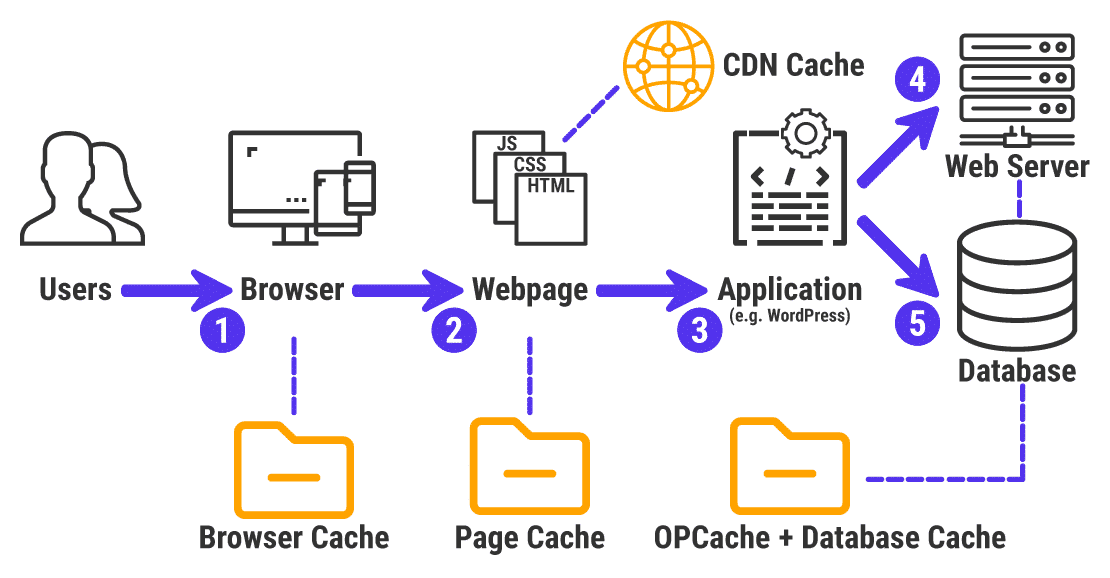
For one, there is browser caching. It stores important assets like JavaScript files on the local hard drive of visitors. There, the browser can access them more quickly on repeat visits than downloading them from the server again. To enable it, you need to set up cache headers on your website, like Cache-Control and ETag headers.
In addition, make sure to put all your JavaScript in .js files and place them in static locations with fixed URLs. This will tell the browser to use locally cached copies for repeat visits.
Aside from that, JavaScript also has a built-in Cache API. It allows developers to store and retrieve web resources efficiently, reducing server requests and improving load times. For example, it lets you cache API responses instead of making repetitive calls.
| 💡You can find more details on this topic in our article on the Use Efficient Cache Lifetimes performance insight. |
5. Load Critical Assets Early and With Priority
Essential JavaScript files should load as early as possible. This shortens the critical rendering path and allows the web page to become interactive quickly.
One way is to place important files in the <head> section of your site.
<head>

<!-- Load critical JavaScript file -->

<script src="critical-script.js"></script>

</head>
While that works well, it is render-blocking. To prevent that, you can load it as a link with the rel=”preload” attribute. This tells the browser to fetch it as soon as possible without render blocking and makes the file available more quicky when you call for the script.
<!DOCTYPE html>

<html>

<head>

<link rel="preload" href="critical-script.js" as="script">

</head>

<body>

<!-- Page content -->

<script src="critical-script.js"></script>

</body>

</html>
It also works for JavaScript modules using rel=”modulepreload” (more on modules below).
<!DOCTYPE html>

<html>

<head>

<link rel="modulepreload" href="critical-module.js">

</head>

<body>

<!-- Page content -->

<script type="module" src="critical-module.js"></script>

</body>

</html>
6. Use Lazy Loading/Rendering
This technique prevents elements lower on the page, especially images, from loading initially. They only appear when visitors scroll down the page towards them.

Lazy loading helps important website elements and files at the top of the page to load more quickly, including JavaScript. It’s also possible to configure JavaScript files themselves to load lazily, for example using the Intersection Observer API, or delay JavaScript execution until it’s required for a user interaction.
Improving JavaScript Parsing on Your Site
Once downloaded, here’s how to ensure your JavaScript is parsed as quickly as possible.
7. Serve Modern JavaScript
Many websites provide fallback JavaScript code to accommodate older browsers. This not only means more code to parse, but also adds work needed to transpile it. You can avoid that by serving modern JavaScript only (you may have to refactor older code to make that happen).
Should you still want or need to support legacy browsers, you can provide separate files for different browsers. This is called “differential serving” and you can achive it using the module/nomodule pattern:
<script type="module" src=".../js/main.js"></script>

<script nomodule src=".../js/main-legacy.js"></script>
Modern browsers only load the script tagged with “module,” legacy browsers ignore it and load “nomodule” instead.
| 💡For more information on this topic, including a WordPress-solution for differential serving, check our tutorial on the Legacy JavaScript insight. |
8. Employ Code Splitting
Code splitting means breaking your JavaScript into smaller chunks that load only when needed, rather than loading one large bundle. This way, the browser only needs to process what’s actually required on the page.
You can do that on the file level, i.e. break down code into smaller files that only load on pages where they are needed. Another way is to use dynamic imports. Here, you create JavaScript modules and load them dynamically using import().
Tools and frameworks like Webpack, Rollup, React, Vue, and Angular support code splitting natively. See also the section about optimizing event performance below.
9. Defer Non-Critical Code
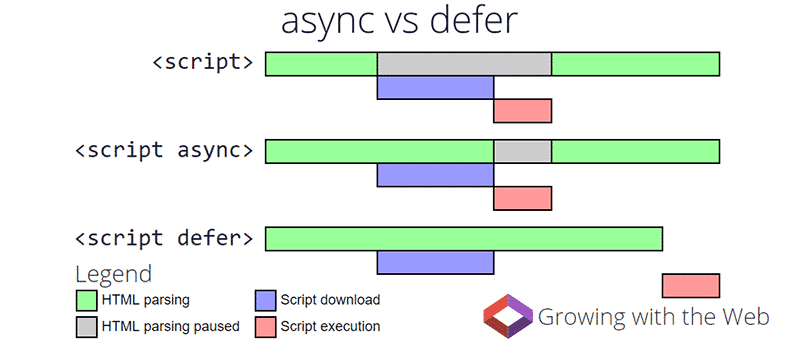
Loading less important JavaScript late leaves the browser free to deal with more important files and assets first. You can achieve it by adding the async and defer attributes to your script calls.
<script async src="analytics.js"></script>

<script defer src="analytics.js"></script>
Both prevent JavaScript files from being render-blocking by moving their download to the background. They differ in when and how they execute scripts.
async scripts execute as soon as they finish loading, pausing other browse work in the meanwhile. The attribute also ignores the order of scripts on the page and is most suitable for assets that should load as soon as possible.
Scripts with defer, on the other hand, will execute only after HTML parsing is finished and in the order they appear on the page. It’s therefore good for less critical resources.
You can also simply load JavaScript files at the bottom of the HTML document. For example, the wp_enqueue_script() WordPress function has a parameter that allows you to automatically move scripts to the footer.
Execute JavaScript Faster
Finally, here’s how to speed up the final JavaScript loading phase.
10. Reduce DOM Manipulation
Accessing and updating the DOM is expensive and can lead to slow page responses and higher CPU usage. To counter that, minimize the number of changes your JavaScript introduces.
Besides simply keeping DOM modifications to a minimum, you can further improve performance by batching essential DOM changes instead of running them individually. For example, when you have a large chunk of HTML to add to a page, build the entire fragment first, e.g. via DocumentFragment, and append it to the DOM all at once.
This also avoids layout thrashing, where JavaScript alternates between reading layout properties and writing DOM updates, forcing the browser to recalculate styles and layout repeatedly.
| 💡 Web.dev has a comprehensive tutorial on the topic of layout thrashing. |
11. Simplify Your HTML
The simpler and smaller your DOM tree is, the faster JavaScript can access and manipulate it. Just like with earlier advice, stick to essentials and remove what isn’t necessary. A smaller DOM also speeds up page performance in general.

Additional ways to improve DOM performance include:
- Use simple CSS selectors so the browser can resolve them more quickly.
- Prefer class over inline style changes when applying multiple style updates.
- Use the classList API to add or remove classes instead of modifying className strings.
- Cache DOM references if you access the same element multiple times.
See also the tips about JavaScript animations below.
12. Break Down Long Tasks
As mentioned earlier, long tasks block the main thread, the browser’s main data pipeline, for longer than 50ms. When it’s busy, all other work on the page loading process pauses, including responding to user interactions.
To prevent this from happening, it’s important to break down long tasks using setTimeout() and Scheduler.yield().
They instruct your code to yield to the main thread, giving the browser the chance to respond to page interactions in a timely manner. You can also use requestIdleCallback to queue low-priority tasks for the browser’s idle periods.
| 💡Both Scheduler.yield() and requestIdleCallback are currently not supported by Apple’s Safari browser. For more information, check web.dev’s tutorial on optimizing long tasks. |
13. Run Computation Outside the Main Thread
Another option to improve JavaScript performance is to move it off the main thread. The three main ways to do this are:
- Asynchronous JavaScript
- Web workers
- WebGPU
Asynchronous JavaScript runs in the background while the browser tends to more important code. It still runs on the main thread once results become available, so it mainly helps avoid blocking while waiting for external operations. Modern JavaScript does this using Promise and the async/await syntax.
Web workers allow you to run JavaScript in an entirely separate background thread and send the results back to the main thread. Workers have some restrictions, most notably that they cannot access the DOM, but they are well suited for CPU-intensive tasks such as:
- data processing
- large calculations
- parsing large datasets
Finally, WebGPU is a browser API that allows web applications to use the system’s GPU (Graphics Processing Unit) for high-performance graphics and parallel computations. It’s primarily designed for advanced graphics rendering and is more complex to implement than Web Workers.
14. Reduce Loops in Your Code
Loops can become computationally expensive, especially when they perform comprehensive calculations or DOM manipulations. Therefore, you should keep them to a minimum or minimize the amount of work performed during each iteration.
Where loops are unavoidable, make them more efficient:
- Use break or continue statements to avoid running full loops or recalculations inside loops.
- Cache values used repeatedly instead of recalculating them during every iteration.
- Move unchanging calculations out of the loop to save time.
- Use lookup objects or Maps instead of repeatedly searching through arrays.
- Pick the right data structure for your needs: use Set for storing unique values and Map for fast lookups by key.
15. Optimize JavaScript Animations
Animations can improve perceived performance by simulating progress while a page loads. At the same time, they require processing power, which can reduce speed.
To optimize the performance of JavaScript animations:
- Minimize animations: Fewer animations mean less work for the browser.
- Use CSS animations: Animating with CSS is more efficient than manipulating inline styles via JavaScript.
- Stick to modern JavaScript techniques: For any JavaScript animations that remain on your site, use modern functions like requestAnimationFrame() instead of setTimeout() or setInterval().
16. Improve Event Performance
Events can be performance-intensive, especially when triggered frequently. To keep your site fast and responsive:
- Take advantage of event delegation: Attach a single event listener to a parent element instead of multiple listeners on its descendants. Since events bubble up the DOM, one listener can manage events for many elements, reducing overhead.
- Remove unnecessary event listeners: If listeners are no longer needed, remove them using removeEventListener(). This prevents memory leaks and unnecessary function calls.
- Throttle and debounce events: Throttling limits how often a function can run during a given time interval. Debouncing delays execution until an event stops firing. Use these techniques for high-frequency events like scroll, resize, or input.
- Keep event handlers lightweight: Events like mousemove, scroll, and resize can fire hundreds of times per second. Ensure their handlers execute quickly.
17. Properly Manage Memory
Memory leaks occur when JavaScript holds on to data that’s no longer needed. This slowly degrades performance over time. To prevent memory leaks:
- Avoid unnecessary references: Objects that remain referenced cannot be removed by the browser’s garbage collector. Make sure variables, caches, and global objects don’t hold references longer than necessary.
- Remove unused event listeners: Event listeners attached to DOM elements can prevent those elements from being garbage-collected.
- Be mindful of closures: Closures can accidentally retain references to variables or large objects, keeping them in memory longer than intended.
- Use WeakMap and WeakSet when appropriate: These data structures hold weak references to objects. If no other references to the object exist, it can still be garbage-collected, helping reduce the risk of memory leaks.
In general, avoid lingering references and clean up resources when they’re no longer needed to let the garbage collector do its job.
How to Optimize JavaScript Performance Using a WordPress Plugin
Another way to optimize JavaScript performance on your WordPress site is to use a performance plugin like WP Rocket. It makes implementing many of the above improvements easy and helps further enhance site speed.
When you activate the plugin, it automatically sets up:
- Caching (with a separate mobile cache)
- Automatic lazy rendering
- GZIP compression and minification
- Preconnecting to external domains
Others, you can enable manually, including:
- Defer JavaScript and delay execution until a user interaction
- Preload external links and fonts
- Connect to a CDN
Doing so happens via an easy-to-use interface. All you need to do is check a few boxes.
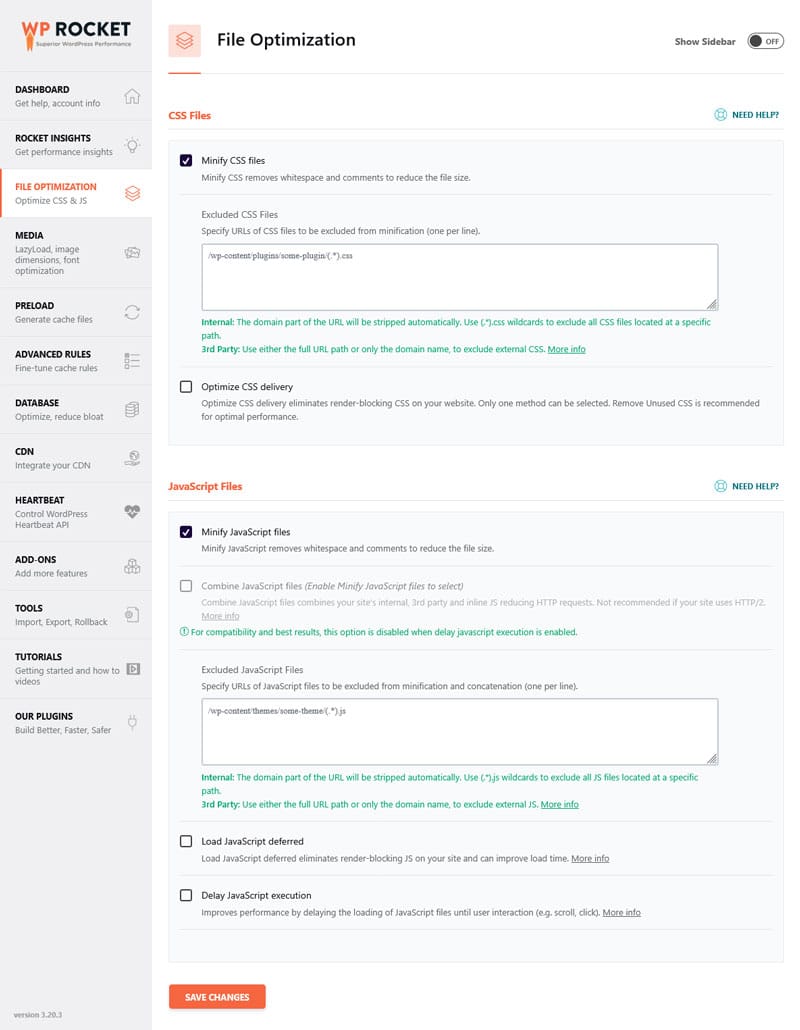
Besides that, WP Rocket has additional features that help make your pages leaner:
- Remove unused CSS: Eliminates unnecessary CSS markup that could be render-blocking.
- Lazy loading for visuals: Prevents images, CSS backgrounds, videos, and iframes low on the page from loading initially.
- Critical image optimization: Images above the fold load early and are excluded from lazy loading.
- Self-hosting Google Fonts: Removes requests to external sources that could lead to delays.
Finally, Rocket Insights lets you automatically monitor the performance of your top pages directly inside the WordPress dashboard, with access to your performance score and advanced indicators at both global and page level, along with recommendations on which WP Rocket features to enable and the ability to re-test anytime.
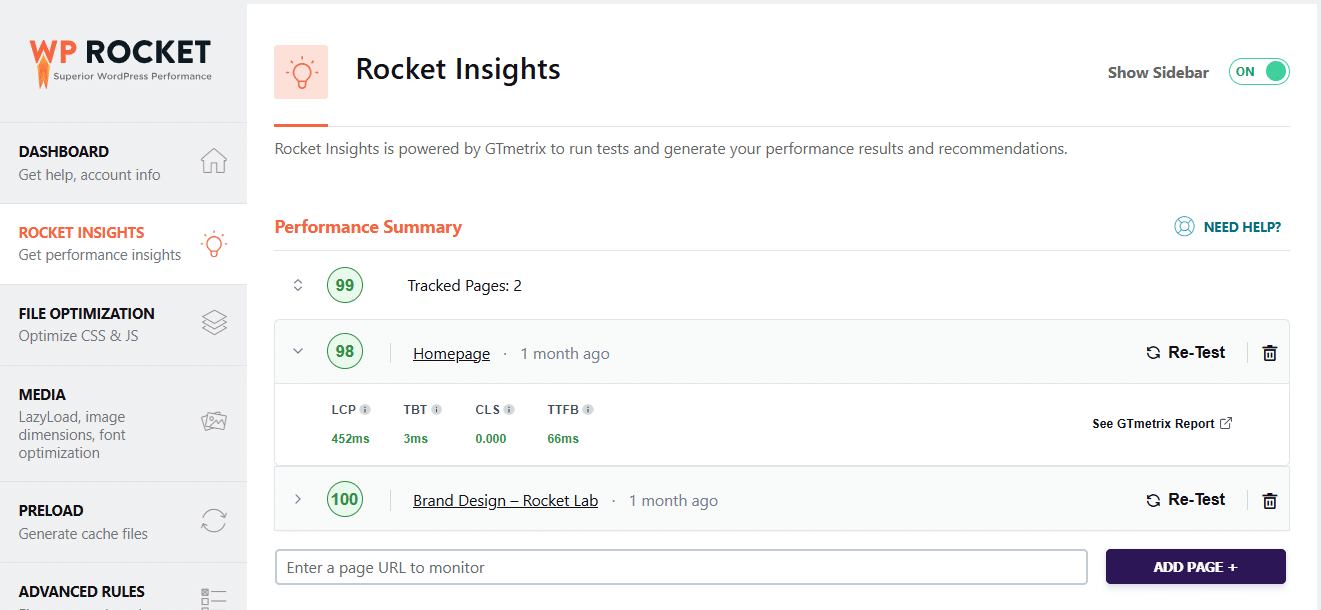
Powered by GTmetrix, it gives you detailed performance data and allows you to quickly spot and troubleshoot speed issues.
Overview: JavaScript Performance Optimization
Everything we’ve learned in one chart:
| Technique | Explanation | Targeted phase | Supported by WP Rocket? |
| Reduce JavaScript | Remove unused code, avoid unnecessary frameworks, and simplify implementations. | Download, Execution | ❌ |
| Minify and compress files | Remove unnecessary characters and compress files (e.g., Brotli/Gzip) to reduce download size. | Download | ✅ |
| Use a CDN | Serve files from a global server network to reduce latency. | Download | ✅ |
| Enable caching | Allow the browser to store files locally to avoid repeated downloads and use the JavaScript Cache API. | Download | ✅ |
| Load critical assets early | Prioritize essential scripts using or placing them in the section. | Download | ✅ |
| Use lazy loading/ rendering | Delay loading non-critical resources until needed. | Download, Execution | ✅ |
| Serve modern JavaScript | Use ES6+ and differential serving for legacy browsers. | Parsing | ❌ |
| Code splitting | Divide code into smaller chunks loaded on demand. | Parsing | ❌ |
| Defer non-critical code | Use async/defer or load scripts at the bottom of the page. | Parsing, Execution | ✅ |
| Reduce DOM manipulation | Minimize changes, batch updates, and avoid layout thrashing. | Execution | ❌ |
| Simplify your HTML | A smaller DOM tree and efficient selectors improve performance. | Execution | ❌ |
| Break down long tasks | Use setTimeout(), Scheduler.yield(), or requestIdleCallback() to yield to the main thread. | Execution | ❌ |
| Run computation outside the main thread | Use Web Workers, WebGPU, or async/await for heavy tasks. | Execution | ❌ |
| Reduce loops | Optimize loops: cache values, avoid recalculations, and use efficient data structures. | Execution | ❌ |
| Optimize JavaScript animations | Use CSS animations, minimize JS animations, and prefer requestAnimationFrame(). | Execution | ❌ |
| Improve event performance | Use event delegation, remove unused listeners, and throttle/debounce high-frequency events. | Execution | ❌ |
| Manage memory usage | Avoid memory leaks: clean up references, remove unused listeners. | Execution | ❌ |
Case Study: Optimizing JavaScript Performance via WordPress Plugin
To test WP Rocket’s impact on JavaScript performance and general website speed, we set up a demo site with a default theme, a few standard plugins, and some dummy content. We also added some JavaScript-heavy features to the homepage, like an image slider and an embedded YouTube video. Here are its initial PageSpeed Insights readings:
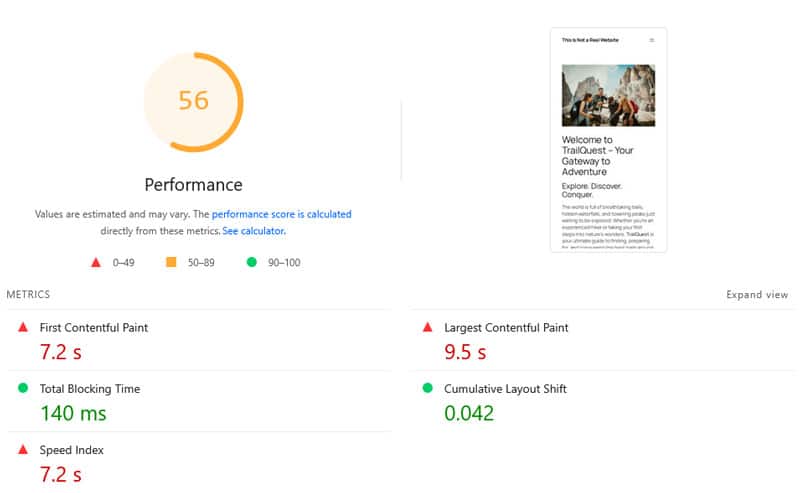
They were not great. We then installed and activated WP Rocket along with these features:
- Remove unused CSS
- Defer JavaScript and delay execution
- Lazy loading for images/iframes
- Preload fonts
This produced much better results in the next PageSpeed Insights test:

Plus, the implementation literally took three minutes. Here’s a comparison of the test results before and after using WP Rocket:
| Value | Before | After |
| Mobile Performance score | 56 | 91 |
| First Contentful Paint | 7.2s | 0.9s |
| Largest Contentful Paint | 9.5s | 3.5s |
| Speed Index | 7.2s | 2.4s |
FAQs
What is JavaScript performance optimization?
It’s the process of improving how efficiently your JavaScript code runs. This includes reducing file sizes, minimizing blocking tasks, and ensuring scripts execute quickly. The goal is to enhance user experience by making websites faster, more responsive, and less resource-intensive.
Why does JavaScript slow down my website?
JavaScript can reduce website speed by blocking the browser main thread, which delays rendering and user interactions.
What are JavaScript performance strengths and weaknesses?
Strengths: JavaScript enables dynamic, interactive experiences and runs directly in the browser, reducing server load. Modern APIs like requestAnimationFrame and Web Workers allow for efficient animations and off-thread computations.
Weaknesses: It’s single-threaded, so heavy tasks block website loading as a whole. Poorly optimized code can cause slow rendering, high memory usage, and delayed user interactions.
How do I measure the performance of JavaScript code?
Use browser tools like Chrome DevTools, Lighthouse (in DevTools or PageSpeed Insights), and built-in functions like performance.now() or console.time().
How do I optimize JavaScript code for performance?
Take targeted action to streamline every phase of the JavaScript loading process, from download to parsing and execution. Start by reducing the amount of code, minifying and compressing files, loading critical scripts early, and deferring non-critical code. Reduce DOM manipulations, avoid long tasks, and leverage CSS animations instead of JavaScript where possible. For heavy computations, offload work to Web Workers or use code splitting to load only what’s needed.
What is a good JavaScript performance benchmark?
Aim for Total Blocking Time (TBT) under 200ms, Interaction to Next Paint (INP) below 200ms, and First Contentful Paint (FCP) of less than 1.8 seconds. These align with Google’s Core Web Vitals thresholds. Ensure critical functions execute in under 50ms.
Does minifying JavaScript improve performance?
Yes, minifying JavaScript reduces file size by removing whitespace, comments, and shortening variable names, which speeds up downloads, improving FCP and TBT.
Does commented code affect JavaScript performance?
Commented code does not impact runtime performance, but they increase file size, which can slow down download time. Remove them in production using minification tools.
What are good JavaScript performance optimization tools?
- Chrome DevTools (Performance/Memory tabs) for debugging.
- Lighthouse (in DevTools or PageSpeed Insights) for audits.
- Webpack/Rollup for bundling and code splitting.
- WP Rocket to automate caching, lazy loading, and script deferral.
Start Optimizing JavaScript Performance on Your Website Today
JavaScript is essential for modern, interactive websites, but poor optimization can slow down your site and frustrate users. The techniques above help you reduce bottlenecks, streamline code, prioritize scripts, and keep the main thread responsive for a faster, smoother experience.
If you want a simpler solution, WP Rocket makes it easy to establish a strong performance baseline with just a few clicks. Try it risk-free for 14 days!