
Table of Contents
By Marine Larmier - Last update on
Your goal isn’t to install more plugins. It’s to build a WordPress site that is faster, safer, and easier to manage. The right plugins can improve performance, strengthen security, support SEO, simplify backups, and save you hours of work. The wrong ones can slow your site down, create conflicts, or add features you never use.
This guide helps you choose from 30 trusted tools, build a reliable plugin stack, and understand when a free plugin is enough and when premium support or added reliability is worth paying for.
| Key Takeaways ✅ Start with five essentials. Performance, security, SEO, image optimization, and backups give most new WordPress sites a strong foundation from day one. ✅ Install plugins to solve real problems. The best stack is the smallest set of reliable tools that covers your site’s current needs without unnecessary overlap. ✅ Quality matters more than quantity. A site with 20 well-maintained plugins can outperform one with fewer outdated, poorly coded, or conflicting tools. ✅ Address performance early. Caching, code optimization, and lighter images can improve page speed, Core Web Vitals, user experience, and conversions. ✅ Free plugins are often enough to get started. Premium becomes more valuable when your site generates revenue, supports clients, handles sensitive data, or requires faster support and greater reliability. |
What Makes a WordPress Plugin Worth Installing in 2026?
With more than 59,000 free plugins in the official WordPress repository—and thousands more available through developers and marketplaces—finding the right one can feel overwhelming. Before installing anything, use these five checks and learn to recognize the main red flags.
1. It Is Actively Maintained
Check the Last updated date and recent changelog. A plugin that has not been updated for a long time may not have been tested with recent WordPress or PHP versions. A long gap is not always a deal-breaker, especially for a simple plugin, but it should make you investigate further.
🚩 Red flag: The changelog has been inactive for over a year and recent bug reports remain unresolved.
2. It Works with Recent WordPress Versions
Look at the Tested up to information on the plugin page. If there are several major WordPress versions behind, treat that as a warning sign. Also check the support forum. Recent compatibility reports often reveal more than the overall star rating.
🚩 Red flag: Bug reports or compatibility issues from the last three months have received no response from the developer.
3. It Has One Clear Goal
A clear goal does not necessarily mean a single feature. A performance plugin, for example, has one main purpose—making your website faster—so it may reasonably combine caching, CSS and JavaScript optimization, preloading, lazy loading, and critical image optimization. The problem is when one plugin tries to handle several unrelated areas, such as SEO, security, forms, analytics, social sharing, and performance.
🚩 Red flag: The plugin requests access or permissions that do not seem relevant to its purpose—for example, a basic contact form requesting broad file-system access.
4. It Has a Good Reputation Beyond WordPress.org
Do not rely only on star ratings. Read recent reviews, browse WordPress communities and Reddit, check independent comparisons, and ask AI tools to summarise recurring praise and complaints.
For example: “What are the most popular WordPress backup plugins? Compare their recent user feedback, update frequency, support quality, performance, and common complaints.”
You can also meet plugin developers and support teams at WordCamps or local WordPress events. Seeing how they engage with users can build confidence in the product and the team behind it.
🚩 Red flag: Fewer than 1,000 active installations and under 50 reviews may indicate limited real-world testing. It is not an automatic reason to reject the plugin, but it deserves extra research.
5. It Keeps Your Site Fast and Efficient
A well-coded plugin that loads only when needed may have almost no measurable impact. A poorly optimized one can add unnecessary scripts, database queries, or third-party requests to every page. You can always test your site before and after installing a plugin using the same page and testing conditions with GTmetrix.
🚩 Red flag: Your page weight, request count, loading time, or database activity increases noticeably after activation—even when the plugin’s features are not being used on that page.
The Starter Stack: 5 Plugins Every WordPress Site Needs from Day One
Before installing a page builder, gallery, popup, or marketing tool, cover the five foundations every WordPress site needs: security, performance, visibility, lightweight images, and reliable backups.
Each plugin below has one clear goal and meets the quality criteria covered earlier. They are actively maintained, compatible with recent WordPress versions, widely trusted, and supported by established teams.
1. Wordfence Security
🎯 Goal: Keep your website safe and protected.
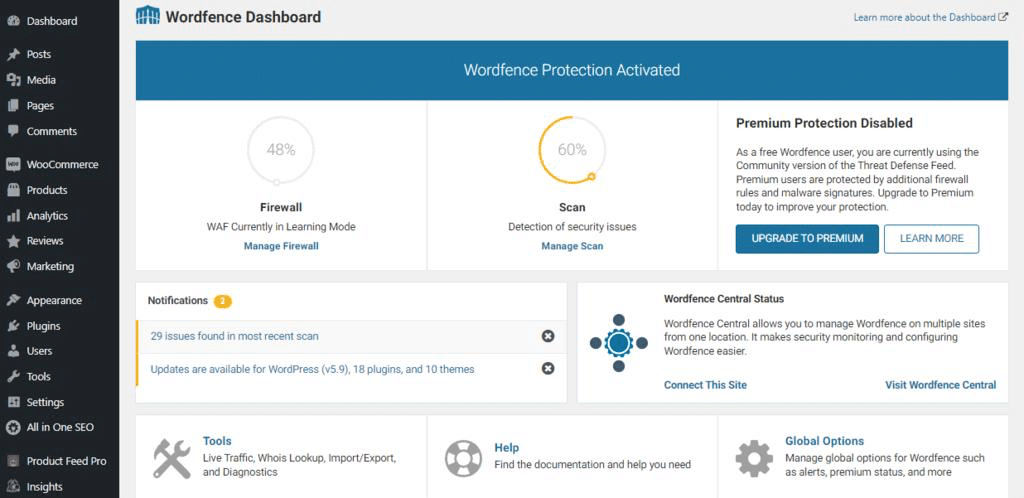
Wordfence helps defend your WordPress site against malware, brute-force attacks, suspicious login attempts, vulnerable plugins, and other common WordPress threats.
Key features:
- 5M+ active installations.
- Web Application Firewall.
- Malware scanning and brute-force protection.
- Two-factor authentication.
- File integrity monitoring.
- Security alerts.
💷 Pricing: Freemium. The free version includes the firewall, malware scanner, login security, and scheduled scans. Wordfence Premium adds real-time firewall rules and malware signatures, country blocking, premium support, and faster protection against newly discovered threats.
⚠️ What breaks without it? WordPress powers roughly 43% of all websites, making it one of the largest attack surfaces on the internet. Without a firewall or malware scanner, it’s not a question of whether your site gets infected or not, it’s when.
📌 Why it is a must-have: Automated bots constantly scan WordPress sites for weak passwords, outdated software, and known vulnerabilities, so every site needs a basic layer of protection from day one.
| 💡 Hint: Looking to strengthen your website beyond installing a security plugin? Check out our guide to WordPress security best practices for practical tips to better protect your WordPress site. |
2. WP Rocket
🎯 Goal: Keep your website fast and improve Core Web Vitals.
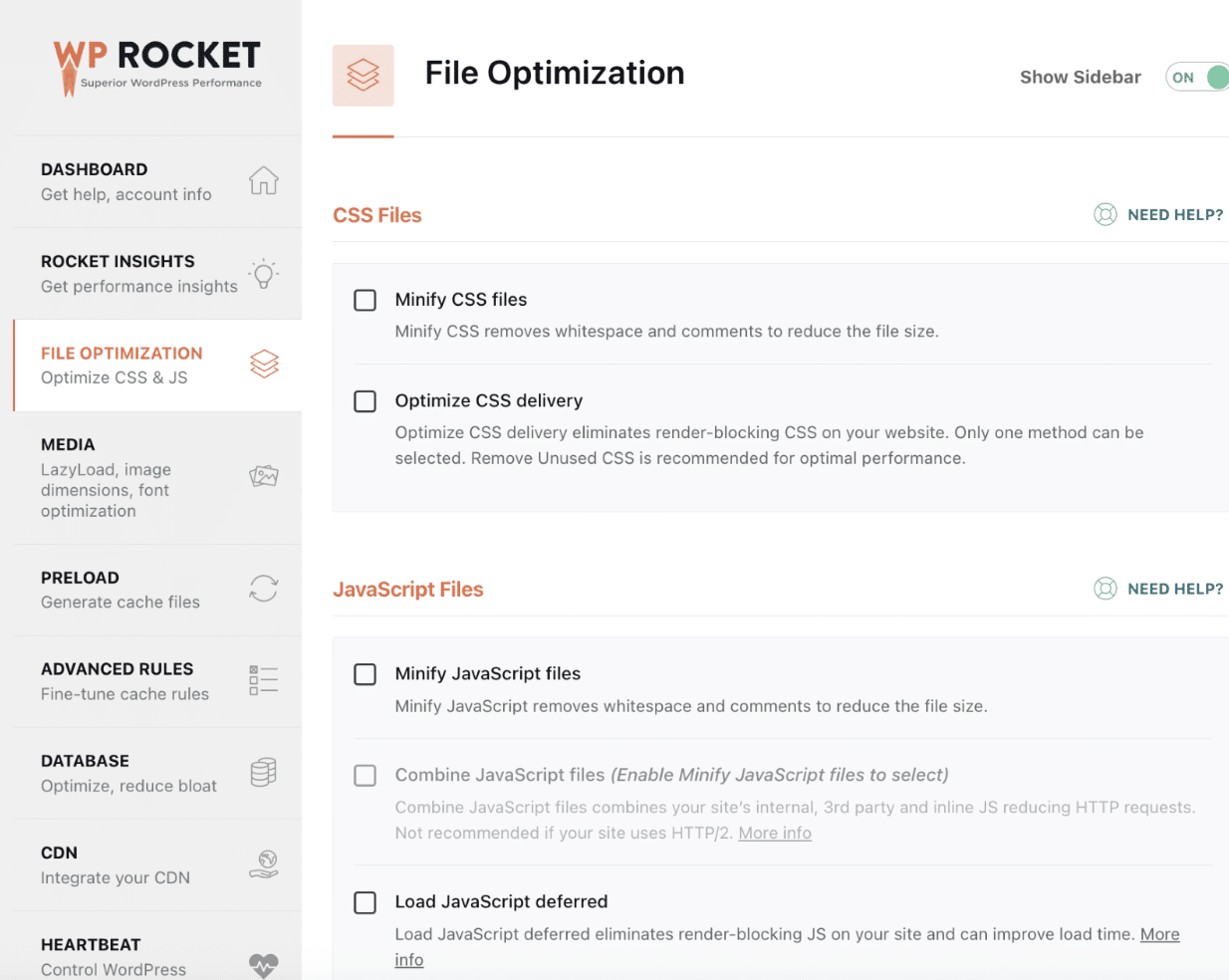
WP Rocket applies many essential WordPress performance optimizations automatically, helping you improve loading times without combining several overlapping plugins.
Key features:
- Installed on 5.5+M websites.
- 80% of web performance best practices enabled upon activation.
- Page and mobile caching.
- Cache preloading.
- Remove unused CSS.
- Delay and defer JavaScript execution.
- Lazy loading.
- Critical image optimization.
- RocketCDN free on 3 pages.
- Built-in performance hub with Rocket Insights to connect your performance results to the right optimizations.
💷 Pricing: Premium only. The licence gives you access to a complete set of performance features, updates, documentation, and dedicated support. It can be easier to manage than configuring several separate free tools for caching, code optimization, lazy loading, and preloading.
⚠️ What breaks without it? Without caching, WordPress generates pages dynamically for every visit, increasing server work and slowing down load times. Poor performance can hurt user experience, Core Web Vitals, search rankings, and conversions.
📌 Why it is a must-have: Speed affects user experience, conversions, SEO, and Core Web Vitals. WP Rocket handles most of the technical optimization work for you and offers additional powerful optimizations you can enable with a click. It also comes with a built-in performance hub powered by GTmetrix.
3. Rank Math SEO
🎯 Goal: Help search engines and AI platforms understand your content.
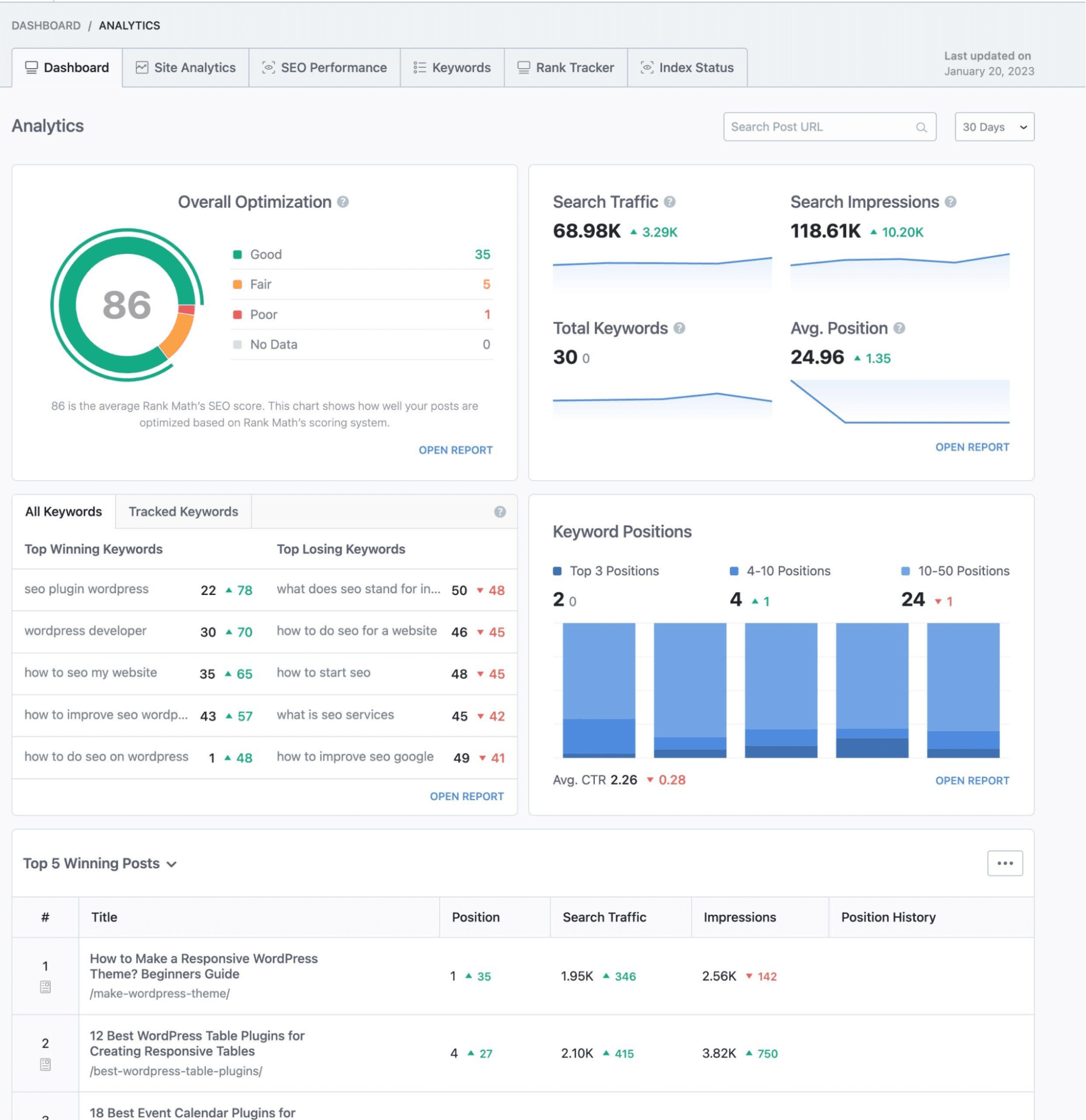
Rank Math helps you manage the technical and on-page elements that make your content easier to discover, including metadata, sitemaps, structured data, and redirects.
Key features:
- 3M+ active installations.
- XML sitemaps.
- Schema markup.
- Title and meta description controls.
- Redirect manager.
- SEO analysis.
- Local SEO tools.
- WooCommerce SEO support.
💷 Pricing: Freemium. The free version is already strong enough for most websites. Premium adds features such as advanced schema options, keyword tracking, additional WooCommerce tools, Content AI credits, and agency-focused features.
⚠️ What breaks without it? WordPress doesn’t automatically manage metadata, XML sitemaps, or structured data. Without an SEO plugin, search engines have less information to understand, index, and rank your content.
📌 Why it is a must-have: Publishing good content is not enough if search engines cannot interpret it properly. Rank Math gives you a practical framework for optimizing each page while also handling important site-wide SEO settings.
4. Imagify
🎯 Goal: Make your images lighter without sacrificing visual quality.
Imagify compresses images, converts them to next-gen formats, and automatically optimizes future uploads to reduce page weight.
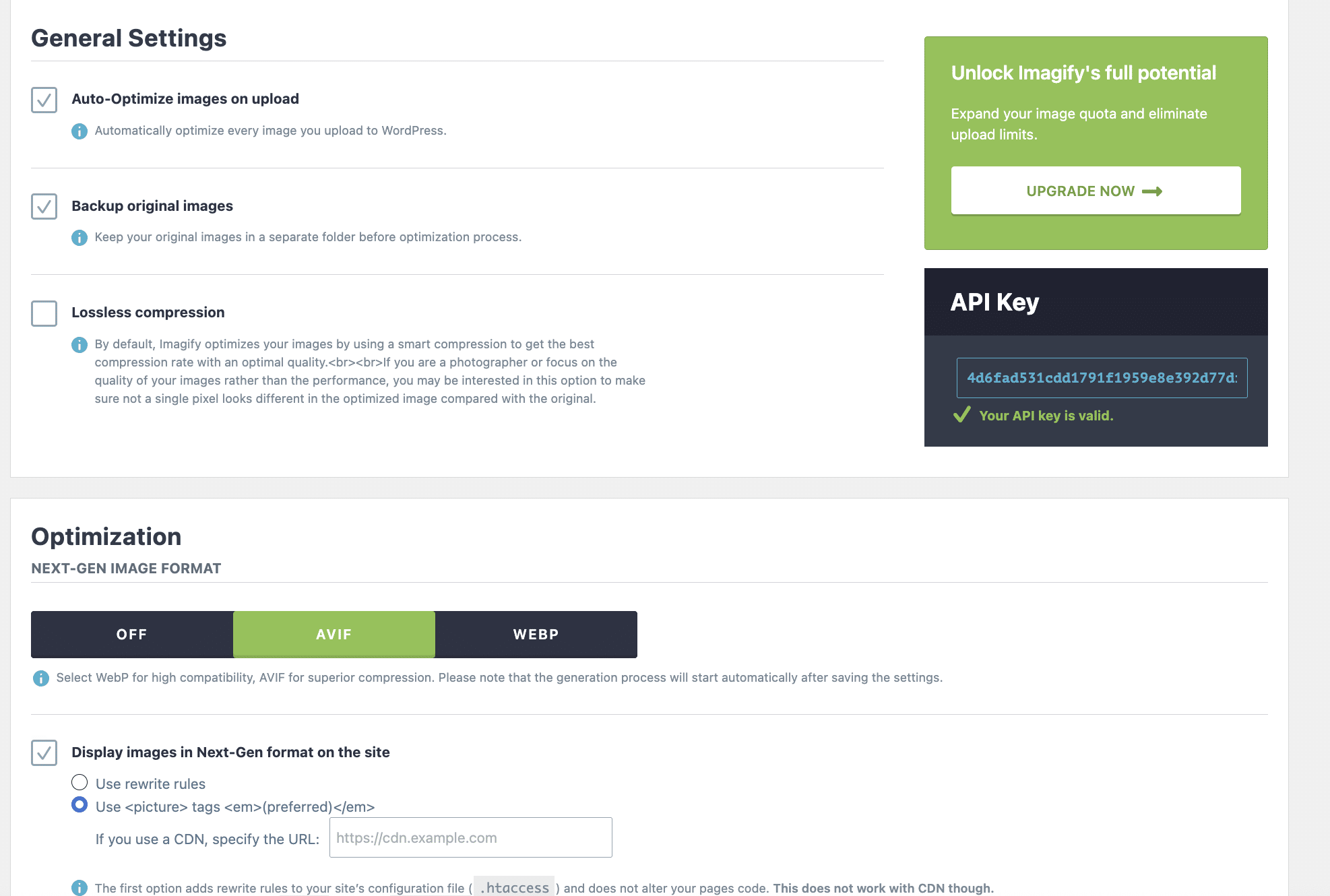
Key features:
- Smart Compression.
- Bulk optimization.
- Automatic optimization for new uploads.
- WebP conversion and AVIF conversion.
- Original image backups.
- WordPress Media Library integration.
💷 Pricing: Freemium. The free plan includes the main optimization features with a monthly allowance of 20 MB. A paid plan is more suitable for large media libraries or websites that upload images regularly.
⚠️ What breaks without it? Large, unoptimized images increase page weight and often become the largest element visitors download. This slows page loading, hurts Largest Contentful Paint (LCP), and wastes bandwidth.
📌 Why it is a must-have: Images are often the heaviest resources on a webpage. Imagify’s Smart Compression automatically finds the right balance between file size and visual quality, so you do not have to choose a compression level manually.
5. UpdraftPlus
🎯 Goal: Make sure your website can always be restored.
UpdraftPlus creates scheduled backups of your site files and database, then stores them locally or on an external cloud service.
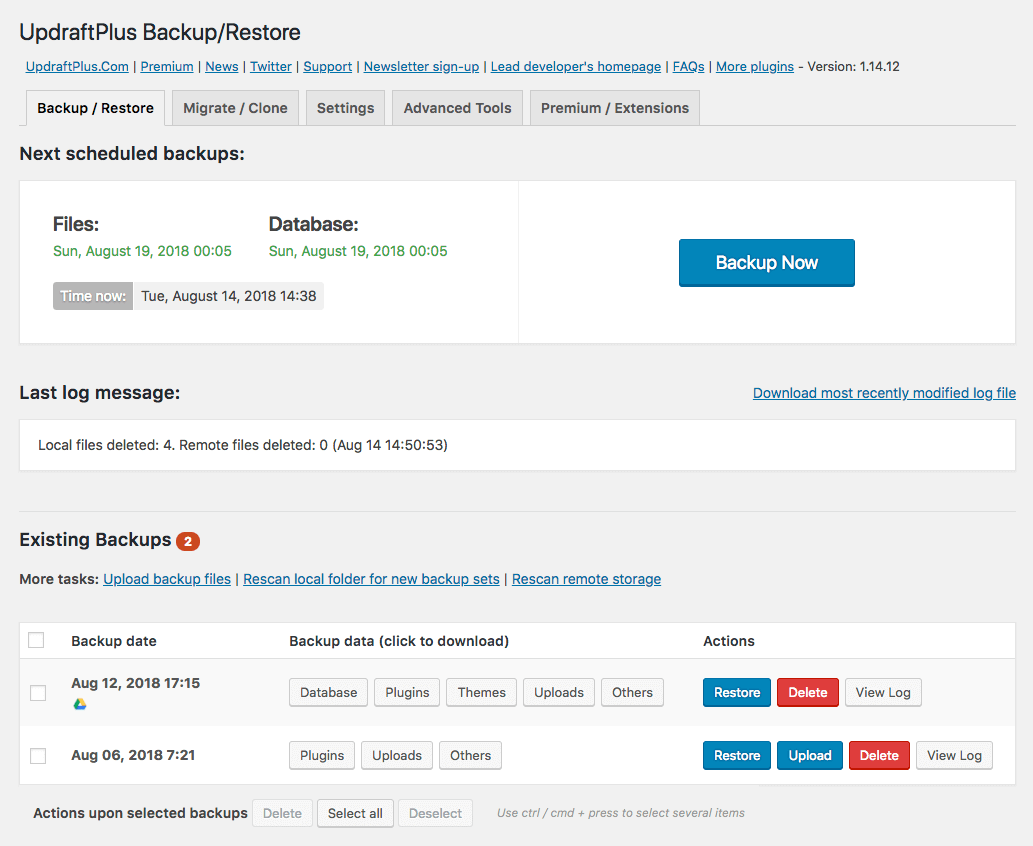
Key features:
- 3M+ active installations.
- Scheduled backups.
- One-click restoration.
- File and database backups.
- Remote cloud storage.
- Migration and cloning tools.
- Incremental backups with Premium.
💷 Pricing: Freemium. The free version includes scheduled backups, manual backups, restores, and several remote storage options. Premium adds incremental backups, more storage destinations, advanced migration features, automatic backups before updates, and additional reporting.
⚠️ What breaks without it? A failed update, accidental deletion, hosting problem, or security incident can leave your website unusable. Your hosting provider’s backup is helpful, but it should never be the only recovery copy you rely on.
📌 Why it is a must-have: Security tools reduce risk, but they cannot prevent every failed update, hosting problem, accidental deletion, or plugin conflict. A recent off-site backup gives you a way to recover instead of rebuilding your website from scratch.
| 💡 Good to know: This is one reliable starter stack but not the only one. You could choose Yoast SEO instead of Rank Math for example. The key is to choose one reputable, well-maintained plugin for each goal and avoid unnecessary overlap. |
The Full Stack: Essential Plugins by Category
Once your starter stack is in place, only add plugins when your website genuinely needs them. In all transparency, you do not need all 30 tools or even one from every category. A personal blog may only need image optimization, while an online store will likely require e-commerce and analytics, and an international business may also need multilingual functionality.
| 💡 Hint: Avoid installing multiple plugins for the same purpose—such as two caching, SEO, or image optimization plugins—as overlapping features can create conflicts. |
The 30 plugins below are grouped into 10 essential categories. Every recommendation meets the checklist introduced earlier: active development, recent WordPress compatibility, a clear purpose, and a strong reputation.
1. Performance Plugins
💡 Why you need one: Without caching, code optimization, and efficient resource loading, a WordPress site can quickly become slow. This can hurt the user experience, increase bounce rates, weaken conversions, and make it harder to perform well in search results and Core Web Vitals.
LiteSpeed Cache
A free performance plugin offering page caching and CSS, JavaScript, HTML, media, and database optimization. Its server-level full-page caching requires LiteSpeed hosting, while some QUIC.cloud services use quotas.
FlyingPress
A premium optimization plugin combining page caching, preloading, CSS and JavaScript optimization, lazy loading, image optimization, and granular performance controls. It also tracks Core Web Vitals using real-user data.
WP Rocket
A premium performance plugin that applies page caching, CSS and JavaScript minification, and critical-image optimization upon activation. In a few clicks, you can also enable lazy loading, JavaScript deferral, database cleanup, and other optimizations.
Good to know: It also comes with Rocket Insights, a built-in performance hub powered by GTmetrix. You can check your global performance score, page-level results, key performance metrics and recommendations linked to WP Rocket features.
✅ Which One Should You Choose?
- WP Rocket is ideal if you want most performance optimizations handled automatically from activation.
- LiteSpeed Cache makes sense if your website is hosted on LiteSpeed and you want a powerful free solution.
- FlyingPress is a good fit if you prefer another premium plugin with granular optimization controls.
2. Security Plugins
💡 Why you need one: Automated bots continually probe WordPress sites for vulnerable software, weak passwords, exposed login pages, and malicious file changes. A security plugin adds firewall protection, malware scanning, login security, and monitoring features that WordPress does not provide by default.
Wordfence
A freemium security plugin featuring an endpoint firewall, malware and vulnerability scanning, brute-force protection, two-factor authentication, live traffic monitoring, and detailed WordPress threat intelligence.
Sucuri Security
Its free plugin provides security hardening, integrity checks, remote malware scanning, activity auditing, and security notifications. The cloud firewall, DDoS protection, and professional malware-removal services are available through the paid platform.
Solid Security
A freemium plugin focused on firewall rules, traffic filtering, brute-force protection, passkeys, two-factor authentication, vulnerability and site-health scanning, login security, user policies, and WordPress hardening.
✅ Which One Should You Choose?
- Wordfence offers broad protection managed directly inside WordPress.
- Sucuri is well suited if you want an external cloud firewall and professional malware-removal services.
- Solid Security is a strong option for login security, user policies, and WordPress hardening.
3. Backup Plugins
💡 Why you need one: A failed update, accidental deletion, hosting problem, or security incident can leave you without a working website. Your host’s backup is useful, but it should not be the only recovery copy available.
UpdraftPlus
A freemium backup plugin that schedules database and file backups, supports multiple user-selected remote storage services, and restores selected components directly from the WordPress dashboard.
Duplicator
A freemium solution combining complete website backups with packaging, cloning, recovery points, cloud storage, installer tools, and migration features. Backup scheduling and available storage destinations depend on the plan.
BackWPup
A freemium plugin for scheduled database and file backups, backup archive management, and storage on remote destinations. The free version also supports restoration from a manually uploaded backup archive, while Pro adds direct restoration from remote storage, migration, encryption, additional destinations, and priority support.
✅ Which One Should You Choose?
- UpdraftPlus works well for straightforward scheduled off-site backups.
- Duplicator is better suited when migration and cloning are just as important as backups.
- BackWPup is a good option if you want flexible scheduled backups with a capable free version.
4. SEO Plugins
💡 Why you need one: WordPress can publish indexable content, but an SEO plugin gives you practical control over metadata, XML sitemaps, structured data, redirects, and other signals that help search engines understand your pages.
Rank Math
A freemium SEO plugin offering metadata controls, XML sitemaps, broad built-in schema options, SEO analysis, Content AI, a guided setup process, and an extensive collection of modules.
Yoast SEO
A mature freemium solution combining metadata management, XML sitemaps, an integrated schema framework, and prominent SEO and readability analysis.
All in One SEO
A freemium SEO suite covering metadata, XML sitemaps, schema markup, TruSEO page analysis, and specialist SEO modules whose availability varies by plan.
✅ Which One Should You Choose?
- Rank Math is ideal if you want an extensive free feature set, strong schema support, and built-in AI-powered tools for traditional SEO and AI search.
- Yoast SEO is well suited to users who value a mature workflow and prominent writing guidance.
- All in One SEO is a good fit if you prefer a guided, modular suite of SEO tools.
5. Forms Plugins
💡 Why you need one: WordPress does not include a native contact-form system. Without a form plugin, visitors cannot easily contact you, request a quote, register, submit information, or complete a form-based payment.
WPForms
A freemium drag-and-drop form builder designed to be accessible to beginners. WPForms Lite covers standard forms, while paid plans add advanced logic, payment features, and integrations.
Gravity Forms
A premium visual form builder suited to complex data capture, calculations, conditional workflows, payment add-ons, integrations, and internal business processes.
Fluent Forms
A freemium drag-and-drop builder offering a broad feature set, conditional logic, payment integrations, and a competitive free starting point.
✅ Which One Should You Choose?
- WPForms is a practical option for standard business and contact forms.
- Gravity Forms fits forms involving complex calculations, integrations, or internal workflows.
- Fluent Forms offers a generous feature set with a free starting point.
6. Image Optimization Plugins
💡 Why you need one: Large images increase page weight and can delay the main visual element, contributing to poor Largest Contentful Paint. Image optimization is one of the easiest ways to reduce how much data visitors must download.
Imagify
Imagify automatically compresses images, converts them to WebP and AVIF, resizes oversized uploads, and supports bulk optimization. Its Smart Compression finds the best balance between image quality and file size without requiring you to adjust the settings manually.
ShortPixel
A freemium optimizer with multiple compression options, WebP and AVIF support, oversized-image resizing, bulk processing, custom-folder optimization, and granular format and file controls.
Optimole
A cloud-based solution that optimizes images in real time and delivers them through an image CDN, adapted to each visitor’s device.
✅ Which One Should You Choose?
- Imagify provides a simple Media Library workflow with automatic Smart Compression.
- ShortPixel gives you more control over compression, formats, and file handling.
- Optimole is suited to adaptive cloud delivery through an image CDN.
7. Page Builders Plugins
💡 Why you need one: In many cases, you do not. The native WordPress Block Editor can build modern websites without a separate page builder. Install one only when your layouts, templates, or dynamic-content requirements go beyond what your theme and blocks can handle.
Block Editor
WordPress’s native block-based editor is included with the platform and should be the first option considered. With a compatible block theme, it supports theme building while maintaining a native workflow and fewer dependencies.
Elementor
A freemium visual drag-and-drop builder with an accessible interface and a large ecosystem of templates, integrations, and extensions. Theme building and advanced dynamic-content features require Elementor Pro.
Bricks
A premium visual site builder offering full-site editing, nestable elements, dynamic data, and developer-oriented controls.
✅ Which One Should You Choose?
- Stay with the Block Editor when it meets your requirements.
- Elementor offers an accessible visual workflow and an extensive ecosystem.
- Bricks is designed for advanced dynamic websites and greater developer control.
| 💡 Hint: A page builder can affect HTML output, CSS, JavaScript, page weight, and rendering. The result depends on the builder, theme, template, add-ons, and how the page is constructed—not simply the plugin name. Always run a page builder performance test before and after adopting one, using the same page, device, location, and connection settings. |
8. Multilingual Plugins
💡 Why you need one: WordPress does not natively connect translated pages or manage language-specific URLs, hreflang tags, translated taxonomies, multilingual menus, and structured translation workflows.
Polylang
A freemium, WordPress-native solution offering direct control and ownership of multilingual content. It handles translated content, URLs, metadata, hreflang, menus, and taxonomies, while Polylang Pro adds advanced features and DeepL machine translation. WooCommerce support requires Polylang for WooCommerce or the Business Pack.
WPML
A premium translation-management system for content, strings, custom fields, metadata, multilingual SEO, and WooCommerce. It supports manual, professional, and automatic translation using PTC or other engines, including its context-aware AI workflow.
Weglot
A freemium cloud-based translation layer that automatically detects displayed content and creates an initial translation for manual review. It also handles translated metadata, URLs, hreflang, and ecommerce content, subject to language and word limits.
✅ Which One Should You Choose?
- Polylang offers a WordPress-native workflow, direct content ownership, and the flexibility to combine manual translation with DeepL.
- WPML fits complex sites requiring centralized translation management, team workflows, and automated AI translation.
- Weglot prioritizes fast deployment, automation, and broad content detection.
9. Analytics Plugins
💡 Why you need one: Without analytics, you cannot reliably see how visitors find your site, which pages attract traffic, or whether important actions are completed. Analytics should answer useful business questions—not collect data simply because it can.
Site Kit by Google
Google’s free official WordPress plugin for connecting services such as Google Analytics, Search Console, and AdSense and displaying their data inside the WordPress dashboard.
Plausible Analytics
An open-source, cookie-free analytics platform focused on traffic, campaigns, goals, and events. It is available as a paid managed service or as a self-hosted Community Edition.
Fathom Analytics
A premium, managed privacy-focused platform with streamlined traffic, event, and campaign reporting, no cross-site profiling, and long-term data retention.
✅ Which One Should You Choose?
- Site Kit is convenient when you already rely on Google Analytics and Search Console.
- Plausible provides transparent, privacy-first analytics with an open-source option.
- Fathom offers a polished, low-maintenance managed service.
10. E-commerce Plugins
💡 Why you need one: WordPress does not include product management, checkout, payments, orders, inventory, subscriptions, or digital-file delivery by default.
WooCommerce
A free WordPress plugin with a large ecosystem of extensions and payment gateways. It supports physical, digital, and mixed-product stores and offers extensive flexibility, although functionality such as subscriptions usually requires an extension.
SureCart
A freemium managed commerce platform for streamlined products, payments, subscriptions, and donations. It combines hosted commerce operations with an integrated checkout and payment workflow.
Easy Digital Downloads
A free core plugin designed specifically for digital products, software, downloads, and licensing workflows. Additional gateways, subscriptions, and advanced features are available through paid extensions.
✅ Which One Should You Choose?
- WooCommerce provides maximum flexibility for a traditional store selling physical, digital, or mixed products.
- SureCart offers a more managed and streamlined commerce workflow.
- Easy Digital Downloads is purpose-built for businesses centred on digital products.
| 💡 Hint: Do not install cart recovery, subscriptions, wishlists, advanced shipping, or additional payment plugins until your store actually needs them. Every extension adds another checkout path or integration to maintain and test, so keep your WooCommerce setup as lean as possible to protect performance and deliver a faster shopping experience. |
Your WordPress Plugin Decision Guide: 30 Top Picks at a Glance
Not sure where to start? This quick comparison table summarizes the best free and premium plugins in each category, making it easy to find the right solution for your website. Start with the essentials, then add plugins only when they solve a real problem.
| Category | Free Option | Paid Option | Best For |
| Performance | LiteSpeed Cache* | WP Rocket / FlyingPress | Websites looking to improve speed and Core Web Vitals |
| Security | Wordfence / Sucuri Security / Solid Security | Wordfence / Sucuri / Solid Security | Protecting WordPress against attacks and malware |
| Backups | UpdraftPlus / BackWPup | Duplicator / UpdraftPlus / BackWPup | Creating reliable backups and recovery points |
| SEO | Rank Math / Yoast SEO / All in One SEO | Rank Math / Yoast SEO / All in One SEO | Improving search visibility and on-page SEO |
| Forms | WPForms Lite / Fluent Forms | WPForms / Gravity Forms /Fluent Forms | Contact forms, lead generation, and payments |
| Image Optimization | Imagify / ShortPixel / Optimole | Optimole / Imagify / ShortPixel | Reducing image size without sacrificing quality |
| Page Builders | Block Editor / Elementor | Bricks / Elementor | Building custom page layouts visually |
| Multilingual | Polylang / Weglot | WPML / Polylang Pro / Weglot | Creating and managing multilingual websites |
| Analytics | Site Kit by Google | Plausible Analytics / Fathom Analytics | Tracking traffic and website performance |
| E-commerce | WooCommerce / Easy Digital Downloads / SureCart | Easy Digital Downloads / SureCart | Selling physical or digital products |
Notes:
- LiteSpeed Cache requires LiteSpeed hosting for full-page caching.
How Many Plugins Is Too Many?
The honest answer? Keep your plugins stack as lean as possible. For many small-to-medium WordPress sites, 10–20 active plugins is a sensible target. Note that performance depends also on plugin quality, configuration, and hosting.
Every plugin adds another component to maintain. More plugins mean more updates, a greater chance of conflicts, additional CSS and JavaScript files, more database queries, and a larger attack surface.
Before Installing a Plugin, Ask Yourself…
If the plugin solves a real goal such as improving security, speeding up your site, adding multilingual support, or creating advanced forms—it’s probably worth installing. If it’s only there because you might use it one day, you’re usually better off waiting.
| Situation | Recommended action |
| My website is receiving login attacks or I want better protection. | Install a dedicated security plugin such as Wordfence or Sucuri. |
| My website is slow or performs poorly in Core Web Vitals. | Install a performance plugin such as WP Rocket, LiteSpeed Cache, or FlyingPress. |
| I need advanced quotation forms with conditional logic and calculations for my business. | Install a forms plugin such as Gravity Forms because WordPress doesn’t provide these features natively. |
| I’m expanding internationally and need a multilingual website. | Install a multilingual plugin such as Polylang, WPML, or Weglot. |
On the other hand, here are situations where you probably don’t need another plugin:
| Situation | Better approach |
| I only need to change one line of CSS. | Use Appearance > Additional CSS or your child theme instead of installing a Custom CSS plugin. |
| I want to add a button or a simple layout element. | Check whether your theme, the Block Editor, or your page builder already includes it. |
| I installed several SEO, caching, or security plugins to compare them. | Choose one, remove the others, and avoid overlapping functionality. |
| I can’t remember why a plugin is installed. | Deactivate it, test your website, then delete it if nothing breaks. |
📌 Developer tip: Install a plugin because you have identified a real need, not because “you might use it one day”.
How to Audit Your WordPress Plugins
WordPress developers rarely troubleshoot by randomly disabling plugins. They measure first, identify the bottleneck, then test one change at a time.
| 💡Hint: Before making any changes, create a full backup of your website. If disabling a plugin causes an issue, you’ll always have a restore point. |
Here’s how to audit your WordPress plugins directly from the WordPress dashboard, with a dedicated plugin, or using an online performance tool like GTmetrix.
1. Site Health
Location: Your WordPress dashboard > Tools > Site Health
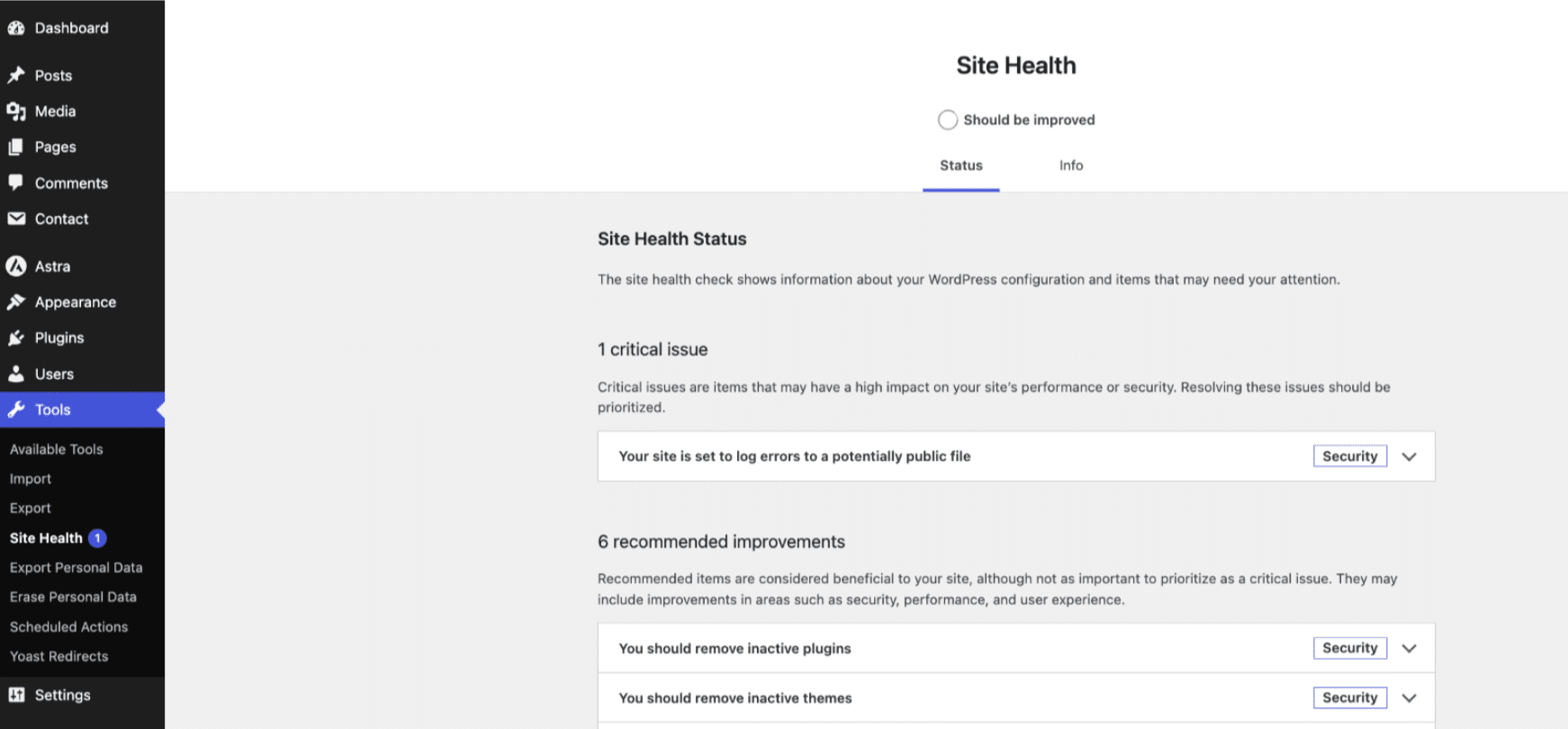
Site Health automatically checks your WordPress installation and highlights common issues, including:
- Outdated plugins.
- Outdated PHP versions.
- Configuration problems.
- Scheduled task failures.
- Performance recommendations.
📌 Developer tip: Run it once a month as part of your regular WordPress maintenance.
2. Query Monitor
Query Monitor is a free WordPress plugin that helps you understand what happens behind the scenes when WordPress loads a page.
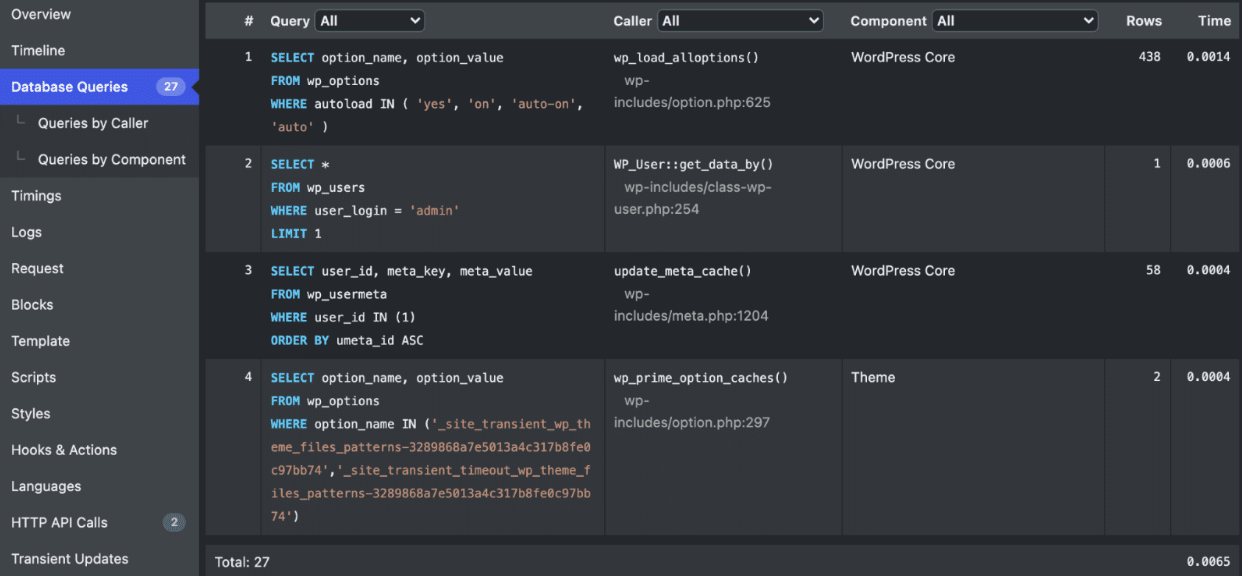
It can identify:
- Slow database queries.
- PHP errors and warnings.
- Slow HTTP requests.
- REST API and AJAX requests.
- Which plugin generated each query.
📌 Developer tip: If one plugin suddenly generates hundreds of database queries or significantly slows page generation, you’ve probably found your bottleneck.
3. GTmetrix
GTmetrix simulates how your page loads under specific test conditions, giving you a close approximation of what visitors experience.
Pay particular attention to:
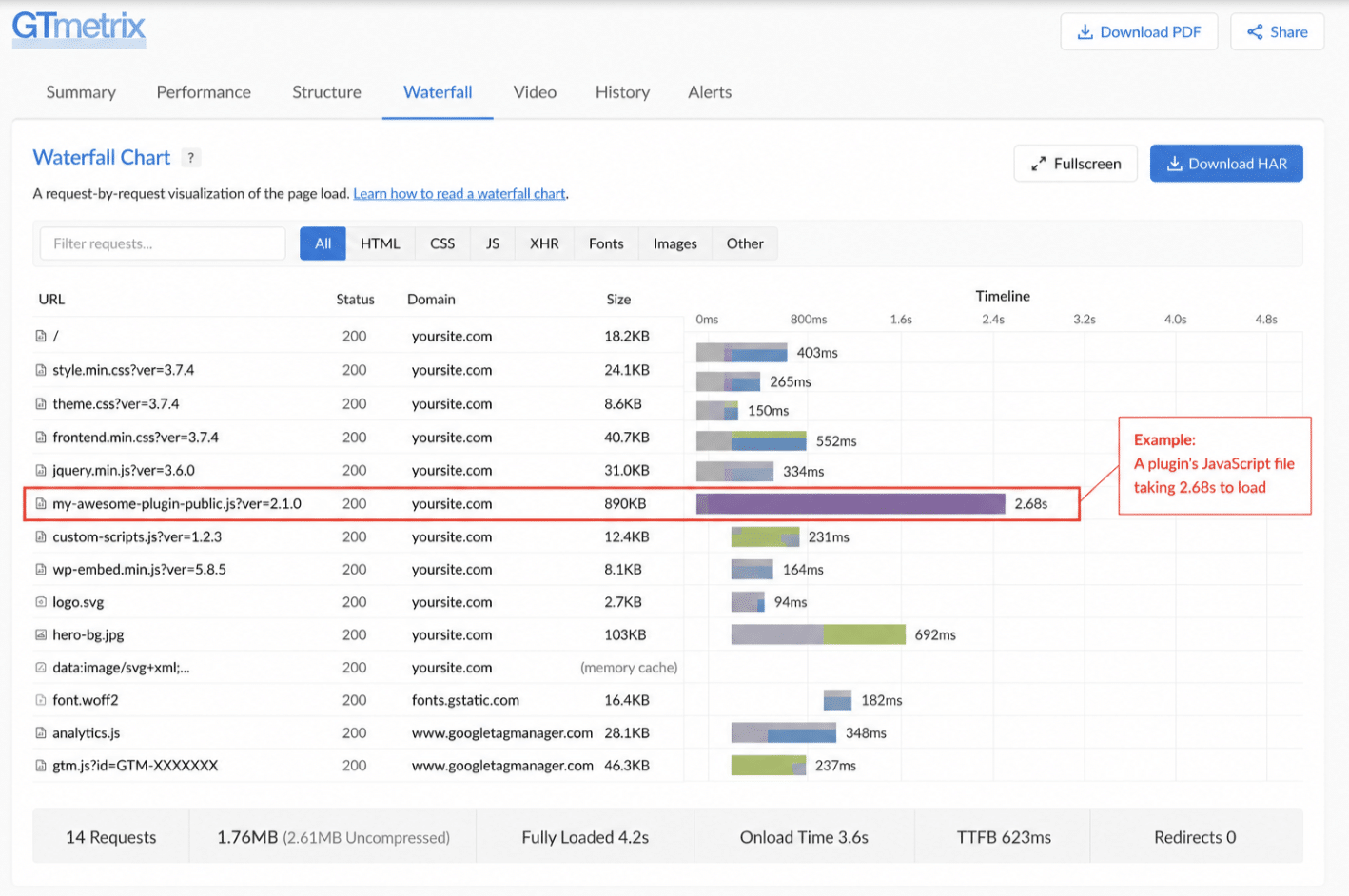
- The Waterfall Chart to identify files delaying page rendering.
- The Page Details panel to see page weight and request count.
- Core Web Vitals to measure loading performance.
- Large CSS or JavaScript files that may come from a plugin.
- Third-party requests from chat widgets, analytics tools, social media plugins, or marketing scripts.
📌 Developer tip: A large JavaScript or CSS file appearing in the Waterfall Chart often points directly to the plugin responsible for the slowdown. Here’s an example below:
Example: A Simple Troubleshooting Workflow
When your website suddenly becomes slow or something breaks, avoid changing several things at once.
Instead, follow this process:
- Create a full backup.
- Measure your current performance with GTmetrix.
- Check Tools > Site Health for obvious issues.
- Use Query Monitor to identify slow queries or PHP errors.
- Deactivate one suspected plugin.
- Clear your cache and test again.
- If the issue disappears, you’ve likely found the cause.
- If nothing changes, reactivate the plugin and continue with the next one.
| 📌 Best Practice: Never deactivate several plugins at the same time. Otherwise, you’ll never know which one fixed—or caused—the issue. |
Free vs. Premium WordPress Plugins: When Is It Worth Paying?
The WordPress ecosystem has an unusually generous free tier, and many plugins are genuinely excellent at no cost. The decision to pay should not come from a longer feature list, but from the cost of leaving a problem only partially solved.
Free Is Fine When:
The free tier covers your needs. Yoast SEO Free handles on-page optimization, XML sitemaps, and basic schema for most sites. If you are not managing 500+ pages or running a news site with advanced schema needs, it may be all you need.
The problem is low-stakes or infrequent. A portfolio contact form receiving five submissions a month probably does not justify a paid subscription.
A reliable free alternative exists. LiteSpeed Cache is a strong free option on LiteSpeed hosting, while Plausible’s open-source version can be self-hosted at no cost.
Premium Pays for Itself When:
Downtime or data loss has a real cost. For an online store, client site, healthcare portal, or financial service, premium software can quickly justify its price. UpdraftPlus Premium offers real-time backups and one-click migrations, while a daily free backup could still leave you with up to 23 hours of lost data.
Your site handles transactions. Once money moves through your site, features such as real-time firewall rules and advanced malware removal become far more valuable.
Time is the constraint. Premium plugins usually include priority support. For a business or agency, cutting a support to wait from 72 hours to four hours can have a clear financial value. Ultimately, you are paying not only for extra features, but also for faster updates, professional support, and a team responsible for keeping the plugin secure and reliable.
The more your website becomes business-critical, the more valuable premium plugins become.
| Your situation | Better choice | Why |
| The free version covers everything you need. | Free | There is no reason to pay for features you will not use. |
| Your site is small, low-risk, or has simple requirements. | Free | Usage limits and community support may be enough. |
| Your website generates revenue, leads, bookings, or subscriptions. | Premium | Downtime or technical issues can have a direct financial cost. |
| You manage client sites or cannot afford to wait for support. | Premium | Priority support can save time, reduce downtime, and protect the client relationship. |
| Your site handles sensitive data or complex workflows. | Premium | Faster updates, stronger reliability, and advanced controls become more important. |
Real-world examples: Free or Premium?
- Imagify: If you optimize around 200 images per month, the free plan is often enough because it includes the same optimization features as premium. Upgrade only when you exceed the monthly quota or need to bulk-optimize a large existing media library.
- Rank Math: The free version already covers technical SEO, XML sitemaps, metadata, and schema for most websites. Premium becomes interesting for larger websites, agencies, advanced schema, keyword tracking, and additional AI-powered features.
- WP Rocket: If your business depends on a fast website, an all-in-one premium performance plugin can save hours of configuration and troubleshooting compared with combining several free plugins.
- Wordfence: The free version provides excellent day-to-day protection for many websites. Premium becomes easier to justify e-commerce stores, membership websites, client projects, or businesses that need real-time firewall updates and immediate protection against newly discovered vulnerabilities.
| ⚠️ One final safety tip: Whether a plugin is free or premium, always check when it was last updated, whether it’s compatible with your version of WordPress, and how actively the developer responds to support requests. A high star rating or millions of installs should never replace your own due diligence. |
Frequently Asked Questions
How Do I Install a WordPress Plugin?
From your WordPress dashboard, go to Plugins > Add New Plugin, search for the plugin, then click Install Now and Activate. For premium plugins, choose Upload Plugin and select the ZIP file from your computer.
Are WordPress Plugins Safe?
Most are, but ratings alone are not enough. Check that the plugin is actively maintained, compatible with recent WordPress versions, supported by a responsive team, and built for one clear purpose.
What are the Most Popular WordPress Plugins?
Among plugins with a single, clear purpose, the most popular WordPress plugins are Wordfence Security (5M+ active installations) for security, WP Rocket (installed on 5.5M+ websites) for performance, and Rank Math SEO and UpdraftPlus (both 3M+ active installations) for SEO and backups. These are widely-adopted picks within their categories rather than a ranking of every plugin in the WordPress.org directory.
How Many WordPress Plugins Should I Install?
There is no magic number. A site with 20 well-maintained plugins can outperform one with 10 poorly coded ones. Focus on quality, avoid overlapping features, and keep only the plugins your site actually needs.
Which WordPress Plugins do Experts Recommend?
Experts generally agree on the categories every WordPress site needs a plugin for from day one: security, performance, SEO, image optimization, and backups. Within those categories, you can start with Wordfence Security for protection, WP Rocket for performance, Rank Math SEO for SEO, Imagify for image optimization, and UpdraftPlus for backups. The expert-backed criteria behind any pick in these categories: one clear goal, active maintenance, recent WordPress compatibility, and a strong reputation beyond star ratings. The rule to follow is one well-maintained plugin per need, never overlapping tools doing the same job.
Do I Really Need a Page Builder?
Not always. The native WordPress Block Editor is enough for many websites. Consider Elementor, Bricks, or another page builder only when you need more advanced layouts or dynamic content and always test the performance impact.
Should I Choose Free or Premium Plugins?
Free plugins are often enough for simple websites. Premium becomes more valuable when your site generates revenue, handles sensitive data, requires advanced features, or you cannot afford to wait for support.
Which Plugins Should I Install First?
Start with the five foundations: performance, security, SEO, image optimization, and backups. Add other plugins only when your site needs the specific problem they solve.
Wrapping Up
A great WordPress website isn’t built by installing the most plugins—it’s built by choosing the right ones.
Start with a solid foundation, then expand your stack only when your website genuinely needs additional functionality. Whether you’re improving security, speeding up your pages, launching an online store, or translating your content, choose one well-maintained plugin for each goal and avoid unnecessary overlap.
Remember to revisit your plugin stack every few months. Remove anything you no longer use, keep everything updated, and test new plugins before making them part of your production website. A smaller, carefully selected stack is usually easier to maintain, troubleshoot, and secure.
If performance is one of your priorities, WP Rocket brings page caching, CSS and JavaScript optimization, lazy loading, database cleanup, and other key optimizations into one premium plugin. It also includes Rocket Insights, which lets you monitor your performance score and key metrics at both site and page level and recommends your next optimizations.
Want to see if it’s the right plugin for your website? Every WP Rocket license comes with a 14-day money-back guarantee, so you can test it on your own site with confidence.