
Table of Contents
Last update on
Still wondering if you need a WordPress staging site? Well, a staging website is one of the most valuable tools you can use to keep your site safe, stable, and fast. It gives you a private website staging environment where you can test updates, new designs, plugins, or code changes without compromising your “real” website.
If you’ve ever searched for how to create a WordPress staging site or asked yourself what a staging website is, this guide walks you through everything you need to know. In addition, you’ll also learn about the mistakes to avoid when using a staging site.
| TL;DR A WordPress staging website is a private clone of your live site where you can safely test updates, design changes, plugins, performance, and code before going live. It prevents bugs, downtime, and SEO issues by catching problems early. Staging sites are incredibly useful not only for developers but also for support teams and end users, who can troubleshoot, train, or review changes without affecting the live site. Before publishing updates, always run speed tests and consider using WP Rocket, the easiest and most powerful performance plugin for WordPress that applies 80% of the performance best practices upon activation. Avoid common staging mistakes, test thoroughly, and your live site will stay stable and fast. |
Key Takeaways
✅ A staging website is a private copy of your live site used to test changes safely.
✅ It prevents bugs, broken layouts, checkout issues, and performance problems before they impact real users.
✅ It improves collaboration between developers, designers, clients, and support teams.
✅ It’s the ideal place to test website speed, caching, Core Web Vitals, and file optimization.
✅ WP Rocket is the most powerful performance plugin that allows you to easily improve your site’s speed before going live.
✅ Avoid mistakes like forgetting mobile testing, skipping performance checks, and not blocking indexing.
✅ Always test performance with PageSpeed Insights or GTmetrix.
✅ You can also test your key pages with Rocket Insights, which provides real-time performance monitoring directly intothe WP Rocket dashboard, letting you track and improve your key pages’ speed with GTmetrix in-depth insights.
Why Website Testing Matters Before Going Live
Before going live, you need to test how your website behaves and what your customers will actually experience. Is the buying journey smooth? Is the design clean across all devices? Are there any performance or compatibility issues? Testing in a staging environment helps you identify problems early. Here’s why testing is important.
1. You Can Check if Your Purchase Process Works (Functionality)
Use your staging website to test a real WooCommerce purchase with a dummy credit card number provided by developers. This allows you to verify the entire flow: cart behavior, checkout steps, shipping rules, payment gateways, and transactional emails. If the “Add to Cart” button suddenly stops working, you want to find out about it here, not on your live site with 2000 customers trying to complete the purchase, right?
2. You Can Go Through the Final Design on Multiple Devices
Design that looks great on a desktop can fall apart on mobile. In your staging environment, you might notice that product images are blurry, pages load slowly on certain devices, or a critical section – such as the payment form – is not responsive. Missing elements or broken layouts on mobile can directly cost you conversions. Testing helps you catch these issues before they reach your customers.
3. You Can Look for Performance and Security Issues
Your visitors won’t wait for a slow website. Use your WordPress staging website to test and optimize performance before launching. Tools like GTmetrix allow you to evaluate page speed, file optimization, and Core Web Vitals.
Some clients even require green Core Web Vitals before approving a site, and staging gives you the perfect testing ground to deliver those results.
Security testing also matters. In staging, you can safely update plugins, run security audits, and fix vulnerabilities without exposing your live website. For a full list of steps, check WP Rocket’s guide to securing WordPress.
What Is a WordPress Staging Website and How It Works
A WordPress staging website is a private, cloned version of your live site where you can safely test changes before publishing them. It looks and works exactly like your real site, offers the same features and look-and-feel, but it’s usually hidden from visitors and search engines. You can only access it via a dedicated URL:
- Live site: yoursite.com
- Staging site: staging.example.com or example.test
How a Staging Site Works
A staging website is simply a duplicate of your live site, including all files, themes, plugins, and database content. You can then safely update plugins or themes, test a new design, try custom code, and test performance without affecting your visitors. Once everything works perfectly on staging, you can push the changes to your live site.
5 Key Benefits of Having a Staging Website on WordPress
A WordPress staging website is more than a convenience. It’s a controlled, private environment that helps teams, developers, QA testers, and project stakeholders work faster and safer. Here are the five core benefits, explained with real, practical examples from everyday WordPress work.
1. Safer Debugging and Faster Support
A staging website provides support teams with a safe, isolated environment to debug issues without affecting the live site.
🔍 Example: Imagine a client opens a support ticket because their “Purchase” button on one specific product no longer works. You can’t troubleshoot that on the live site. On staging, you replicate the issue, test scenarios freely, and break things as much as needed without consequences.
Support teams can also demonstrate fixes by recording their screens and showing clients exactly how to update a setting or apply a patch. Then they can easily escalate problems for the development team because staging is the shared workspace everyone relies on. It reduces unnecessary back-and-forth, speeds up debugging, and keeps the live site stable while work is happening behind the scenes.
2. Risk-Free Testing for Developers and QA
Before a site goes live, developers need a place to test new features, update plugins or themes, and try custom code without risking production. Staging provides that freedom.
🔍 Example: QA teams also rely on staging to run functionality checks and usability tests. In simple terms, QA makes sure everything works for real people across scenarios like different devices, browsers, or user flows.
Because staging is usually an exact clone of the live environment — same server, same PHP version, same database – developers can identify issues that would only appear under the real site conditions. They can test plugins, themes, design changes, and customizations early, preventing downtime and avoiding breaking the live site at the worst possible moment.
3. Zero-Impact Changes and Training for Clients
Clients get a safer, more transparent experience. Nothing they test or preview on staging affects their live business activities or their customers. They can learn how to make edits, try layout changes, or experiment with new content without any risk. This builds trust and confidence, especially for clients who don’t consider themselves very technical.
4. Better Performance and Security Before Launch
A staging environment is the perfect place to evaluate the impact of updates or new features on performance. You can test loading speed, script compatibility, caching, and media handling before anything touches the real site.
It’s also ideal for experimenting with different configurations. If something goes wrong, the live site stays intact, and the staging site can be wiped or reset without stress. From a security standpoint, staging lets you test updates, plugins, and fixes without creating vulnerabilities in the live environment.
5. Smoother Collaboration Across All Stakeholders
A staging site becomes a shared space where clients, developers, designers, support teams, and QA testers can work together. Everyone sees the same version of the site, in the same conditions, making collaboration easier and reducing misunderstandings.
🔍 Example: Instead of endless back-and-forth, staging becomes the common playground where ideas, changes, and code fixes can be reviewed and approved before going live.
How to Set Up a Staging Website for WordPress
There are two easy ways to create a WordPress staging website: using your hosting provider’s built-in staging tool or installing a plugin like WP Staging. Let’s quickly review both methods so you can choose the one that best fits your workflow.
1. Setting Up a Staging Site Via your Host
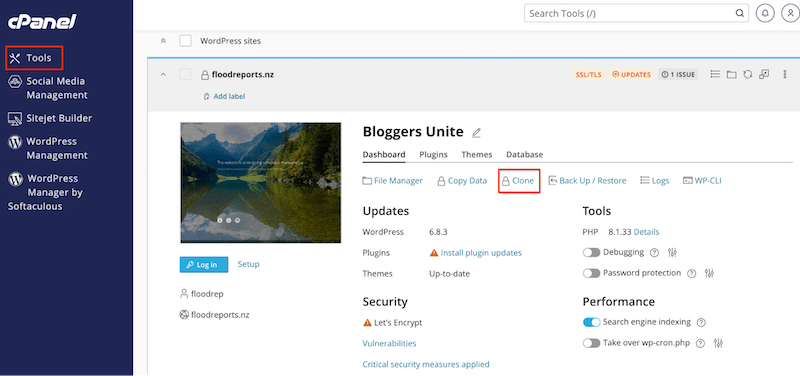
The hosting panel may differ depending on your provider. Let’s take the example of Domain City, a WordPress-specialized host: in just two clicks, you can launch your staging site.
From your host’s cPanel, go to Tools > Clone.
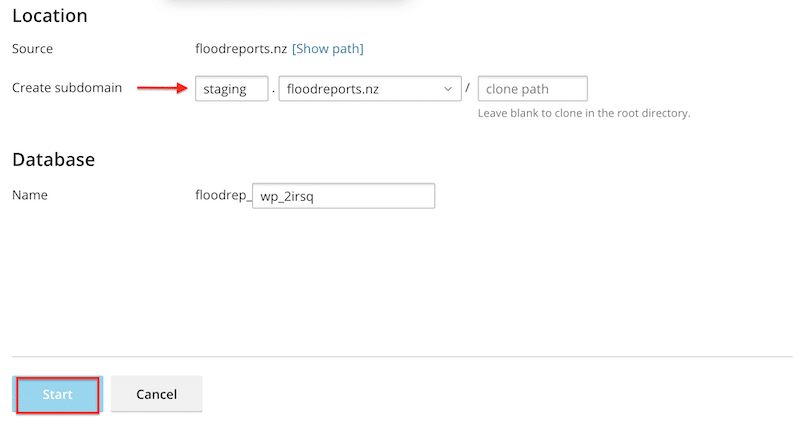
Then add a subdomain name, such as “staging,” to your URL and click the Start button.
2. Setting Up a Staging Site via a Plugin Like WP Staging
WP Staging is a popular WordPress plugin with over 100,000 active installs, designed to help you create a safe staging environment in just a few clicks. The free version covers the basics of cloning your site, while the Pro version unlocks more advanced features such as push/pull functionality, selective cloning, and additional customization options.
Simply go to WP Staging > Staging Sites > Staging.

Next, name your staging site and click the Start Cloning button. The plugin will handle the rest.

How to Use WP Rocket on Your Staging Website
It’s essential to test performance before launching your site. Caching, code optimization, and other performance techniques like lazy loading play a huge role in making WordPress fast.
WP Rocket is the easiest and most powerful performance plugin for WordPress. Upon activation, it applies 80% of web performance best practices automatically, including page caching, also for mobile, browser cache, cache preloading, automatic lazy rendering, GZIP compression, file minification, and critical image optimization.
You can also enable advanced optimizations such as:
- Lazy loading on images, videos, iframes, and CSS background images
- Deferring JavaScript
- Preloading fonts and self-hosting Google Fonts
Setting Up WP Rocket on Your Staging Website
WP Rocket works automatically on a local host or any staging domain listed below, and it does not count as an extra domain in your license.
Here are examples of allowed endings: .test, .local, .localhost, .dev.cc, .cloudwaysapps.com, .pantheonsite.io, .wpengine.com, .kinsta.cloud, .flywheelstaging.com, .wpstagecoach.com, and many more.
It means you can safely test caching, file optimization, JavaScript behavior, and image loading without impacting your live website or requiring an additional WP Rocket license key.
7 Common Mistakes to Avoid When Using Staging Sites (And What to Do Instead)
When working on a WordPress staging website, it’s easy to overlook critical steps that can lead to bugs, performance issues, or even SEO problems once you go live. Here are the most common mistakes people make and what to do instead for a successful website launch.
1. You Forget to Test Key Parts and Real User Scenarios
Many issues only appear when users interact with the site in unexpected ways. Skipping scenarios means bugs will slip through.
🔧 Quick fix: Create a complete checklist and test every link, form, payment flow, and dynamic element to make sure nothing is missed.
2. You Only Ask Developers and Designers to Test
People too close to the project often overlook obvious issues. They already know how the site “should” behave.
🔧 Quick fix: Bring fresh eyes. Ask someone outside the project, ideally someone who matches your buyer persona, to navigate the site naturally. They will catch things the team won’t.
3. You Only Test on Desktop
Real users visit from mobile first. If you don’t test responsive behavior, layout issues, or broken elements will go live.
🔧 Quick fix: Test the staging site on multiple devices and screen sizes: phone, tablet,a nd desktop.
4. You Never Test Again After Launch
Many assume that once the site is live, the work is done. But browsers, plugins, and operating systems evolve continuously.
🔧 Quick fix: Keep using your staging site for long-term maintenance. Test updates, new plugins, and design changes there before pushing them live.
5. You Forget to Disable Indexing
If your staging site gets indexed by Google, it can harm your SEO and cause duplicate content issues.
🔧 Quick fix: Always block search engine indexing on staging via “Discourage search engines” or a noindex directive.
6. You Push Changes Without Syncing Live Content
While you work on staging, new orders, comments, and content might be created on the live site. Overwriting the database creates data loss.
🔧 Quick fix: Before deployment, back up the live site and push changes selectively (theme files, settings, plugins) instead of replacing the entire database.
7. You Don’t Test Performance and Caching
Staging environments often use different caches or no optimization at all, so the performance you see there may not reflect real conditions.
🔧 Quick fix: Enable caching or simulate production performance settings to identify potential speed issues early. A slow website hurts your traffic, user experience, and conversions. When pages take too long to load, search engines rank your site lower, and even motivated users are more likely to abandon forms or purchases.
Important:
Always run performance tests before going live. You can use PageSpeed Insights, or if you’re a WP Rocket user and want to monitor a few key pages directly inside WordPress, you can use Rocket Insights. Powered by GTmetrix, the performance tracking tool built inside WP Rocket helps you spot issues related to speed and Core Web Vitals across your pages.
| 💡 Good to know: Rocket Insights tracks 3 pages on the Free plan and up to 10 pages on the Premium plan. |
🚦Staging Site Issues & Quick Fixes (Cheat Sheet)
If you’re about to launch a staging site, make sure you go through this cheat sheet; it’s a quick way to catch common mistakes before they go live. Save it for your next web project!
| Common staging sites mistakes | Quick fix |
| You forget to test key parts and real user scenarios | Create a full checklist and test every link, form, payment flow, and dynamic element. |
| You only ask developers/designers to test | Bring in fresh eyes and ask someone outside the project, ideally aligned with your buyer persona. |
| You only test on desktop | Test the staging site on mobile, tablet, and desktop to catch layout and UX issues. |
| You stop testing after launch | Keep using your staging site for updates, new plugins, and design changes before pushing live. |
| You forget to disable indexing | Block search engine indexing via “Discourage search engines” or a noindex directive. |
| You push changes without syncing live content | Back up the live site and deploy selectively (theme files, settings, plugins) instead of replacing the entire database. |
| You don’t test performance and caching | Enable caching and other advanced performance optimization with WP Rocket and mimic production settings to spot slowdowns early. WP Rocket applies 80% of the performance best practices right upon its activation and allows you to speed up your site and improve your Core Web Vitals easily. To test performance, you can use PageSpeed Insights and GTmetrix, plus Rocket Insights, the built-in tracking performance tool inside WP Rocket for your top pages. |
FAQs on Creating a Staging Website on WordPress
How can I create a staging website myself?
Most hosting providers offer a one-click staging feature that instantly creates a copy of your site. You can also set up a staging website using your host control panel or with a WordPress plugin.
Is my information safe if you create a staging site?
Yes. When we create staging sites for troubleshooting, they are hosted on a private server and deleted after the work is completed. Sometimes a clone helps us reproduce an issue in a different environment, but we always request permission first and remain fully transparent throughout the process.
Will a staging website affect my SEO?
No. Staging sites should always be blocked from indexing and use different URLs to avoid impacting search rankings.
Are there any risks involved in creating a staging website?
No. Creating a staging site is completely safe. In fact, it reduces risks by allowing you to test changes, updates, and code fixes without affecting your live site.
Wrapping Up
A WordPress staging website is one of the smartest tools you can use to protect your site and your business. It gives you a safe, private space to test updates, new designs, plugins, translations, and performance improvements without risking errors on your live site. You can catch bugs early, avoid downtime, and launch a successful WordPress site.
And before going live, don’t forget to test your performance to make sure you are ready to launch to a fast site. WP Rocket applies powerful optimizations automatically and helps you validate speed results directly from your dashboard with Rocket Insights. With the 14-day money-back guarantee, there’s no risk in trying it. A staging site keeps you safe, and WP Rocket keeps you fast!