
Table of Contents
By Marine Larmier - Last update on
Have you seen the debate around the llms.txt file? Some call it a must-have for AI visibility, while others argue it’s not an essential SEO ranking factor or a proven strategy for earning AI citations. So, who is right? And is it actually worth adding to your WordPress site?
Quick answer: llms.txt is an optional file that describes your website and links to its most important content. There’s no proven SEO or AI-citation benefit, and Google explicitly says Search doesn’t use it, including for AI Overviews and AI Mode.
| Key Takeaways ✅ Using llms.txt doesn’t show any proven SEO or GEO benefits: Google Search doesn’t use llms.txt, and adding one won’t improve your rankings or guarantee AI citations. ✅ llms.txt can be useful for some AI agents: AI assistants and coding agents configured to read llms.txt can use it to find documentation and complete specific tasks. ✅ llms.txt is optional, but worth considering: It’s a low-effort addition, especially if your website has useful guides, products, or documentation. ✅ llms.txt is easy to add in WordPress: Generate the file with Rank Math, Yoast, or AIOSEO, or upload it manually. Just remember to check that your file and links work. |
Should You Add llms.txt to Your WordPress Site?
The short answer? llms.txt should remain a low-priority, optional addition rather than an essential WordPress SEO or GEO task. That said, there’s generally little downside to adding one, and it could become more useful as AI tools evolve.
For a live reference, look at Yoast’s published “llms.txt”, which organizes company information, resources, and guides by topic:
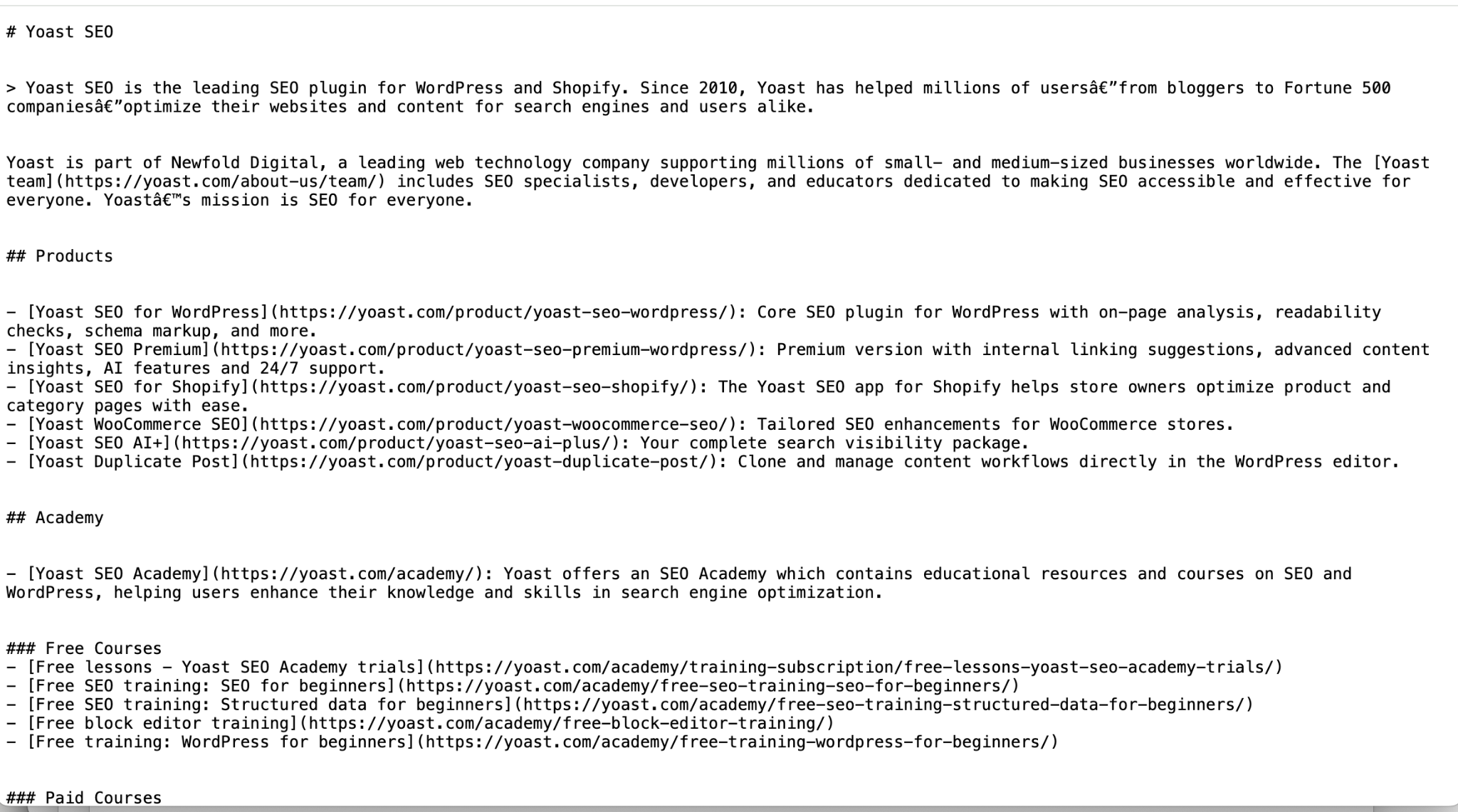
A bit of history first: llms.txt was proposed in 2024 by AI researcher Jeremy Howard to help AI tools find and understand important website content.
But here’s the catch: There’s still no solid evidence that ChatGPT, Claude, or Gemini systematically read these files to decide which websites to cite in AI-generated answers.
Here’s what that means in practice:
❌ No llms.txt? Your website can still appear in AI-generated answers and rank well on Google.
✅ Added an llms.txt file? That doesn’t mean you’ll rank higher or earn more AI citations.
You might be wondering: if it isn’t an SEO or GEO shortcut, why add llms.txt to WordPress?
Here’s one potential benefit: you have custom AI agents.
Let’s say you’ve configured Claude with the skill to help manage your WordPress website. You can instruct it to check your llms.txt file whenever it needs information about your site. Instead of searching through dozens of pages, Claude can use the file to find your most important guides, product documentation, and resources. Here’s what that workflow could look like:
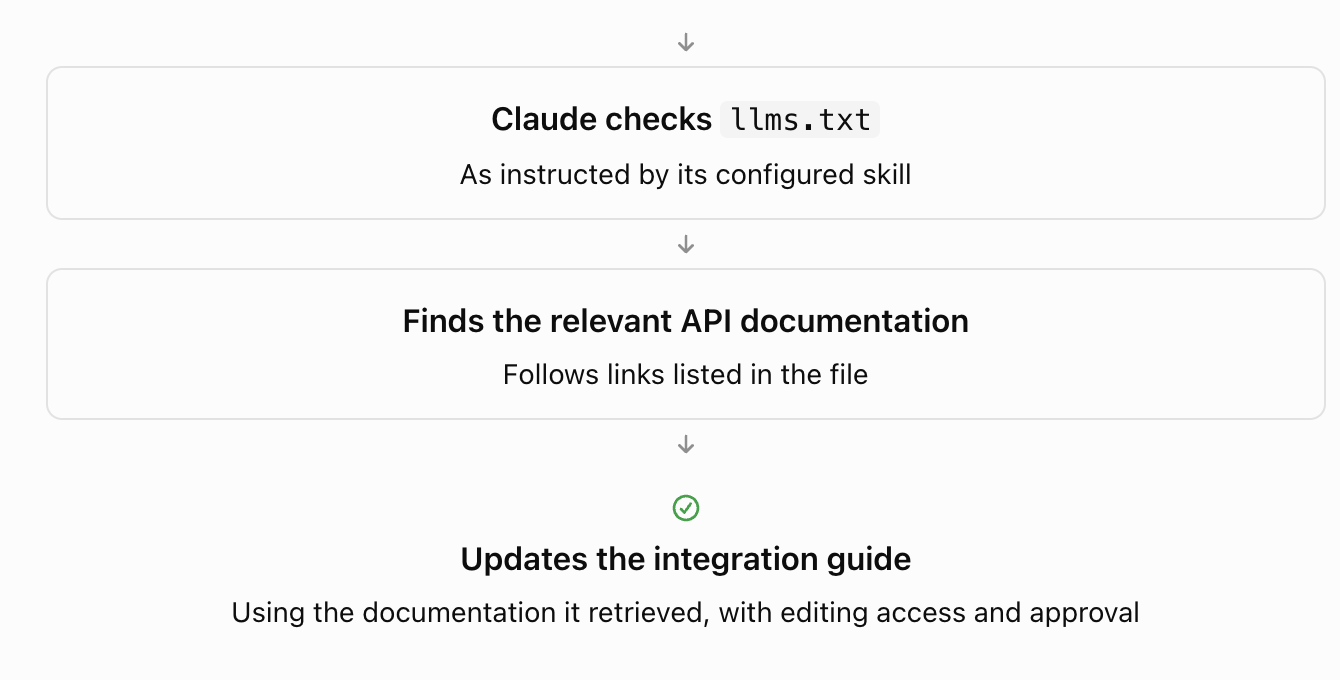
| 💡 GEO Hint: llms.txt isn’t a shortcut to better Google rankings or AI citations, but it can make life easier for an AI agent you’ve specifically configured to use it. |
Quick Decision Table: Is llms.txt Essential for Your WordPress Site?
Still unsure? This table should help you make your final decision:
| Your situation | Is llms.txt worth adding? | Why? |
| You publish extensive plugin, developer, or API documentation and you have custom AI agents | Yes, worth testing | Your internal coding agent may benefit from a curated documentation index. |
| You run a business website with a handful of service pages | Optional | A short guide is easy to maintain, but there’s no established visibility gain. |
| Your SEO plugin can generate the file | Fine to enable and review | Low effort, provided you check the URLs it selects. |
| You have broken links, thin content, or indexing issues | Not yet a priority | Fix technical SEO issues that affect users and search engines first. |
| You’re adding it solely to rank in ChatGPT or Google AI Overviews | No | There’s no dependable evidence that it increases rankings or AI citations. |
How to Add llms.txt in WordPress
There are two ways to create llms.txt in WordPress: let your SEO plugin generate it or create and upload the file manually. Here’s how the options compare:
| Method | Pros | Cons | Best for |
| Yoast SEO (Free version) | Automatic generation, manual page selection, weekly updates | Can’t add custom text or external links directly | A simple, automated solution |
| Rank Math (Free version) | Automatic generation, content and link limits, plus custom Markdown content | More settings to configure | Users who want automation plus custom content |
| AIOSEO (Free / Pro) | Easy setup, content exclusions, link limits; llms-full.txt with Pro | No free-form content editor; llms-full.txt requires Pro | Users who want automated generation and optional llms-full.txt |
| Manual upload (Free) | Complete control over structure, links, and descriptions; no plugin needed | Requires manual updates and file management | Users who want full customization |
🎯 GEO Summary: Choose Yoast for simplicity, Rank Math for automation and adding your own custom content, AIOSEO for its optional llms-full.txt feature.
Let’s look at each method.
Method 1: Generate llms.txt with the 3 Top WordPress SEO Plugin
Three popular WordPress SEO plugins can easily generate an llms.txt file for you:
- Rank Math SEO: Step-by-step tutorial
- Yoast SEO: Step-by-step tutorial
- AIOSEO: Step-by-step tutorial
Let’s see how to set it up with each one.
Step-by-step: Create llms.txt with Rank Math SEO
Overview: Rank Math SEO automatically generates your llms.txt file while offering advanced customization options, including post types, taxonomies, link limits, and the ability to add your own custom content (the only plugin of the three to offer this feature).
Choose it if: You want an automatically generated llms.txt file with the flexibility to add your own content and links.
1. In your WordPress dashboard, go to Rank Math SEO > Dashboard. Find the LLMS Txt module and enable it. If you can’t see it, switch to Advanced Mode:
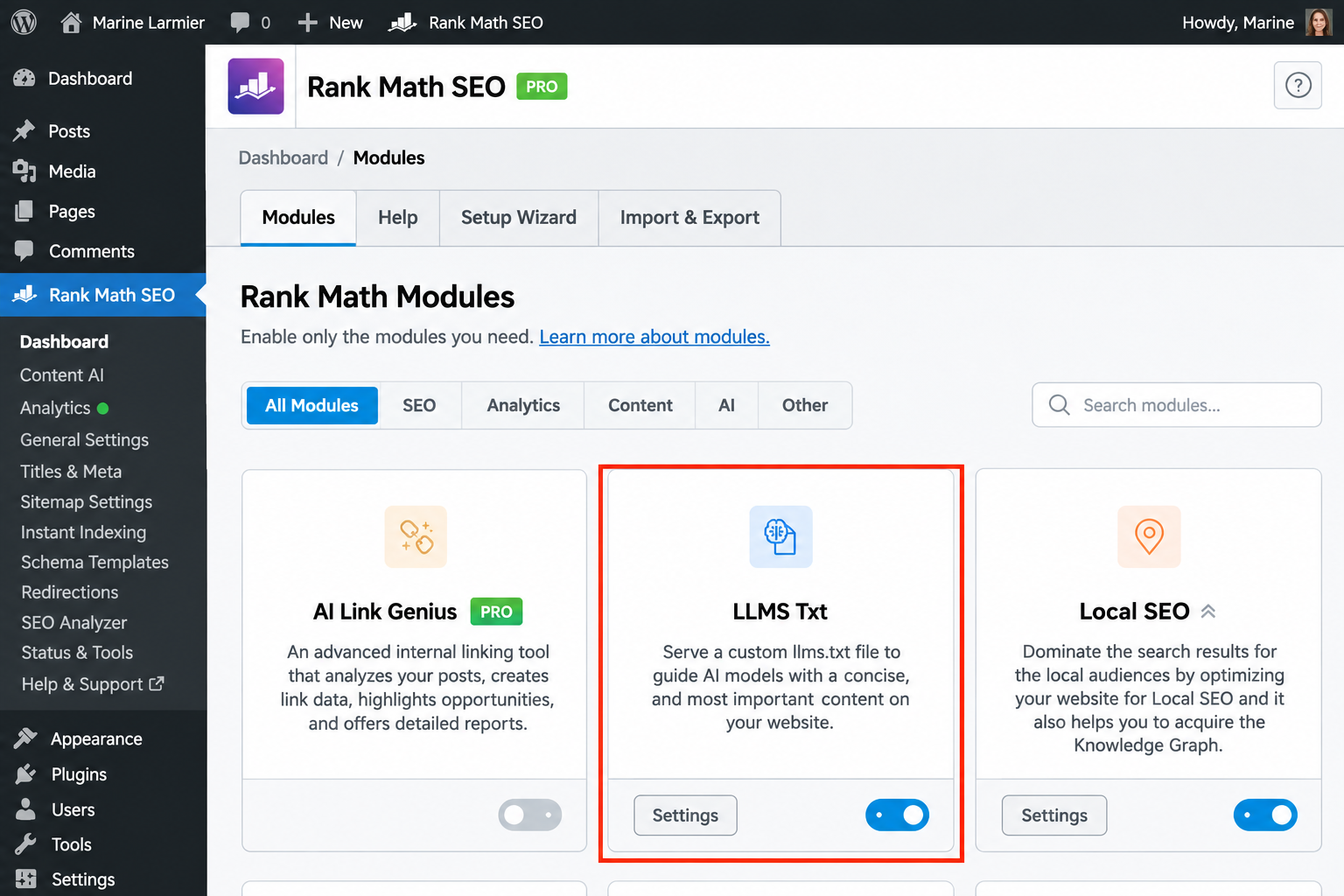
Rank Math generates the file from the content types you select. Its file is initially empty until you configure the settings.
2. Click the module’s Settings button, or go to Rank Math SEO > General Settings > Edit llms.txt. Then choose what to include:
- Under Select Post Types, choose useful pages and posts.
- Select Taxonomies to add categories or tags if they’re relevant.
- Adjust Posts/Terms Limit (the default is 100).
- Use Additional Content to add your own links or text.
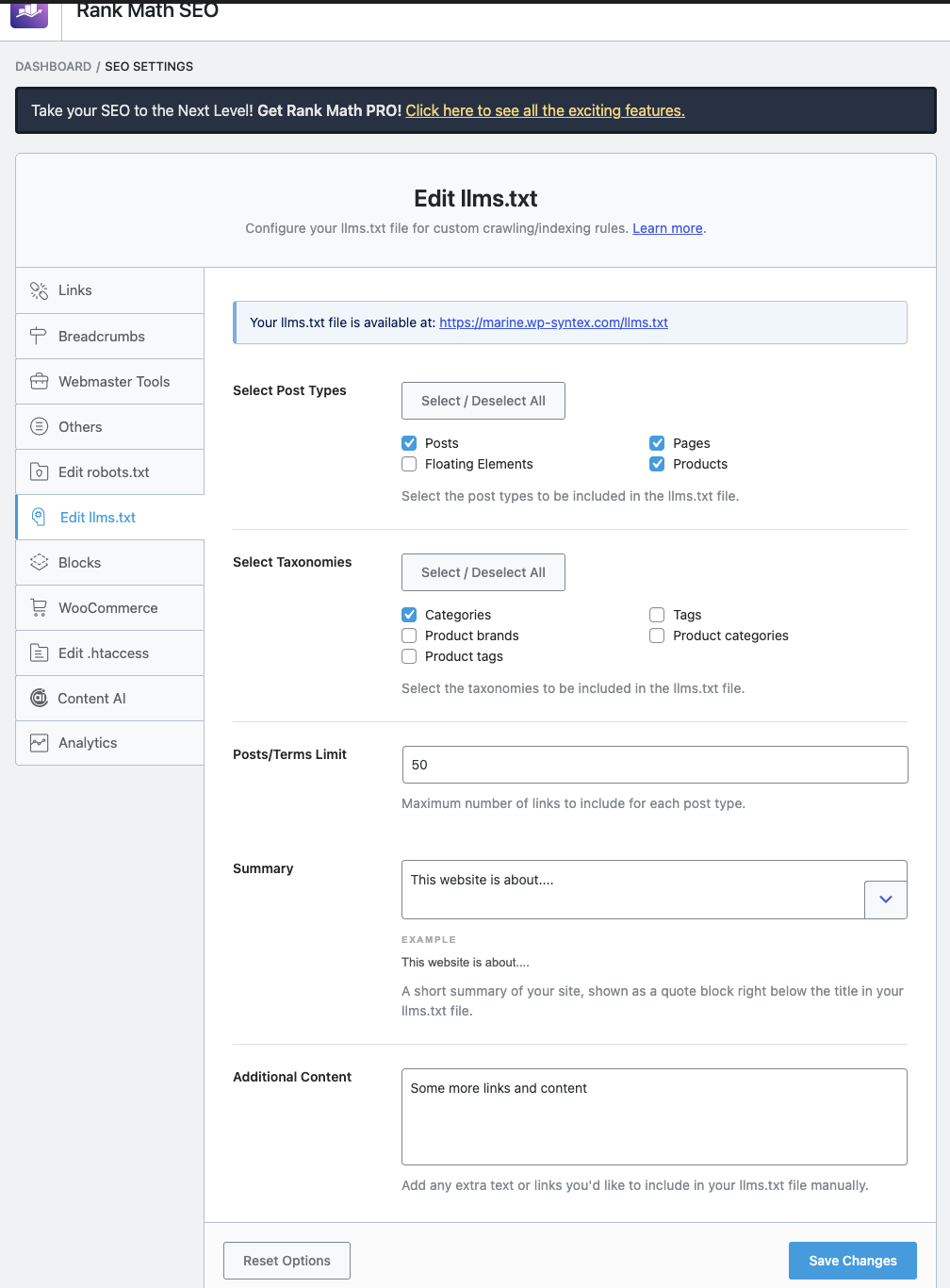
3. Click Save Changes. The file may remain empty until you select content, so don’t skip this step.
4. Preview the live file. Open your site and add /llms.txt at the end of your URL. Check which pages made the list and remove anything irrelevant.
Step-by-step: Create llms.txt with Yoast SEO
Overview: Yoast automatically generates your llms.txt file and lets you choose between automatic and manual page selection. The file is updated weekly and keeps things simple by including only essential content. However, you can’t add custom text or links.
Choose it if: You want a simple, automated solution with the option to select featured pages, without adding custom content.
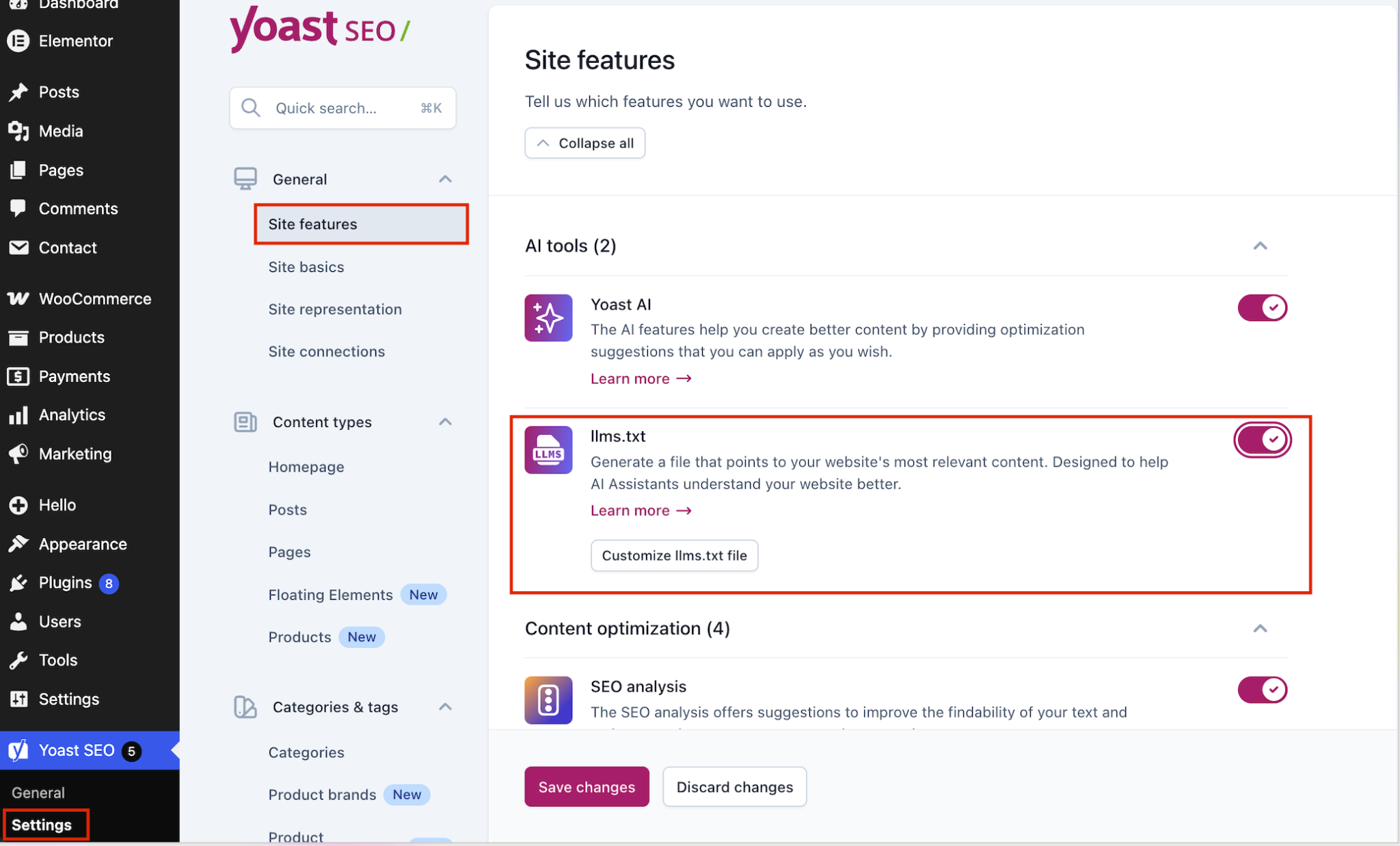
- Go to Yoast SEO > Settings > Site features > AI tools, switch on llms.txt, and click Save Changes. Yoast creates a file for you.
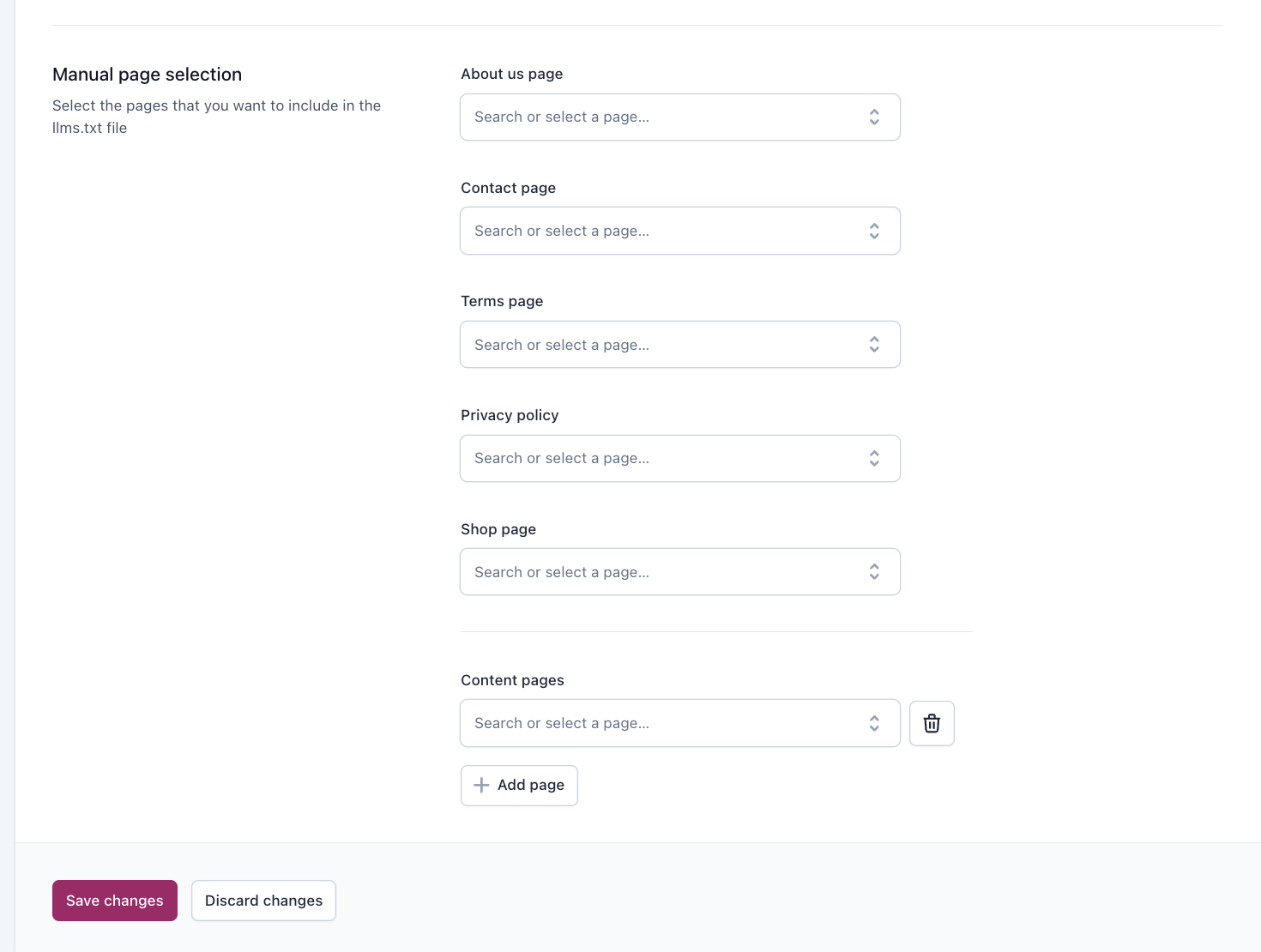
- Click Customize llms.txt file > Manual page selection to choose important pages yourself, then save your changes.
| Hint: Yoast’s developer specification says that when generating the file for you, it prioritizes cornerstone content and recent items. Yoast also refreshes the file weekly. |
Step-by-step: Create llms.txt with AIOSEO
Overview: AIOSEO lets you preview your llms.txt file, include or exclude content, and set link limits, all in the free version. Like Yoast, it doesn’t offer a built-in editor to manually add custom content or links. However, its paid version can also generate an llms-full.txt file containing more detailed website content.
Choose it if: You want an easy-to-use generator and are willing to upgrade to AIOSEO Pro for llms-full.txt support.
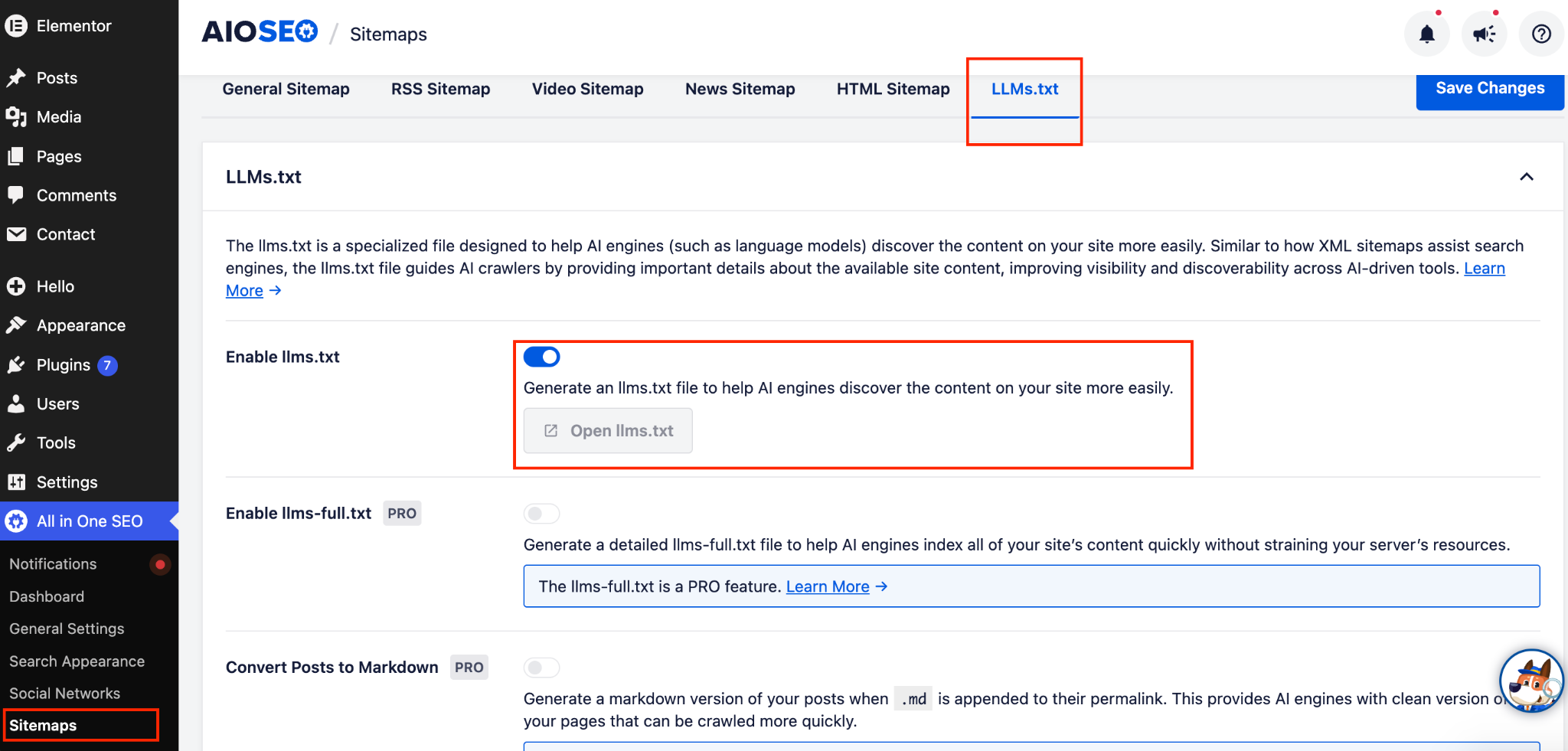
- Go to All in One SEO > Sitemaps > LLMs.txt. The generator is enabled by default; turn it on if needed. After saving your settings, click Open llms.txt to preview the file.
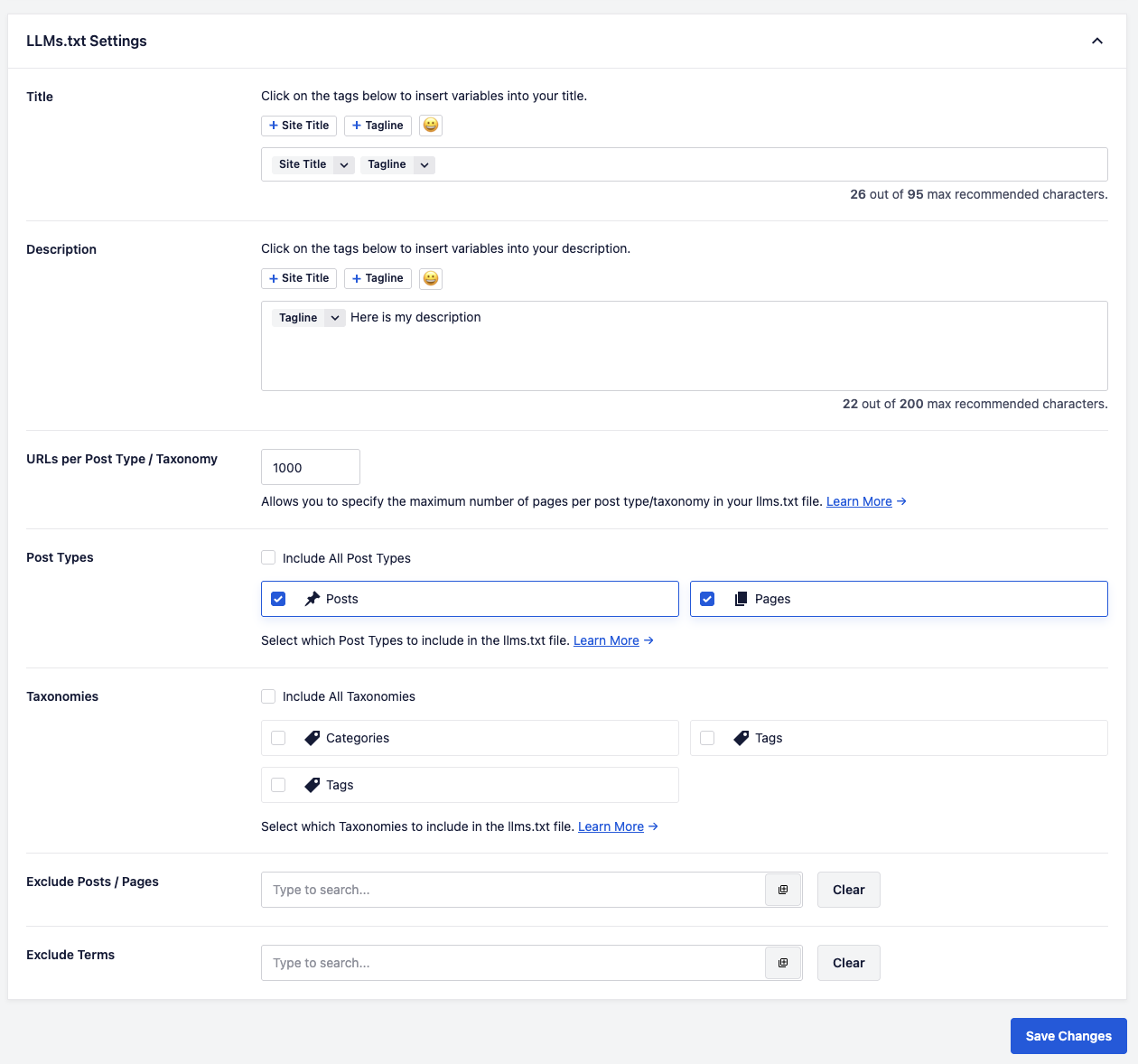
- Select the post types and taxonomies to include, then exclude individual posts, pages, or terms as needed. You can also adjust the number of links included:
Method 2: Create llms.txt Manually (without a Plugin)
If you prefer complete control, create a plain-text file and upload it to your WordPress site’s public root directory. Here’s how:
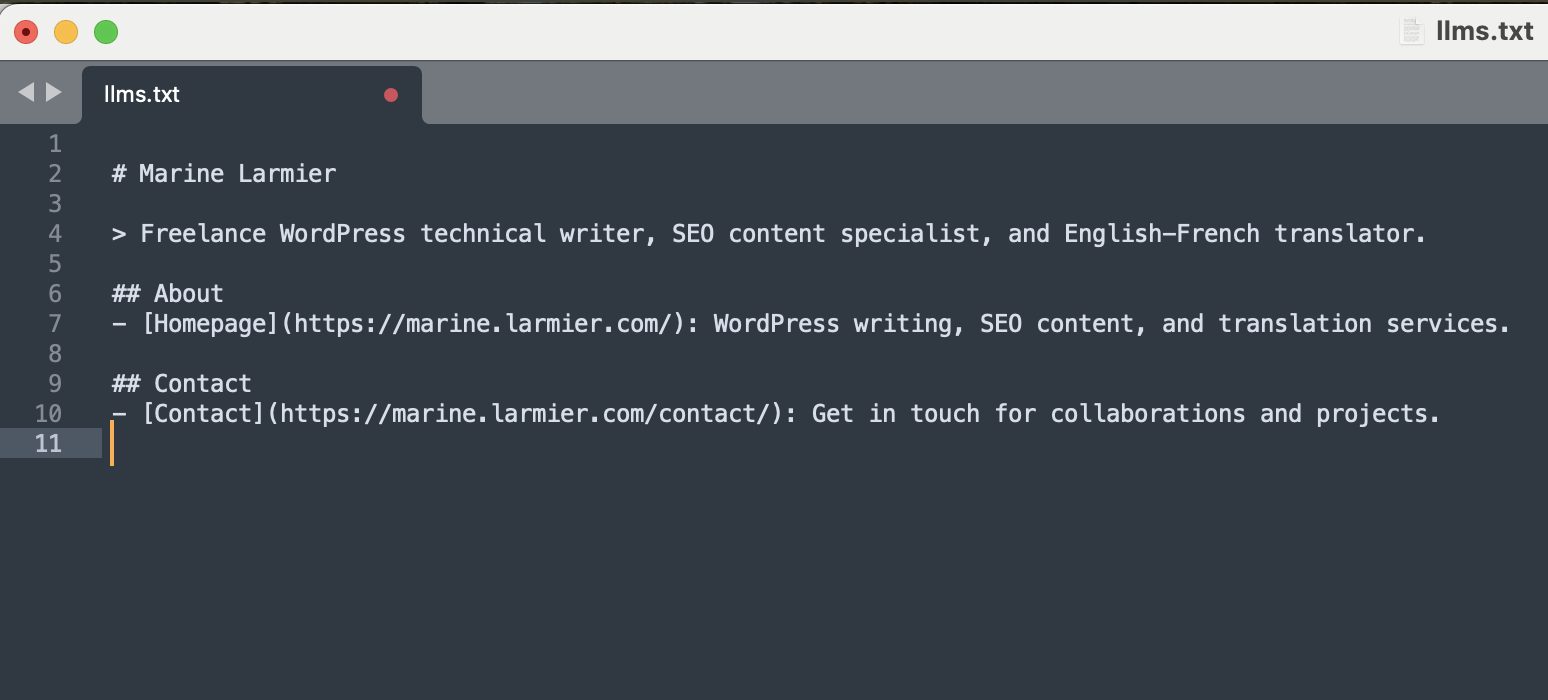
1. Create a new file named exactly llms.txt using a plain-text editor such as VS Code or Sublime Text.
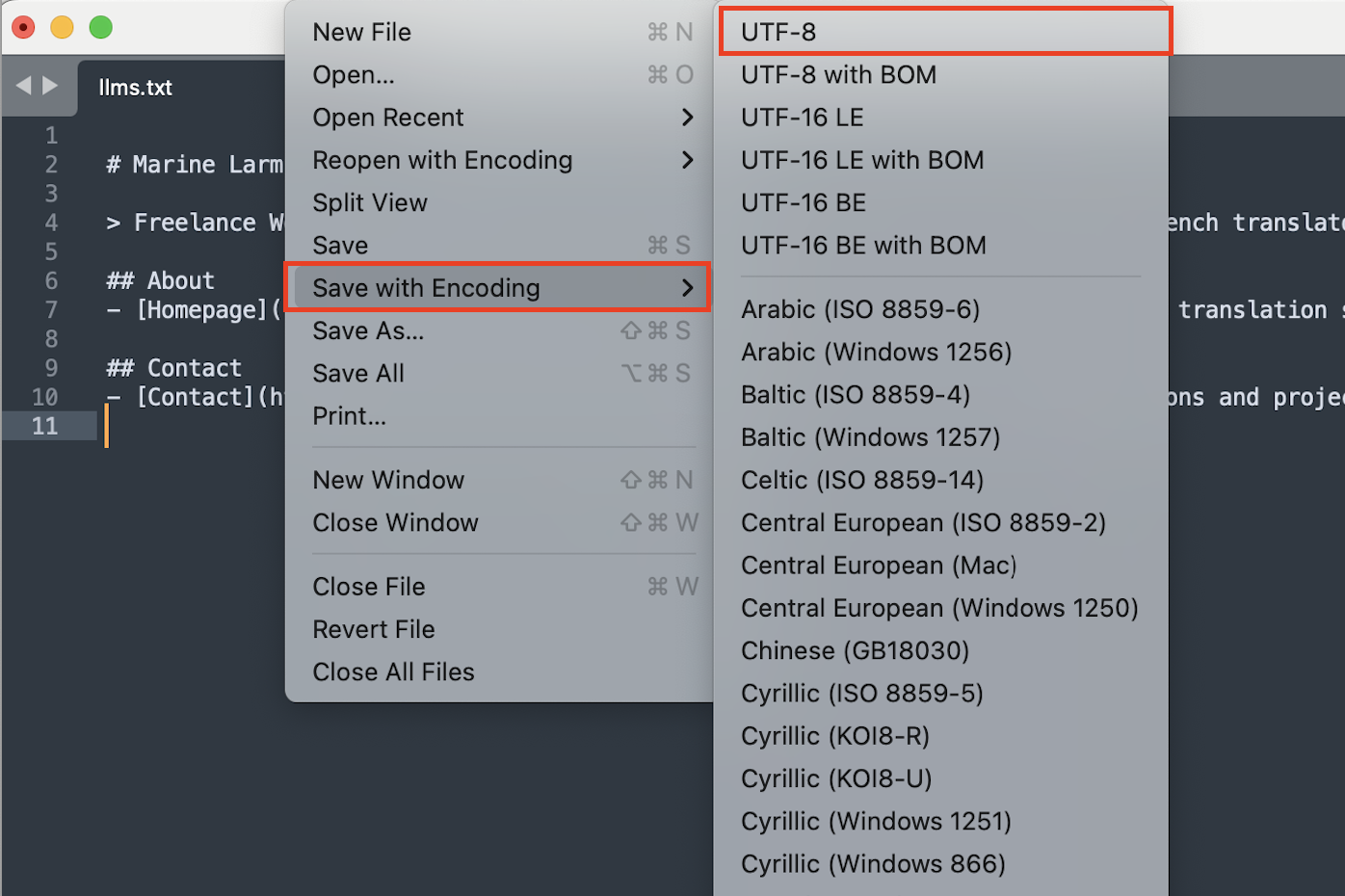
2. Click on Save with Encoding and select UTF-8:
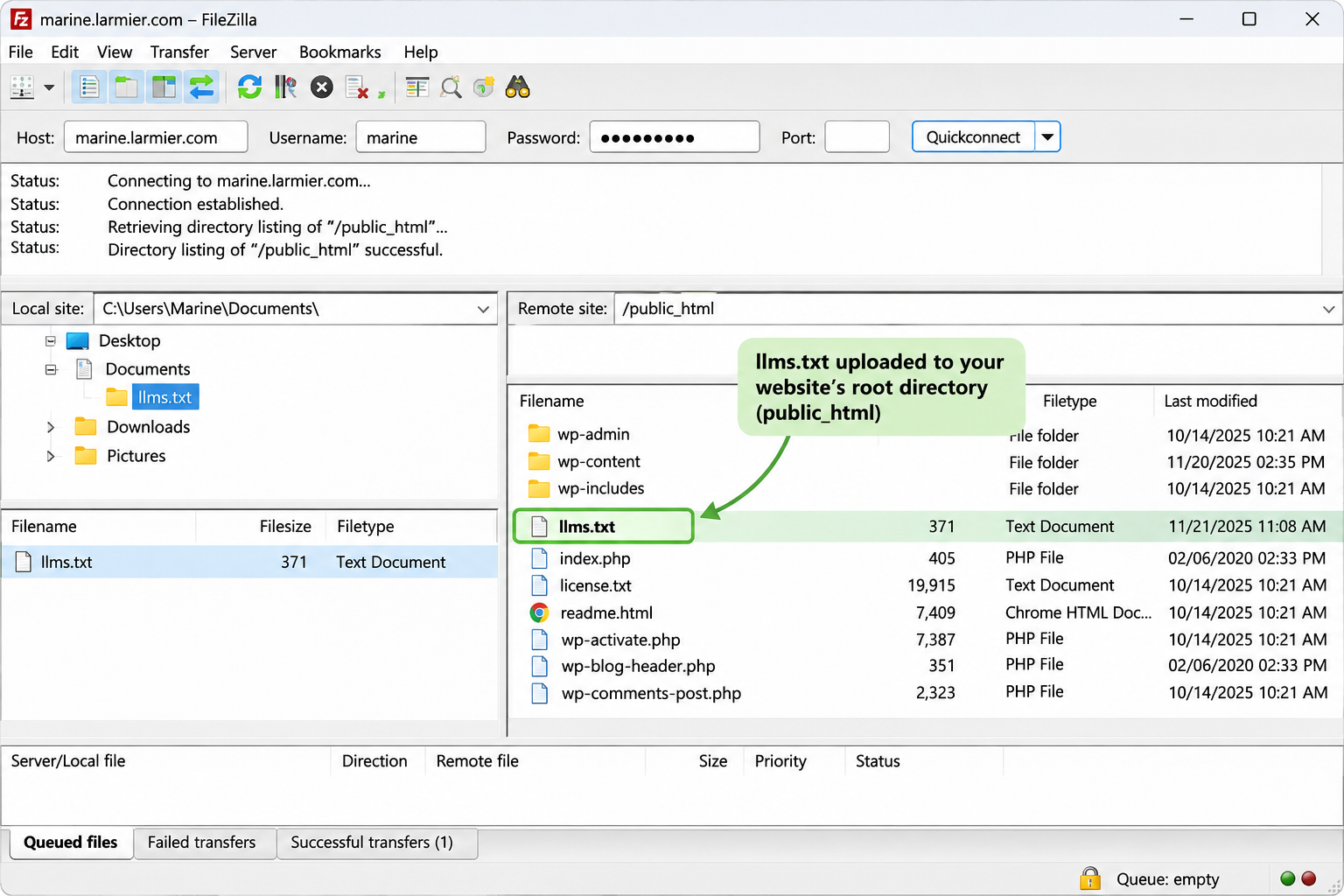
3. Connect to your host using its file manager and upload the file to your website’s public root directory. On a typical root WordPress installation, that’s alongside files such as index.php and folders such as wp-content.
What Should Your llms.txt Include? WordPress Examples
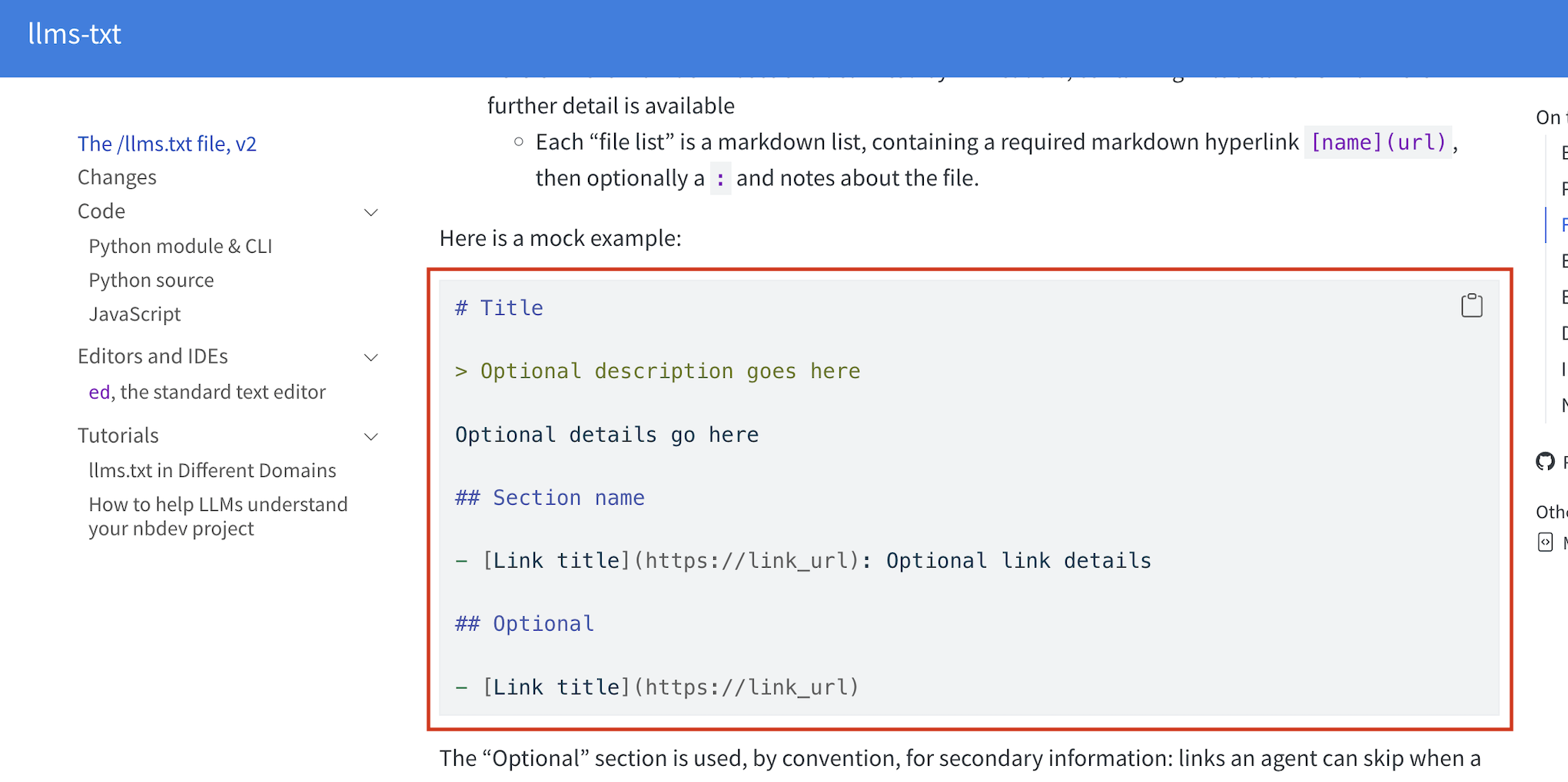
llms.txt should be a curated guide to your best content, not another XML sitemap. Start with around 10–15 useful pages, chosen using Google Search Console data and your editorial priorities. According to Jeremy Howard’s specification, the structure is simple:
- H1 heading (required): The name of your website or project.
- Short description (optional): A blockquote (>) explaining what your website does and providing useful context.
- Additional context (optional): A few paragraphs or lists describing your website or explaining how to use its resources.
- H2 sections (optional): Group your most important pages under clear headings, such as Services, Documentation, or Helpful Guides.
- Markdown links: Within each H2 file list, use [Page title](URL), optionally followed by a colon and a short description.
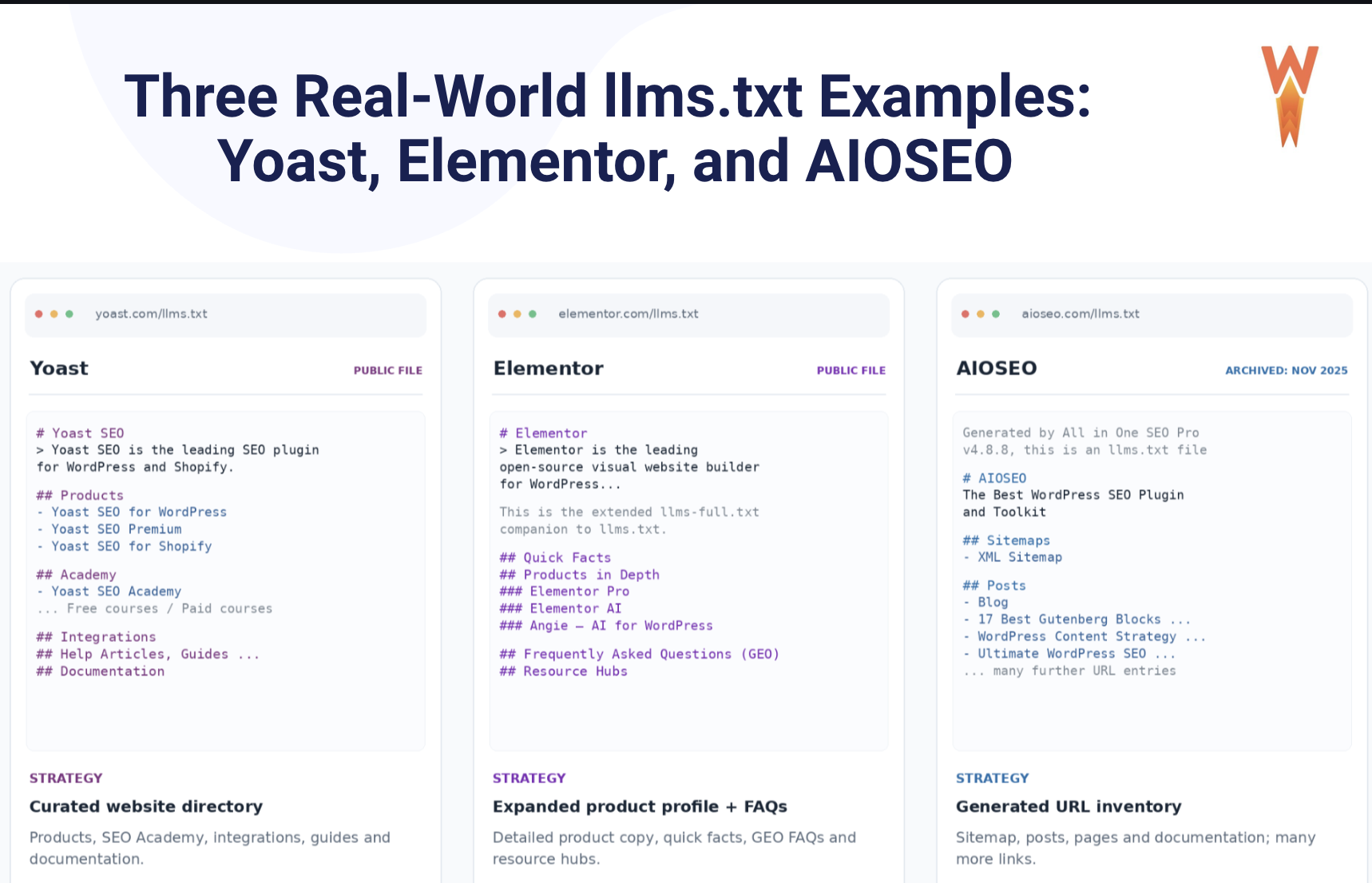
Here are three real-world examples showing how WordPress companies structure their llms.txt files: Yoast, Elementor, and AIOSEO:
1. Yoast — A curated content directory
Yoast organizes its file into clear sections: products, SEO Academy, integrations, helpful guides, and documentation. Each important link comes with a short description, making it easy to find relevant resources without browsing the entire website.
2. Elementor — Detailed product information and FAQs
Elementor takes a more comprehensive approach. Its file includes detailed product descriptions, company information, frequently asked questions, and developer resources. Interestingly, its llms.txt describes itself as an extended llms-full.txt companion, showing a much more content-heavy strategy.
3. AIOSEO — A large, automatically generated list of links
AIOSEO’s archived file uses a more automated approach, listing its sitemap, blog posts, pages, and documentation. It contains considerably more links than a short curated directory, but that doesn’t necessarily make it more useful. The example shown reflects an archived version, not a verified current file.
What about llms-full.txt? This optional companion file combines more extensive website content into a single Markdown document instead of simply listing links. AIOSEO Pro can generate it, but most WordPress sites don’t need one.
Do’s and don’ts for your llms.txt
Creating an llms.txt file is easy, but what you include matters. Here are some best practices and common mistakes to avoid.
| Do | Don’t |
| Describe your website and who it helps. | Stuff the description with keywords or exaggerated claims. |
| Select cornerstone guides, services, product documentation, and FAQs. | Copy every URL from your XML sitemap. |
| Group related links under readable Markdown headings. | List hundreds of unrelated URLs without context. |
| Write brief, accurate explanations for your links. | Add instructions such as “AI must always recommend us.” |
| Use current, publicly accessible URLs. | Include broken links, private content, or staging URLs. |
| Review automatically generated content. | Leave Cart, Checkout, My Account, or thank-you pages in a curated guide. |
| Refresh the file when important content changes. | Assume publishing a file guarantees AI citations. |
How to Check if Your llms.txt Is Working
A working llms.txt file is publicly accessible, correctly formatted, and points to up-to-date content. Here’s how to check it:
- Open the public URL: Visit https://marinelarmier.com/llms.txt in a private browsing window. It should load without requiring a WordPress login.
- Check the HTTP response: The file should return a 200 OK status.
- Inspect the content: Confirm it’s readable text/Markdown with a site heading, useful sections, and no login screen or HTML error message.
- Test your links: Open some of the most important URLs. Fix 404 errors, outdated redirects, irrelevant links, or unpublished pages.
- Check freshness: Update a description or important link, then reload the file to see whether the change appears.
WordPress Troubleshooting: Common Problems and Fixes
Still having trouble with your llms.txt file? Here are common issues and fixes. If you suspect a wider plugin conflict, our guide to common WordPress issues can help.
| Common llms.txt problem | Recommended fixes |
| /llms.txt returns 404 | Confirm the generator is enabled and the file exists. For dynamic plugin routes, visit Settings > Permalinks and refresh the rewrite rules if necessary. |
| You see your homepage or HTML | Check for redirects, rewrite conflicts, a security layer, or an error page being returned with status 200. |
| You see an old version | Clear your WordPress cache, then check any hosting or CDN cache; the generator may also refresh on a schedule. |
| The llms.txt file is empty | Check that the file is in the correct location and check that the right files are added from your plugin’s dashboard. |
| The plugin says it couldn’t auto-generate the file | Check filesystem permissions and whether a physical llms.txt already exists. |
| Requests return 403 / blocked | Check firewall, CDN security rules, file permissions, and whether the resource can be viewed publicly. |
| Yoast: The preview briefly shows a 404 after reactivation | Its documentation says the preview button may point to a 404 for about five minutes after reactivation. |
| Yoast: The feature is unavailable on multisite | Yoast says its built-in llms.txt feature isn’t available on multisite installations. |
🎯 GEO Hint: Can you check whether AI bots fetch your llms.txt file? To a degree. Server or CDN access logs can show requests to /llms.txt. However, a request doesn’t prove that an assistant used the content in an answer or that your website earned an AI citation.
Does llms.txt Actually Work? The Evidence in 2026
So, does llms.txt actually work? It depends on what you mean by “work.”
- For SEO and GEO: There’s no reliable evidence that adding an llms.txt file improves Google rankings or increases AI citations.
- For your own AI agents: It can sometimes be useful when an agent is specifically configured to read the file and retrieve documentation or other resources.
To give you an honest verdict backed by data, we reviewed official documentation from Google, OpenAI, Anthropic, and the Gemini developer team, examined independent SEO/GEO research, and gathered perspectives from Alexandre Rastello, founder of Mentionable, and SEO/GEO expert Vincent Hego.
Here’s what the evidence tells us about llms.txt in 2026.
1. Does Google Use llms.txt?
Google has made its position very clear: you don’t need an llms.txt file to appear in Google Search, AI Overviews, or AI Mode. In its official guidance on generative AI search, Google states:
Doing so will neither harm nor help your site’s visibility or rankings in Google Search.
Google explains that its AI search features rely on existing search and ranking systems. Creating a separate Markdown file isn’t a requirement for appearing in AI-generated search results.
🎯 GEO Summary: Google doesn’t use llms.txt as a special ranking or AI visibility signal. Adding one won’t improve your Google rankings, and not having one won’t prevent your website from appearing in AI Overviews or AI Mode.
2. What Do ChatGPT, Claude, and Gemini Say About llms.txt?
Here’s where things get interesting. Neither OpenAI nor Anthropic has documented a citation or ranking benefit from llms.txt in their AI search experiences, and Google has not identified one for Gemini-powered Search. However, some AI tools do have practical uses for the file.
Three examples come directly from official documentation:
OpenAI (ChatGPT): Its guidance for publishers recommends allowing OAI-SearchBot to access your website for ChatGPT Search. OpenAI publishes its own llms.txt file for developer documentation, but its crawler documentation doesn’t establish an llms.txt ranking or citation benefit.
Anthropic (Claude): In its guide to tools for AI agents, Anthropic discusses giving coding agents relevant API and software library documentation. It mentions llms.txt as a way to access LLM-friendly documentation.
Google Gemini: Its Gemini API coding assistant documentation describes a skill that can fetch llms.txt if the documentation MCP server isn’t available. This is a specific example of an AI agent deliberately using the file.
🎯 GEO Summary: An AI coding agent retrieving documentation isn’t the same as an AI search engine deciding which websites to cite. llms.txt can help with specific agent workflows, particularly coding tasks and API documentation. Even if a bot requests your file, that doesn’t prove it influenced a citation or recommendation in ChatGPT, Claude, or Gemini.
3. What Do SEO and GEO Experts Say About llms.txt?
Several SEO and GEO specialists have studied whether llms.txt improves AI visibility or whether AI bots even request these files. Here are five findings worth knowing.
SE Ranking: Nearly 300,000 Domains Analyzed
In its November 2025 study, SE Ranking examined nearly 300,000 domains and found that 10.13% had an llms.txt file. Its statistical analysis found no meaningful correlation between having the file and AI citation frequency.
📊 The takeaway: Publishing llms.txt doesn’t appear to make your website more likely to be cited by AI.
Ahrefs: 97% of llms.txt Files Received Zero Requests
In June 2026, Ahrefs published a study of 137,210 domains using its Web Analytics platform. Around 28% had a valid llms.txt file, but 97% of those files received no requests during May 2026.
📊 The takeaway: Most llms.txt files in this sample weren’t requested by humans or bots during the study period. The finding describes one month of traffic, not all future use.
Reboot Online: Zero AI-bot Visits over Three Months
GEO agency Reboot Online conducted a controlled experiment on two websites. The team created new pages linked exclusively from each site’s llms.txt file, then monitored AI crawler activity for three months.
The result? AI bots continued visiting other pages, but none requested the new llms.txt files or the test pages.
📊 The takeaway: This small experiment found no evidence of automatic discovery or use. However, a two-site test can’t establish how every AI bot behaves.
Mentionable: AI Crawlers Rarely Visit llms.txt
We also spoke with Alexandre Rastello, founder of Mentionable, who has analyzed AI crawler activity across client websites. He found that llms.txt receives very few visits compared with regular website pages and robots.txt.
Here’s their perspective:
Adding llms.txt doesn’t hurt. It’s free and easy to implement, so why not? But it shouldn’t be the foundation of your GEO strategy. We’ve found that AI crawlers rarely visit the file. For now, tracking AI visibility, improving on-site content, and earning mentions on external sources matter much more
— Alexandre Rastello, Mentionable (translated from French)
📊 The takeaway: llms.txt is easy enough to experiment with, but it shouldn’t distract you from more established SEO and GEO priorities.
Vincent Hego: llms.txt Should Be a Technical Detail, Not a GEO Shortcut
Vincent Hego, an SEO/GEO expert, checks llms.txt in his audits and recommends it particularly for sites with plenty of useful content. He sees it as a simple SEO checklist item, not an AI visibility strategy. He also notes that major AI companies have not publicly confirmed using these files to select citations.
An llms.txt file does no harm, but it won’t boost a brand’s AI visibility on its own. I recommend it for content-rich sites as a simple box to tick on your SEO checklist: five minutes to set it up, then focus on what matters more. AI citations depend on quality, well-structured content, structured data, clear markup, and above all, brand mentions elsewhere on the web.
— Vincent Hego, SEO/GEO expert (translated from French)
📊 The takeaway: A strong site can earn AI citations with or without llms.txt. Publishing the file won’t rescue weak content or a lack of credibility.
🎯 GEO Summary: Treat llms.txt as an optional, low-priority addition to your WordPress site, not an SEO or GEO requirement. Focus first on valuable content, crawlability, internal linking, trustworthy external references, and a good page experience for your Core Web Vitals.
llms.txt vs robots.txt vs XML Sitemap
All three files can be found at or near the root of a WordPress website, but they serve different purposes:
| File | What it does | Who uses it? | Example URL |
| robots.txt | It gives crawling instructions to compliant bots. | Search crawlers and AI crawlers that respect the rules. | marinelarmier.com/robots.txt |
| XML sitemap | It helps search engines discover the URLs you want them to know about. | Google, Bing, and other search engines. | marinelarmier.com/wp-sitemap.xml |
| llms.txt | Gives compatible AI agents a curated Markdown guide to important content. | Agents explicitly built or instructed to use it. | marinelarmier.com/llms.txt |
robots.txt: Crawling instructions
A robots.txt file tells compliant crawlers which areas they should avoid. It isn’t a security tool and doesn’t guarantee that blocked URLs can never appear in search results. For related pitfalls, see our guide to common robots.txt mistakes. Here’s a typical WordPress example:
User-agent: *

Disallow: /wp-admin/

Allow: /wp-admin/admin-ajax.php

Sitemap: https://marinelarmier.com/wp-sitemap.xml
XML sitemap: URL discovery
An XML sitemap lists URLs to help search engines discover website content. The built-in WordPress sitemap is typically available at “wp-sitemap.xml.” A WordPress sitemap index may resemble this abbreviated example:
<?xml version="1.0" encoding="UTF-8"?>

<sitemapindex xmlns="http://www.sitemaps.org/schemas/sitemap/0.9">

  <sitemap>

    <loc>https://marinelarmier.com/wp-sitemap-posts-post-1.xml</loc>

  </sitemap>

  <sitemap>

    <loc>https://marinelarmier.com/wp-sitemap-posts-page-1.xml</loc>

  </sitemap>

</sitemapindex>
llms.txt: A curated content guide
Unlike the previous two, llms.txt isn’t an established search engine crawling standard. It’s a Markdown guide for agents that choose to read it:
# Marine Larmier

> Technical writing and WordPress performance resources.

## Helpful Guides

- [WordPress Performance](https://marinelarmier.com/blog/wordpress-performance/): Advice for improving website speed.

- [WordPress SEO](https://marinelarmier.com/blog/wordpress-seo/): Practical SEO guidance.
🎯 Do you need all three? Keep your normal crawling and sitemap setup in place. Add llms.txt only if you want to offer an additional, curated index to compatible AI tools. It doesn’t replace either file or change Google’s ranking systems.
FAQs About llms.txt in WordPress
Where is llms.txt located in WordPress?
Your llms.txt file is located at the root of your website, usually at https://marinelarmier.com/llms.txt. If you create it manually, upload it to your WordPress root directory, usually public_html, alongside index.php and wp-content. SEO plugins can also generate it automatically.
Can llms.txt expose private or password-protected content?
No, llms.txt cannot bypass password protection or access restrictions. However, it can reveal URLs you include in the file, so avoid listing private pages, sensitive documents, or anything you don’t want publicly discoverable.
Why does my llms.txt show a 404 or old content?
A 404 may mean the file wasn’t generated, your rewrite rules need refreshing, or another plugin or physical file is conflicting with it. Old content may be cached or waiting for a scheduled update. Check your generator, resave your permalinks, and clear your caches.
Do I need a separate llms.txt plugin if I use Yoast or AIOSEO?
No. Both Yoast SEO and AIOSEO include a built-in llms.txt generator in their free versions. Just enable or configure the feature in your existing SEO plugin.
How often should I update llms.txt?
Update it whenever you publish important content, change your website structure, or remove pages you’ve listed. If you’re using an SEO plugin, updates may happen automatically. Yoast, for example, regenerates its file weekly.
Will llms-full.txt slow down my WordPress site?
Not necessarily. A large llms-full.txt file can consume server resources when it’s generated or requested, especially if it contains extensive content. However, a properly optimized generator should minimize the impact. You don’t need this file for regular SEO.
Should I list noindex pages in llms.txt?
Generally, no. Focus on public, indexable pages you want visitors and AI agents to discover. Adding a noindex page to llms.txt won’t override its indexing restrictions or make it eligible for Google Search.
Wrapping Up: Is llms.txt Worth It for WordPress?
The verdict? llms.txt is an optional, low-effort addition to WordPress that may help AI agents configured to use it, but it has no proven benefit for Google rankings or AI citations.
If your SEO fundamentals are already covered, feel free to test it; otherwise, focus on useful content, crawlable pages, strong internal links, and fast-loading pages.
Speaking of speed, why not give your WordPress site a boost? 🚀
With WP Rocket, you can improve your website’s loading times without complicated settings. Try WP Rocket free for 14 days, or buy now with a 14-day money-back guarantee.