





How to Connect WP Rocket MCP to Claude Using OAuth
Table of Contents
By Valentina Orlandi - Last update on
We’re excited to introduce WP Rocket MCP with our major release, WP Rocket 3.23: this is a secure connection that lets your AI assistant manage your entire site portfolio in one conversation.
The easiest way to connect WP Rocket MCP to Claude is with OAuth. Instead of generating an application password or editing a config file, you simply sign in to your WordPress site and approve access, the same way you’d connect any other app to your Google or Slack account.
If you manage multiple WordPress sites, MCP comes in handy and lets you skip the routine of logging into one dashboard, checking your client’s website score, logging into the next, and repeating for every client. With WP Rocket MCP, you can ask Claude to check speed scores, pull recommendations, apply changes, or generate performance reports across your entire portfolio, all from a single conversation, with no tab-switching and no copy-pasting data between dashboards.
🔒 Nothing changes on your site without your approval.
And because this connection uses OAuth, getting started takes just a few clicks: no code, no config files, no passwords to keep track of.
Ready to connect WP Rocket MCP to Claude with OAuth? Watch the video below, or follow the written steps.
What You’ll Need to Connect WP Rocket MCP to Claude via OAuth
Before you start, make sure you have:
- Claude Desktop or Claude.ai (web app) installed on your computer (the free version works fine)
- WP Rocket installed and active on your site, with MCP support enabled
- A WordPress administrator account, so you can sign in and approve the connection.
That’s the whole list. OAuth means you don’t need to manually generate an application password, or check Node.js, or edit no config file.
Your Step-by-Step OAuth Setup Guide
Let’s go over the few and easy steps needed to connect WP Rocket MCP to Claude with OAuth.
Step 1: Add a custom connector
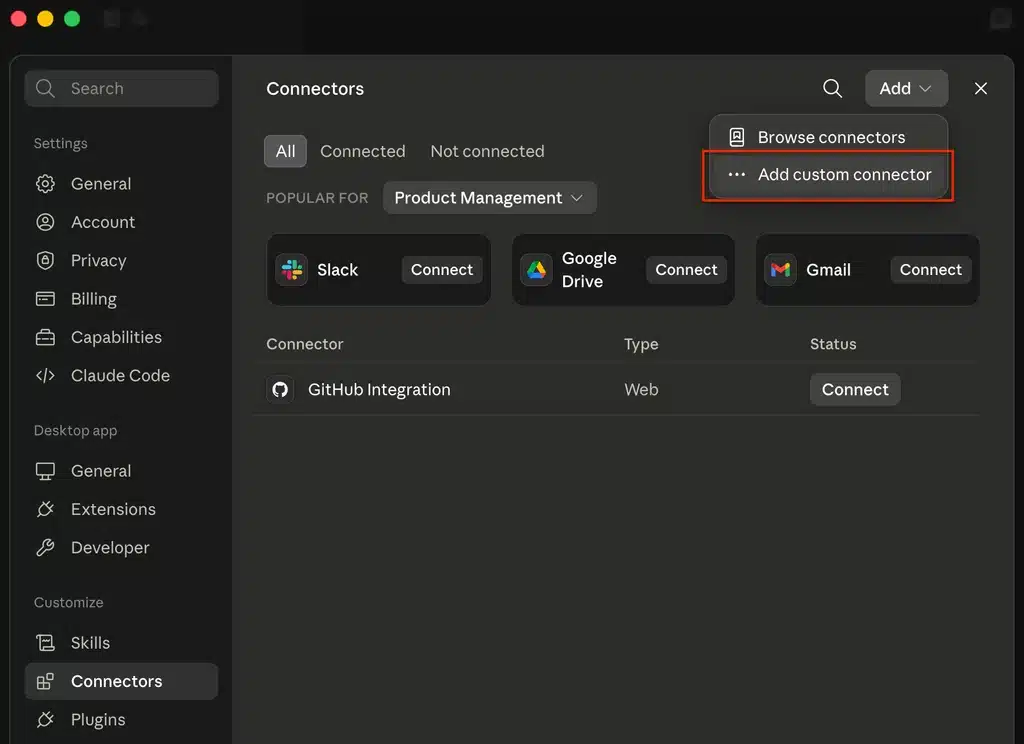
- Open Claude Desktop.
- Go to Settings → Connectors.
- Click Add and select Add custom connector.
Step 2: Configure your connector
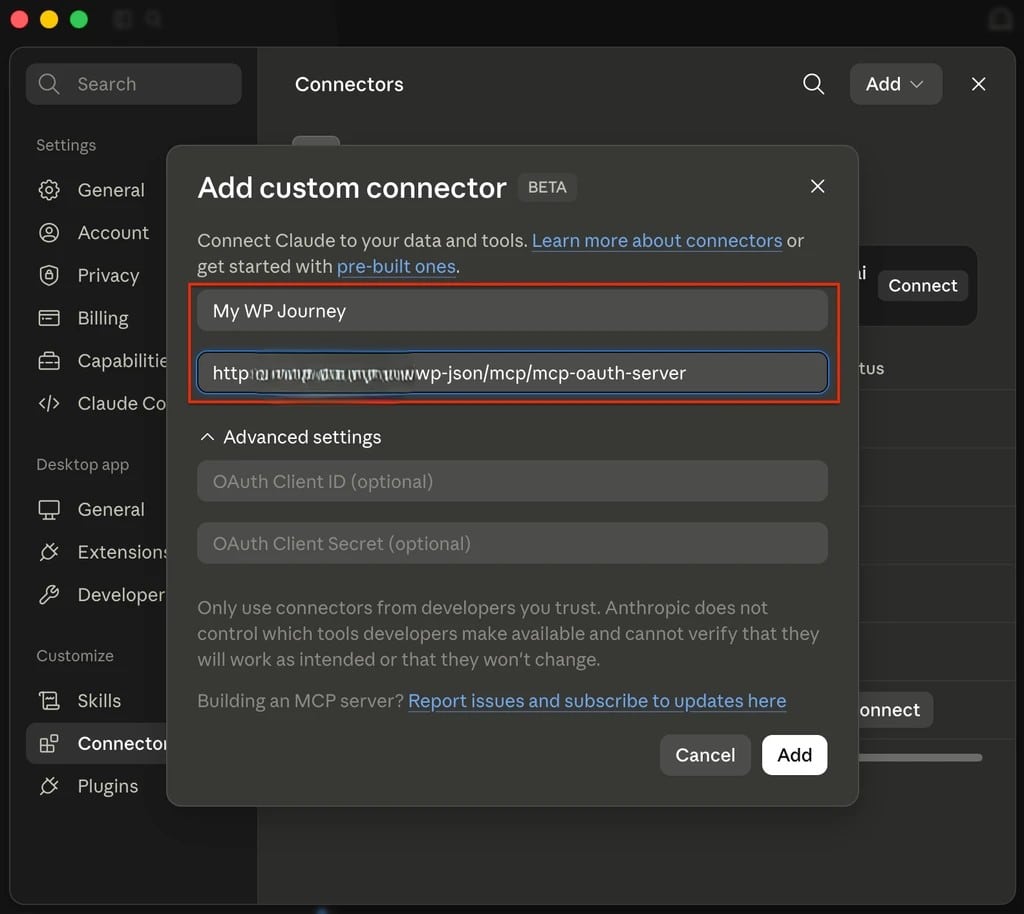
- Enter a name for your connector, such as your website name.
- Enter your Remote MCP server URL. Example:
https://your-website-domain/wp-json/mcp/mcp-oauth-serverℹ️ Note: you need to replace your-website-domain with your own full domain.
- Leave the OAuth Client ID and OAuth Client Secret fields empty.
- Click Add.
Step 3: Connect to your WordPress site
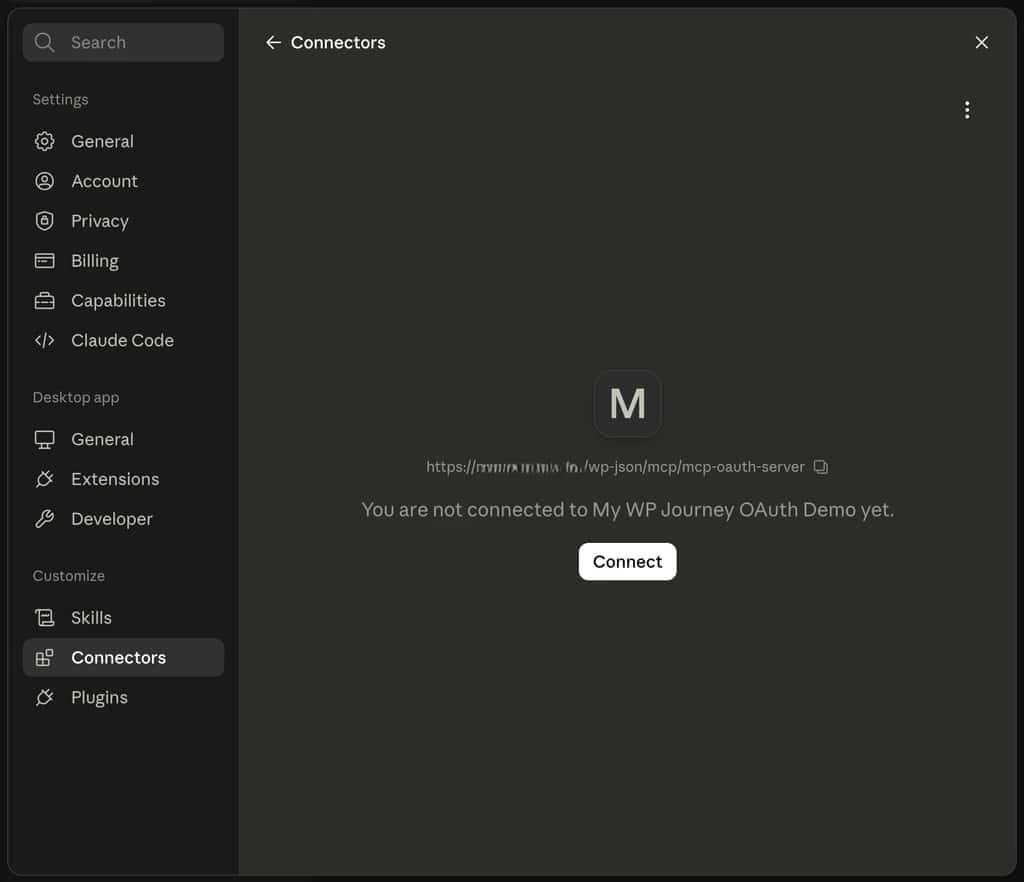
- The connection is picked automatically, just click Connect.
Step 4: Authorize via OAuth
Your default web browser will open to WordPress’s OAuth authorization screen.
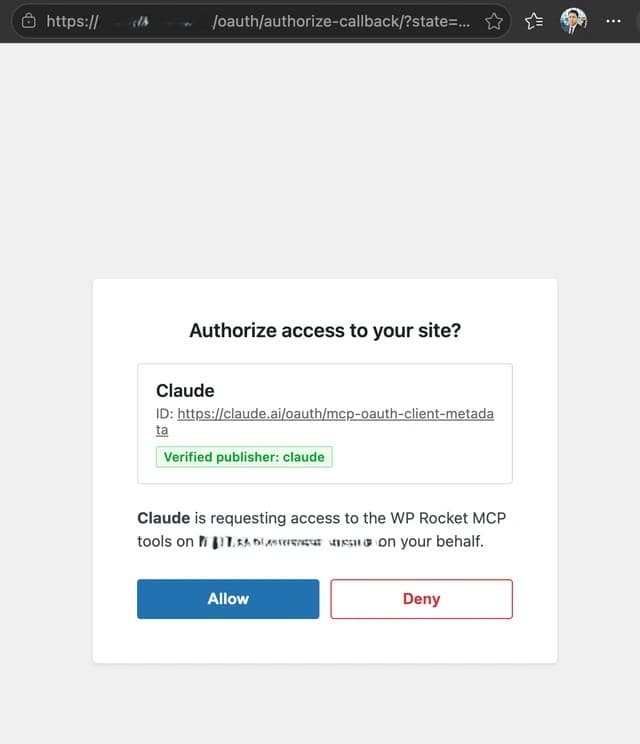
- Sign in to your WordPress administrator account if prompted.
- Review the access request: this shows exactly what Claude will be able to do on your site.
- Click Allow.
💡 Note: If you’re already signed in to WordPress, you’ll be taken directly to the authorization page, no extra login step needed.
Step 5: Verify the connection
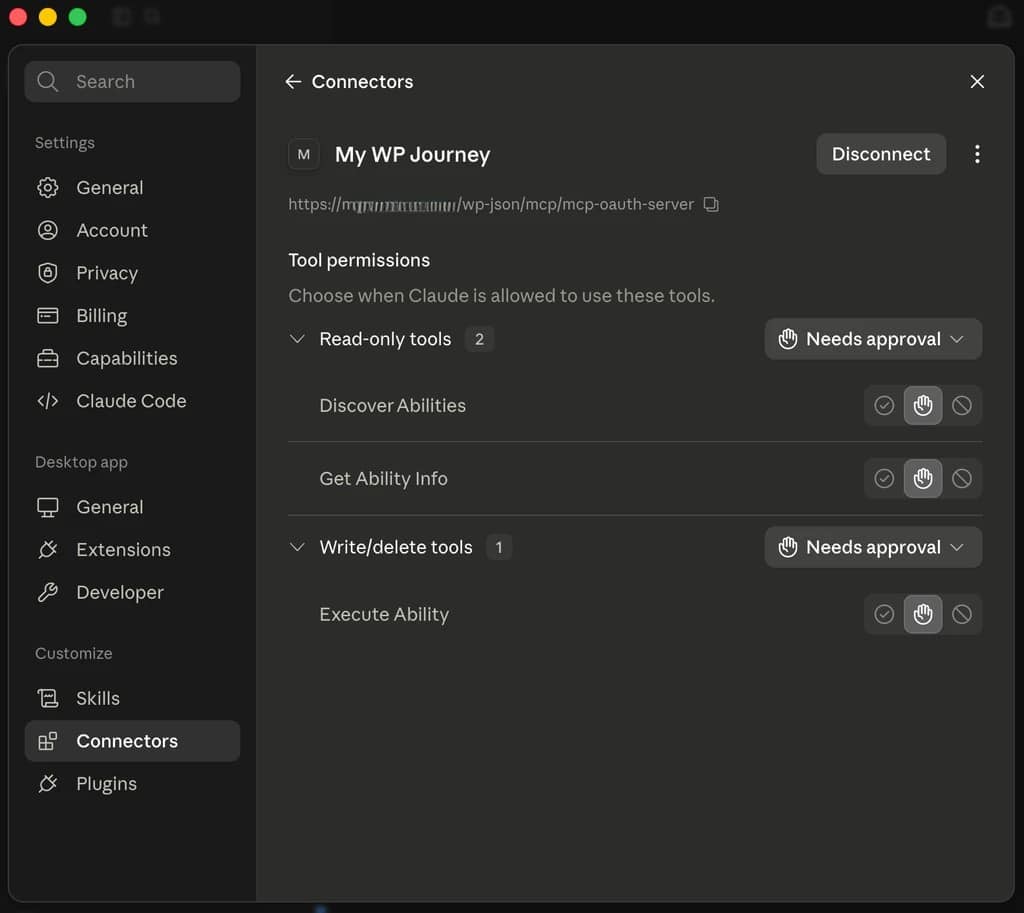
Claude Desktop (or claude.ai) is now connected to your WordPress site and ready to use with the available MCP tools.
Open a new Claude conversation and ask: “What MCP tools are available from my WordPress site?“
Claude should display the available WordPress and WP Rocket MCP abilities associated with your website, such as reading your Rocket Insights scores, adjusting settings, measuring the impact of changes, and more.
Now try your first real prompt
Ask Claude something like: “What is my speed score?“
Claude will pull your real performance data straight from Rocket Insights and give you an actual answer: no dashboard, no copy-pasting, just a conversation.
From here, you can ask Claude to:
- Summarize your latest performance report
- Identify which recommendations to apply first
- Enable a specific WP Rocket feature
- Generate a full performance report for a client.
Managing multiple sites
If you manage multiple sites, you need a Claude Pro or Max account. Then, just repeat Steps 1–4 to add another custom connector for each one. Claude will be able to work across all your connected sites in the same conversation. You can check on a client portfolio and create tailored reports without switching between dashboards among many activities.
💡 Note: If you use a free account, you can only have one custom connector and therefore you can connect to only one website.
What’s Next?
That’s it! With OAuth, one secure sign-in is all it takes: no passwords to store, no files to edit. Claude can now help you monitor, troubleshoot, and report on your sites, all grounded in your Rocket Insights performance data.
Want to see it in action? Check out more ways to use WP Rocket MCP and leverage your AI tool to grow your business. 🚀
